
Actions define the “how” behind achieving a goal or objective: what team members need to accomplish, in the allotted time, in order to reach the defined goal.
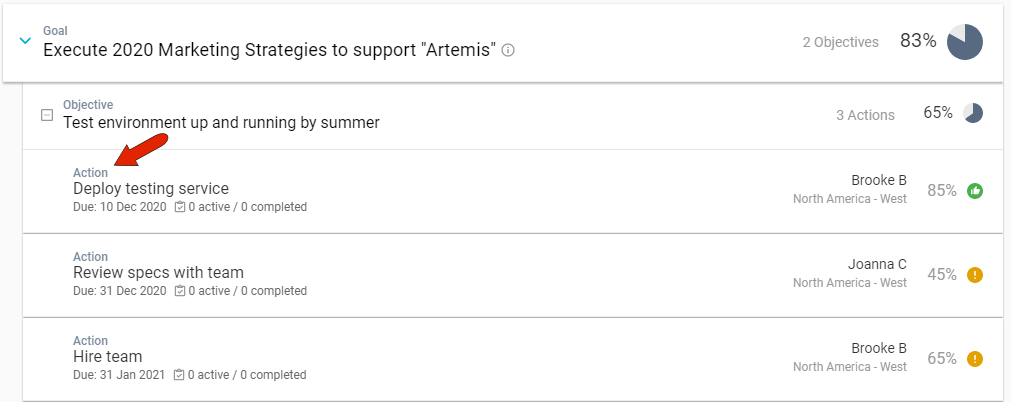
All action plan goals are broken down into ownable and timed actions. If the action plan structure is configured by the administrator as Advanced (3 levels), actions are added to objectives. For an Intermediate (2 level) goal, actions are added directly to goals. And for a basic goal (1 level), the goal is itself the action.
Actions can be added manually to an objective or goal, or, if you’re working with a pre-populated goal template, you can edit or add any action to suit your needs.
Note: If an account note or SWOT item contains an actionable item, you can use the item text to generate an action.
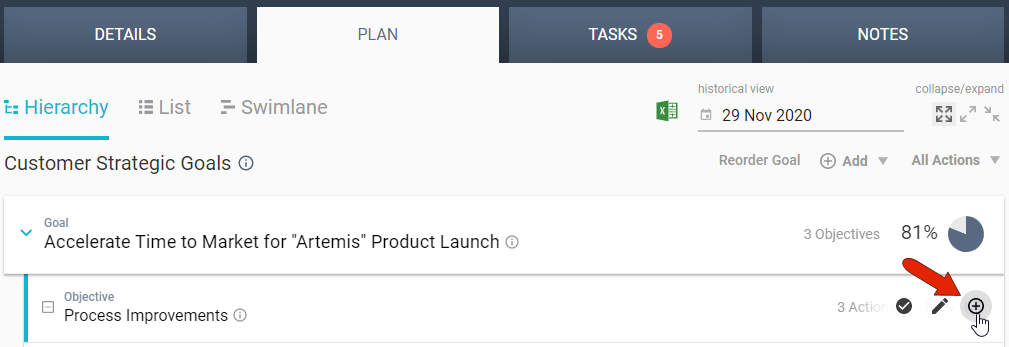
To add an action manually, start in the Hierarchy section of the account’s PLAN tab. Hover over the objective or goal where the action is to be added, and click the Add Action icon.
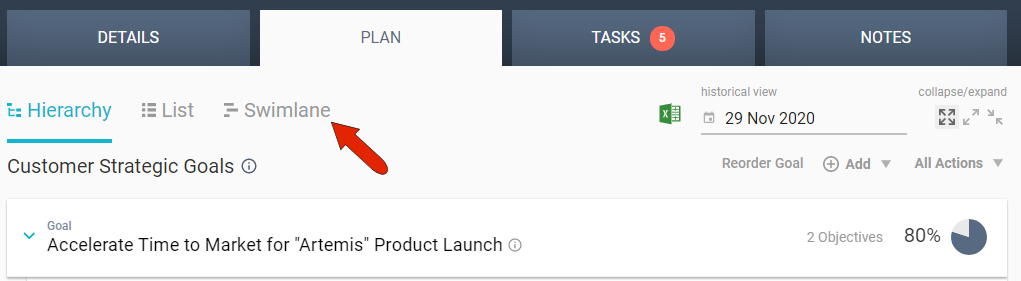
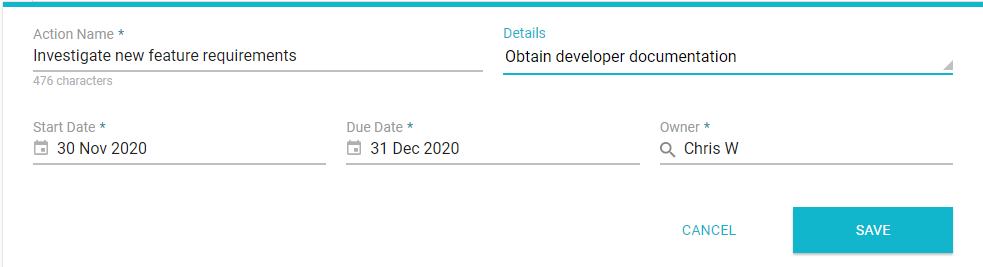
Enter a detailed action title, optional details, and set the start and end dates. Due dates are listed in the Hierarchy view and List view, and are used to create the visual timeline Swimlane view.
If you’re editing a pre-populated action from a goal template, the time allocated for each action will be applied from the date you set as the start. By default, the owner is listed as the account manager, but this can be changed to any team member contributing to this account.
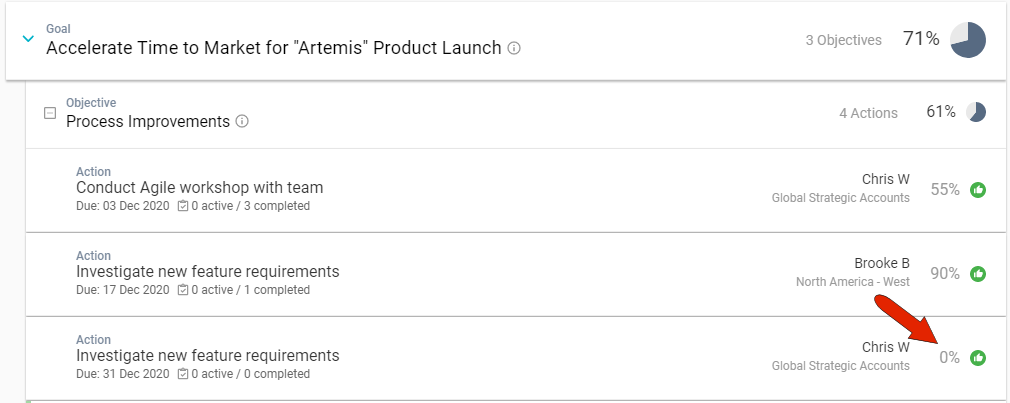
After the action is saved, it will be listed with its due date and with zero percent completion.
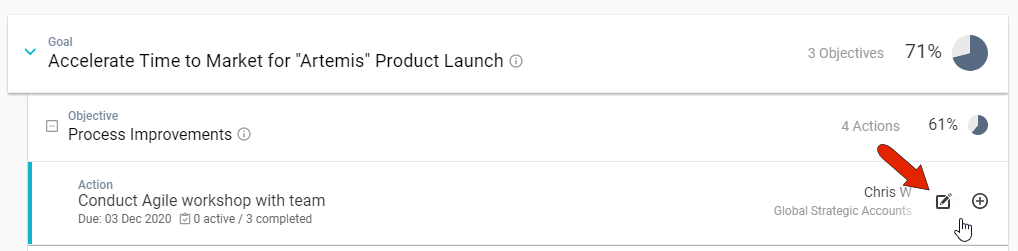
Hovering over an action displays icons at the right, which can be used to update the action or add tasks.
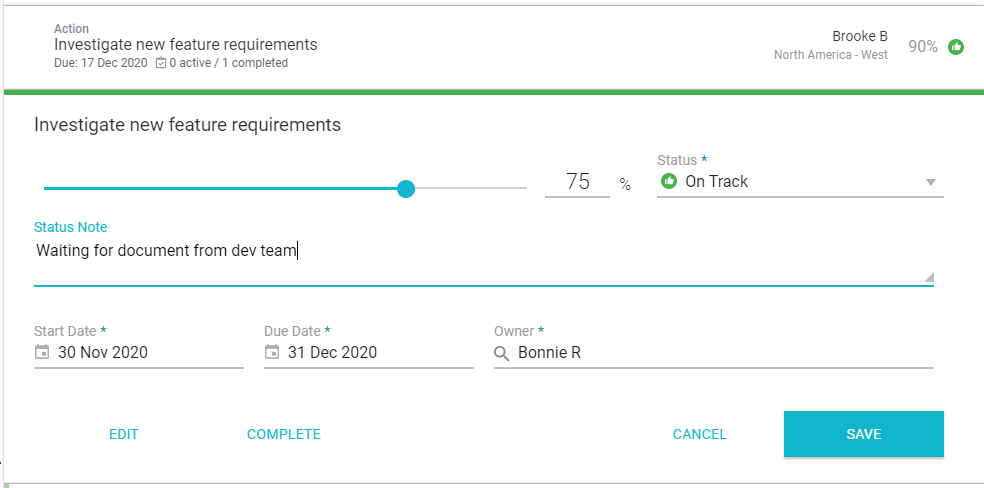
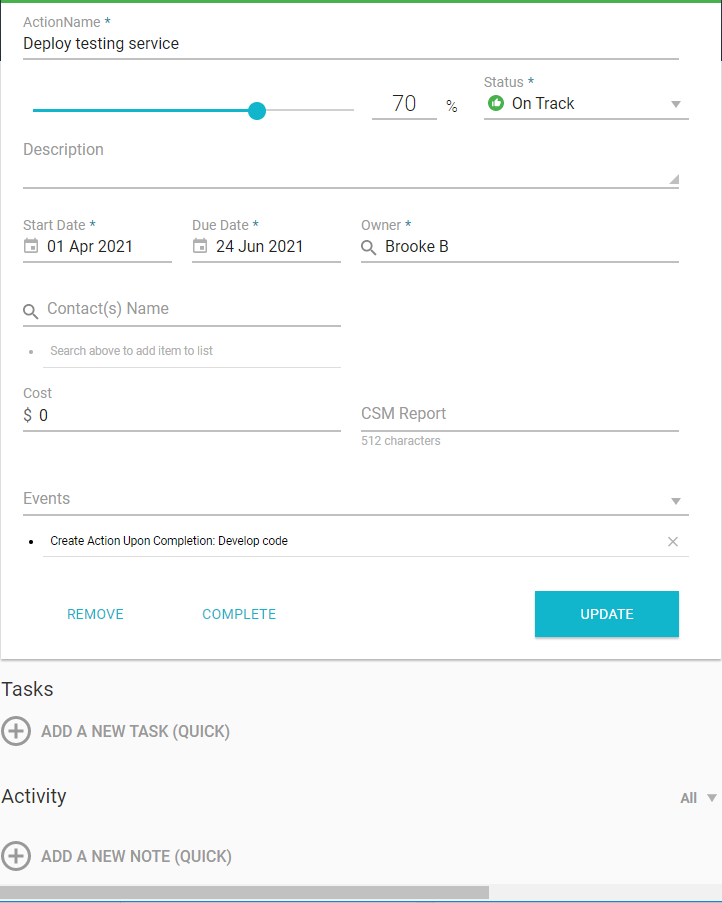
Updating an action enables you to edit any of its details, and also to set its percent compilation and status. It’s important to regularly update each action, so that Kapta can track the progress of goals and objectives.
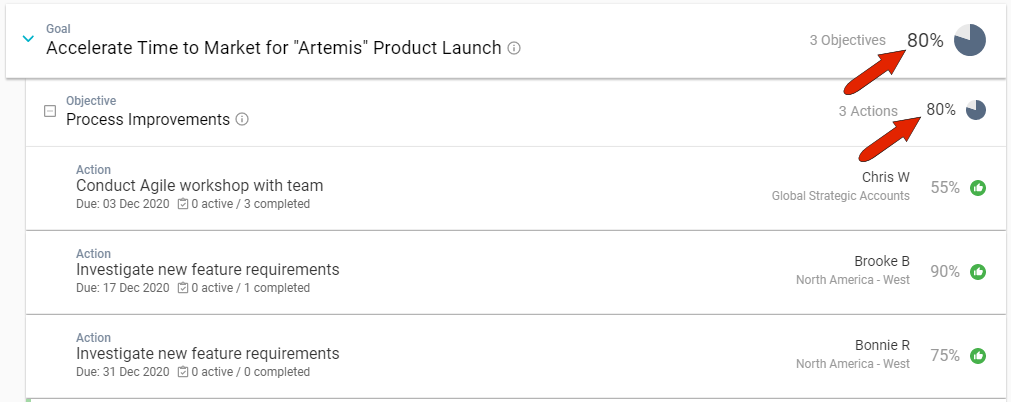
Once updated, the percent completion of the action will also update the completion of objectives and goals.
Clicking an action opens its details page. At the top of this page you can update, complete, or remove the action. You can also include one or more events: an email, action, task, or template that will be launched when the action reaches a specific threshold or condition. At the bottom of this page, you can add tasks to this action, notes about this action, or documents about the action.
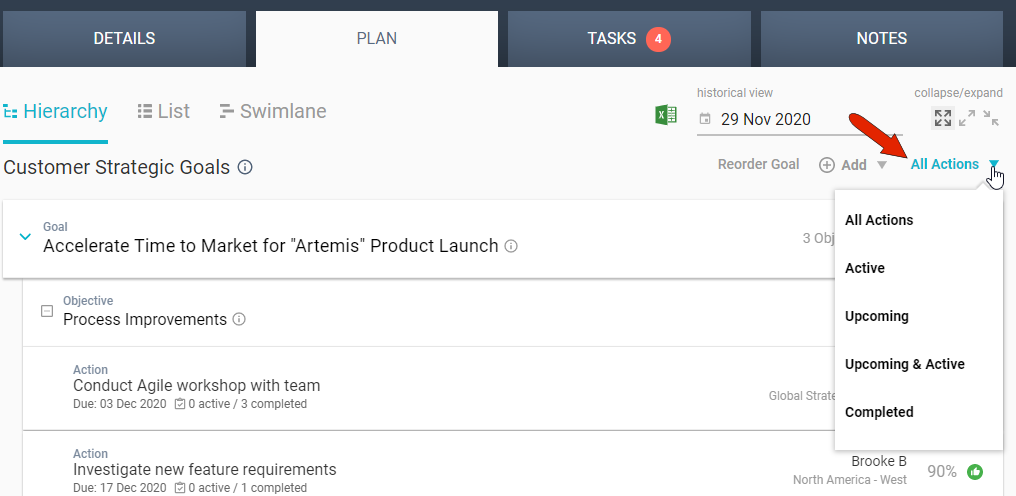
By default, an account's PLAN tab lists all actions. But you can use the filter drop-down at the top right to display only actions that are active, upcoming, both active and upcoming, or completed.
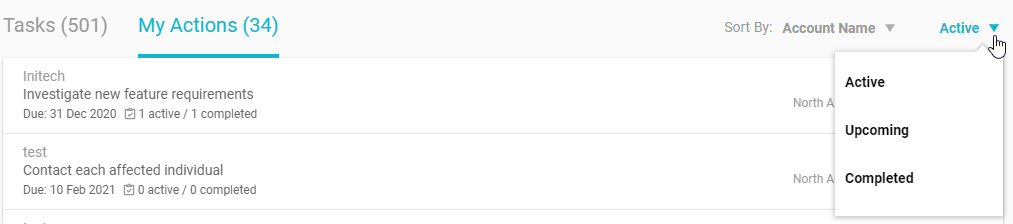
Actions assigned to you also appear on your Dashboard, under My Actions in the HOME tab.
Comments
0 comments
Please sign in to leave a comment.