
Tasks are typically small, ownable pieces within an action, that can be completed quickly, such as a customer check-in email or preparing a report. Actions do not require tasks, and tasks are binary - either complete or incomplete.
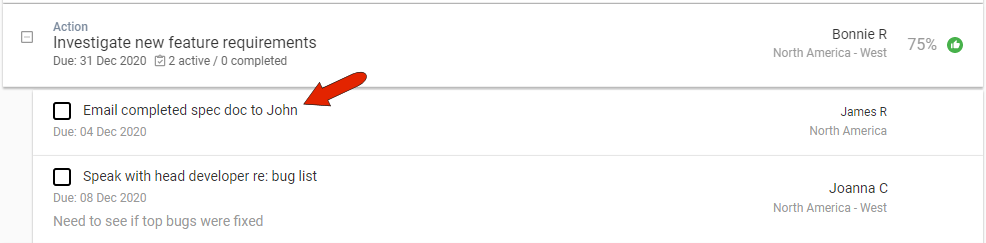
There are several ways to create and assign tasks in Kapta, and one of those ways is to assign tasks to an action.
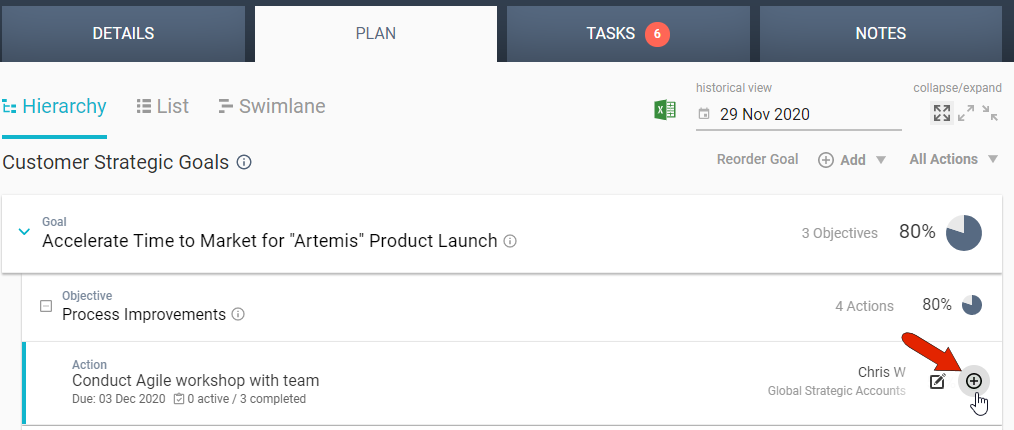
To add a task to an action plan, start in the Hierarchy section of the account’s PLAN tab. Hover over the action where the task is to be added, and click the Add Task icon.
Enter a detailed task title, an optional description, due date, and choose the task owner from the team members managing or contributing to this account. If this is a recurring task, such as a weekly call, choose the start date and frequency.

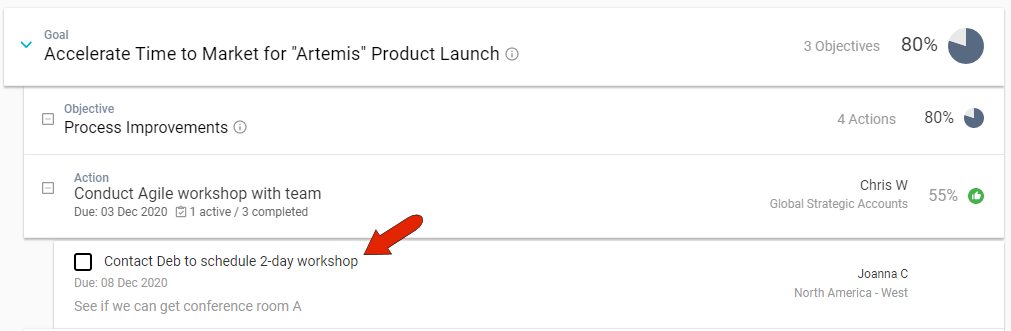
Once saved, the task appears as part of its action.
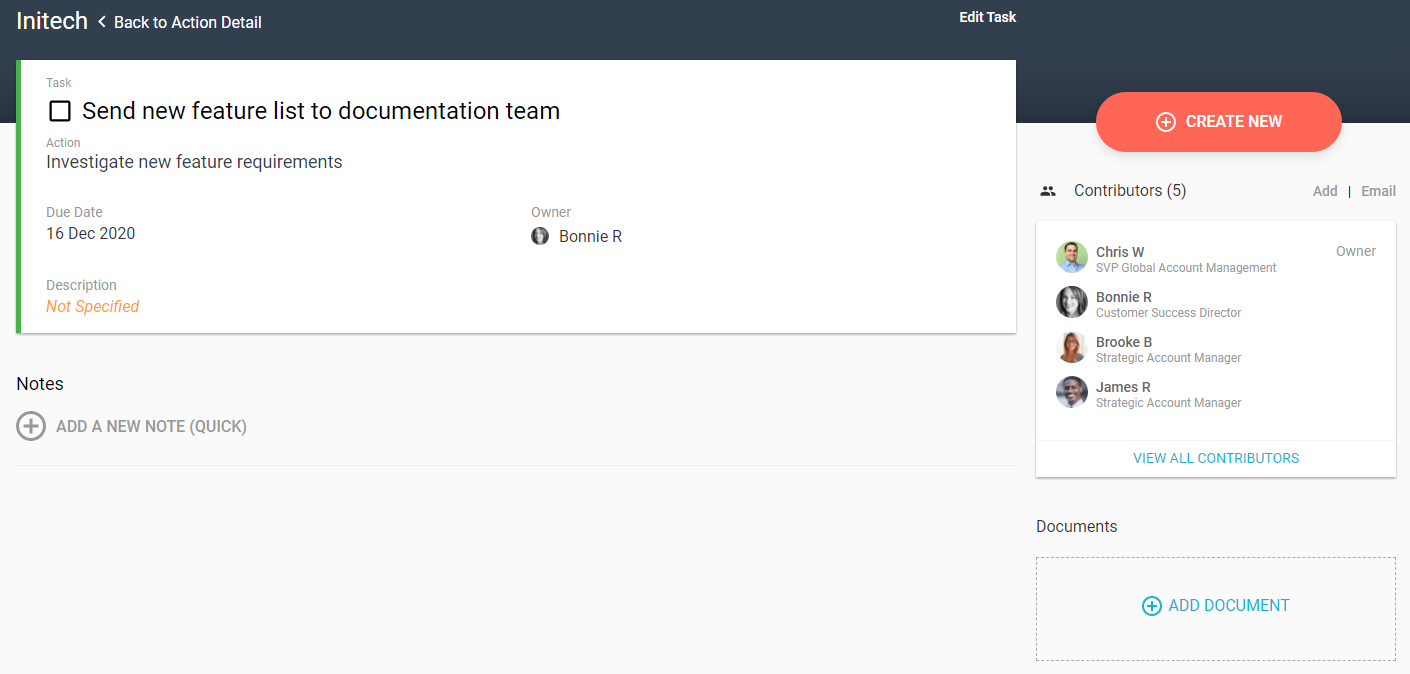
Clicking on a task opens its details page, where you can add task notes or task documents.
Back in the action plan, hovering over the top left corner of a task displays icons at the left that can be used to mark the task as complete, edit task details such as adding a contact name, or mark as complete while adding a note.

Tasks that are marked as complete will disappear from the action plan, but the action will list the number of completed tasks.

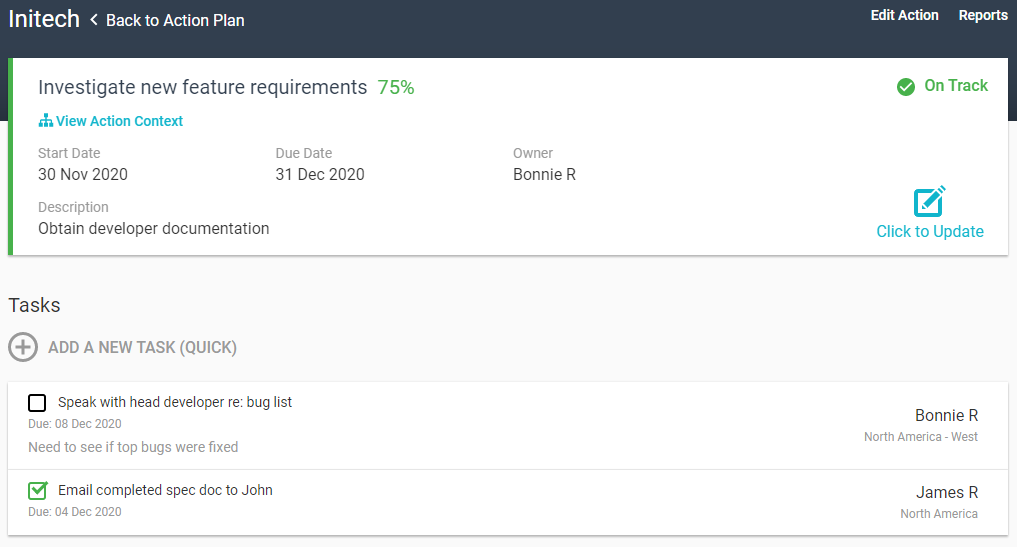
Clicking an action opens its details page, where you can see all tasks, complete and incomplete.
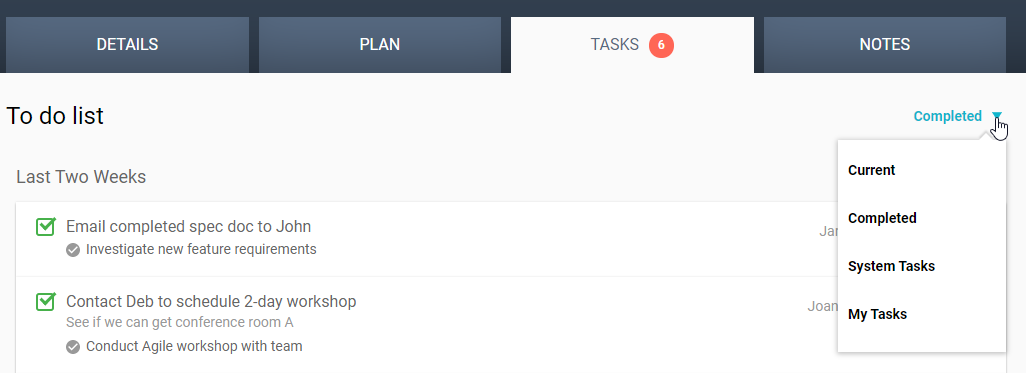
All action task are also listed in the account’s TASKS tab. You can filter the list to show current or completed tasks, system tasks, or your own tasks.
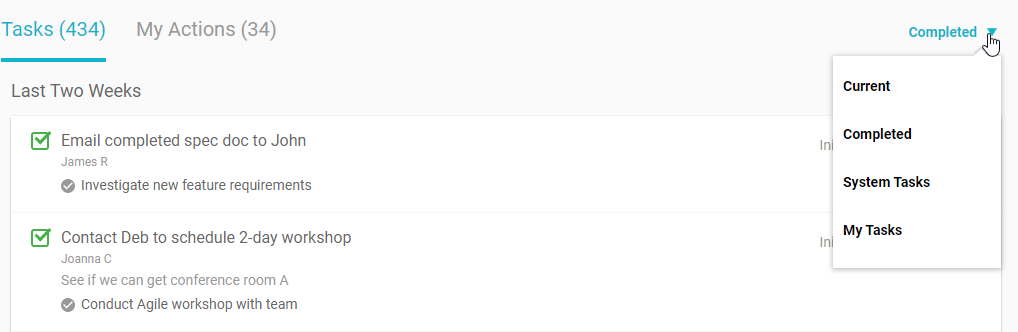
Account tasks also appear on your Dashboard, in the Tasks section of the HOME tab.
Comments
0 comments
Article is closed for comments.