
Notes in Kapta are, in essence, your collaboration platform.
Using notes to document customer conversations, meetings, tasks, and actions, is crucial for keeping everyone on your team up to date on what’s going on with the account. A set of comprehensive and timely notes provides a running record of account activity, maintains transparency across the account team, and helps keep your finger on the pulse of what your customers want.
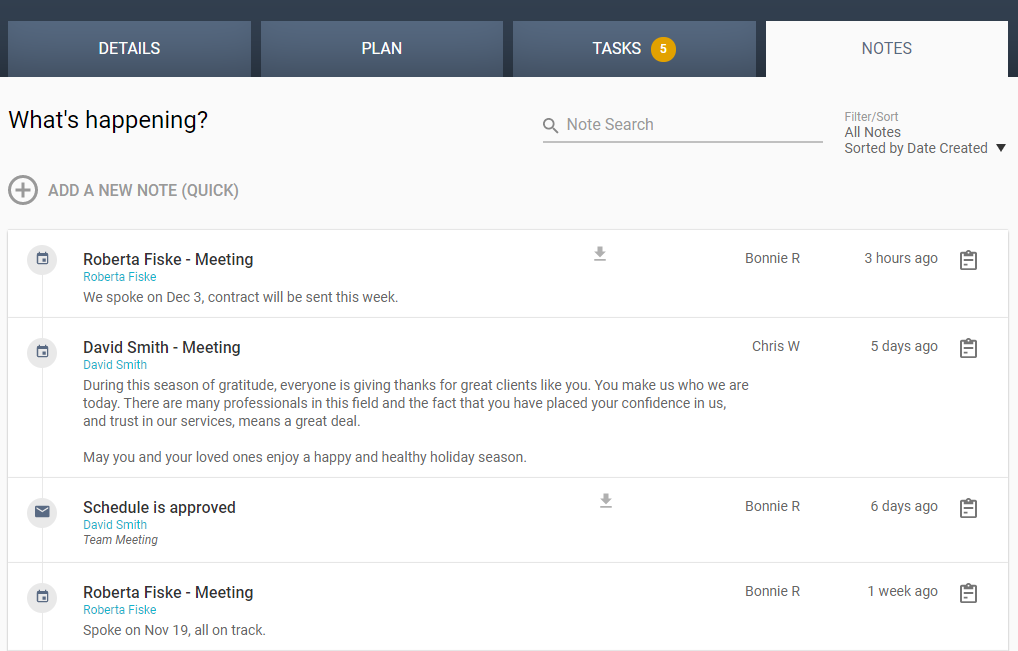
There are several ways to add a note to an account:
- Create New Note
- Quick Note
- Key Player / Contact Conversation (email, phone, meeting)
- Action Notes
- Task Notes
You can also generate note reports.
Because our health score algorithm charts account activity, it’s important to create notes all the time while working in Kapta. When configuring health score calculations, we recommend that the administrator chooses to include Freshness as a factor. Freshness measures time since the most recent account-related note.
All notes are listed on the account’s NOTES tab, and include the user who created the note, when it was added, and when relevant, the contact the note is from or about. A note that includes a document will include a download icon.
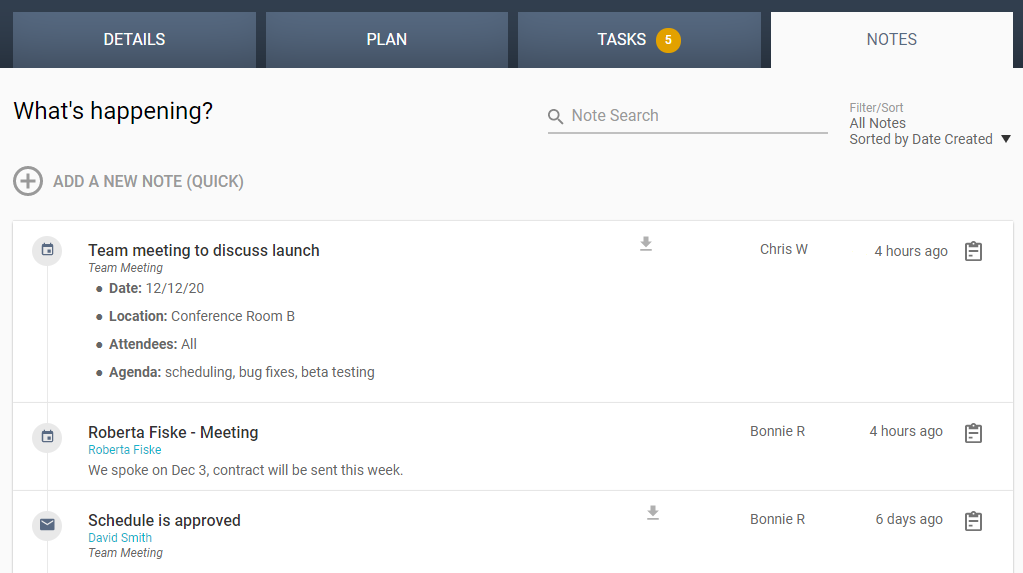
You can click a note title to edit to remove a note, or use the Show Report icon to download a PDF version of the note.

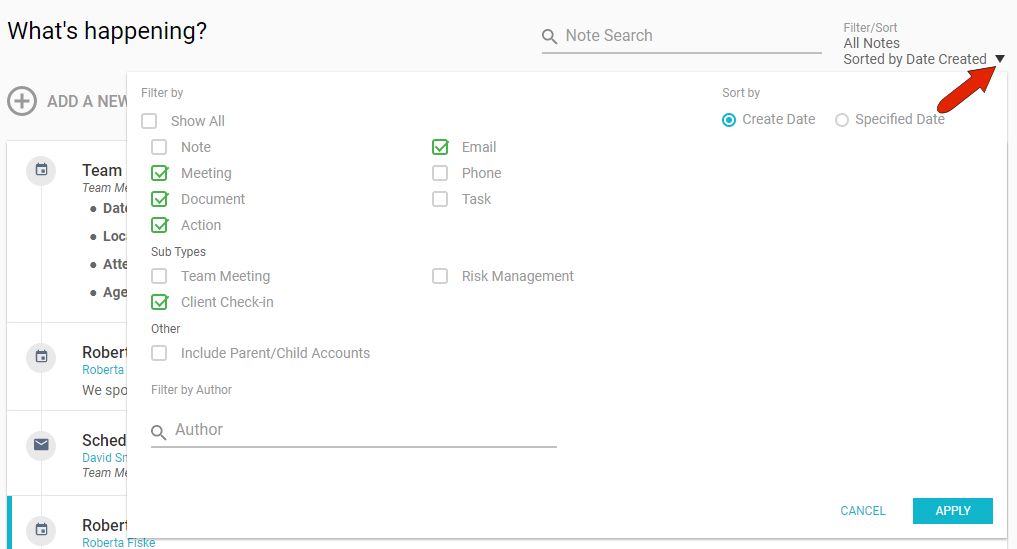
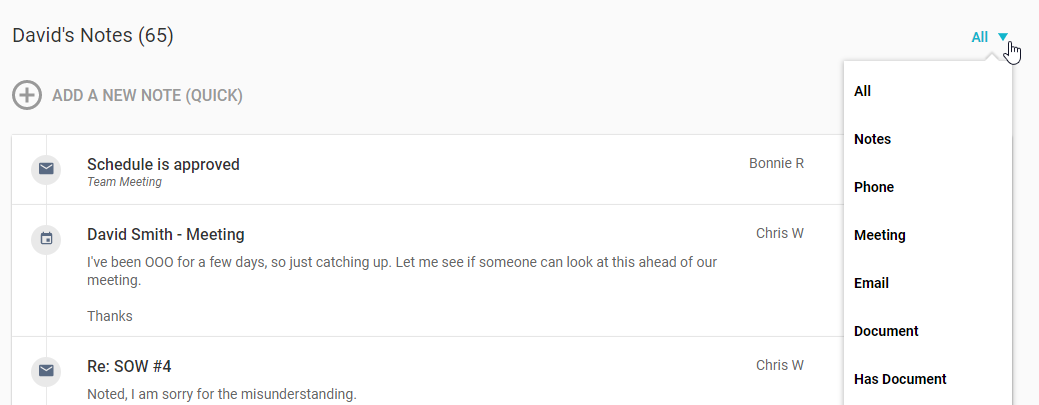
By default, all notes are displayed, but you can use the Filter drop-down to display only notes of certain types or sub-types, or by certain authors or dates.
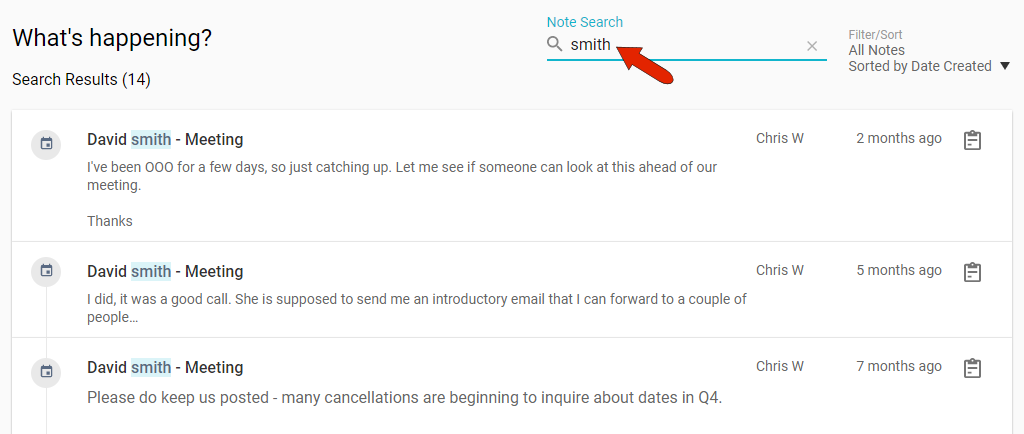
The list of notes is searchable. Enter any term, such as a name or date, and all notes that include that term will be found.
If a note is linked to a contact, the contact name will appear as a link.

Clicking the contact link opens the contact’s profile page, where in addition to basic contact details, all notes linked to this contact are listed. By default, this list includes all notes, but you can use the Filter drop-down to show only a certain type of note.
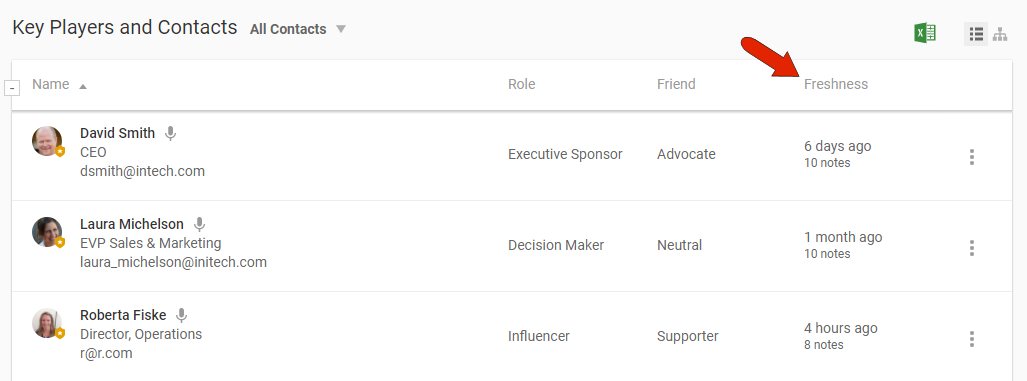
Notes also play an important role in the Key Players and Contacts section of an account’s DETAILS tab. The Freshness column lists how much time has passed since the last note linked to this contact. We recommend checking here often, to ensure that regular contact is being maintained with your customer.
Comments
0 comments
Article is closed for comments.