
Account-related documents can be uploaded in several different ways. In addition to adding a document directly in an account’s DETAILS tab, you can also include documents as part of a contract, opportunity, note, action, or task.
Note: You can also create team documents, which are not linked to accounts.
All uploaded documents are listed in the Documents section of an account’s DETAILS tab.
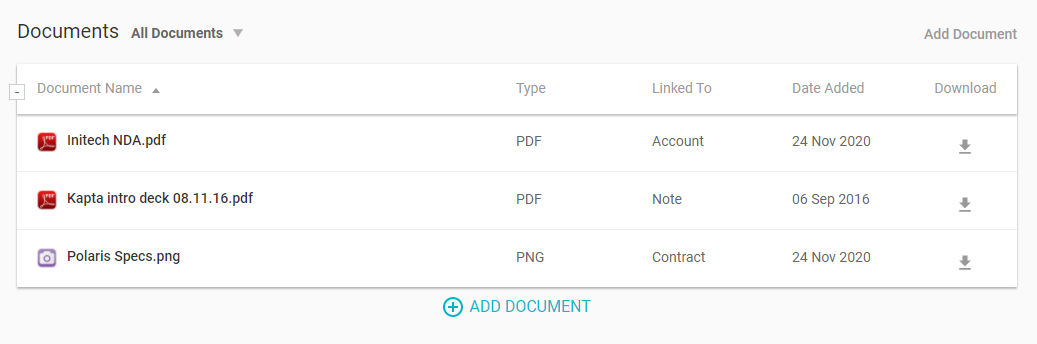
Documents uploaded directly to the account’s DETAILS tab are typically general, company-related documents such as presentation decks, spreadsheets, NDA, or marketing materials.
To add a document, click the Add Document link, and choose whether the upload is a file, Google Doc, or SharePoint Doc.
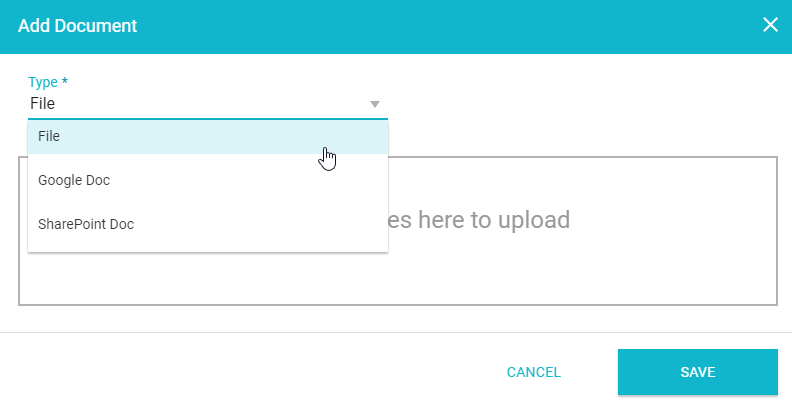
Add links or upload as needed, and save. Each documents is listed with its file type, which part of the account they are linked to (the type is Account if uploaded via the account's DETAILS tab), and date added. Each document also has a Download icon.
To replace or delete a document, click its filename.
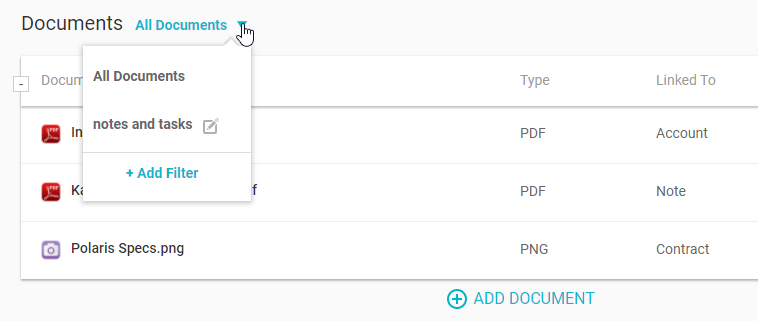
By default, all documents are displayed. The administrator can set up system-wide filters for documents, and you can set up your own filters for use in your own account. As an example, you can filter to show only documents linked to notes or tasks.
Comments
0 comments
Article is closed for comments.