
The goal of an action plan is the customer’s problem you are trying to solve, using your company’s products and services. Each action plan must have at least one goal.
There are three ways to create a goal:
- Manually from scratch
- From a template
- From within a contract or opportunity.
Note: If an account note or SWOT item contains an actionable item, you can use the item text to generate a goal.
You can also copy goals from one account into one or accounts.
Creating a goal manually from scratch
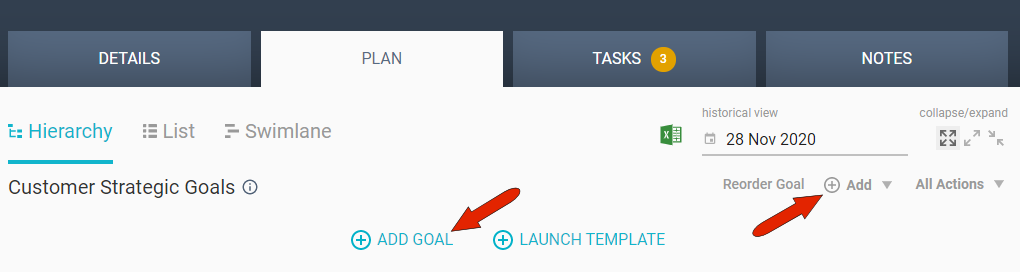
To add a goal manually from scratch, start in the Hierarchy section of the account’s PLAN tab. For the plan you’re working on, such as Customer Strategic Goals, click the Add Goal link, or choose Add New Goal from the Add drop-down.
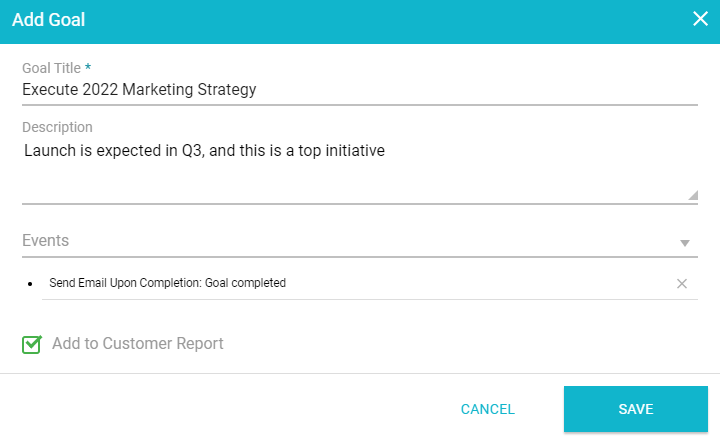
Enter a detailed goal title, an optional description, and set whether this goal will appear in the Customer Report. A goal can also include one or more events: an email, action, task, or template that will be launched when the goal reaches a specific threshold or condition.
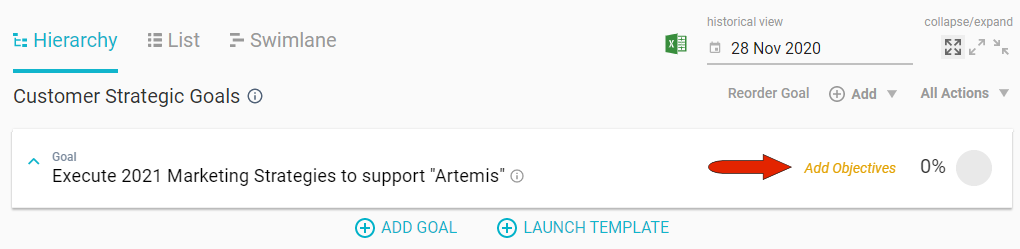
After saving, if the goals in this action plan were set by the administrator as Advanced (3 levels), you’ll be notified to add objectives. For an Intermediate (2 level) goal, you’ll be notified to add actions. And for a Basic goal (1 level), the goal is itself the action.
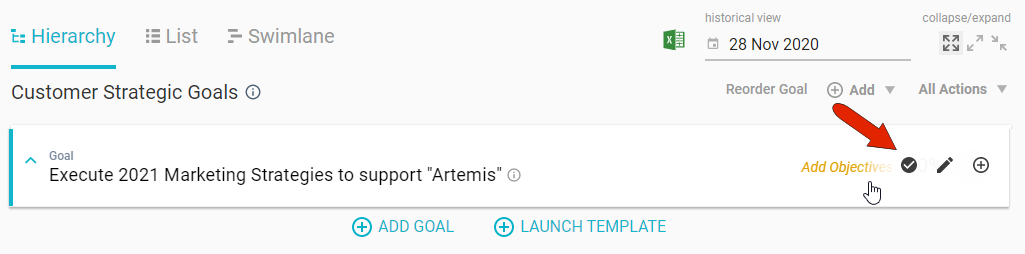
Hovering over a goal displays icons at the right, which can be used to mark the goal as complete, edit the goal title or description, or add an objective or action.
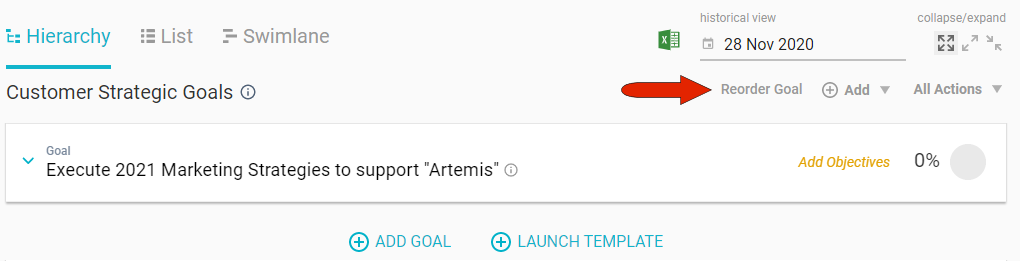
New goals are placed after any existing goals. You can use the Reorder Goal link at the top right to change the order of all goals, objectives, and actions within goals.
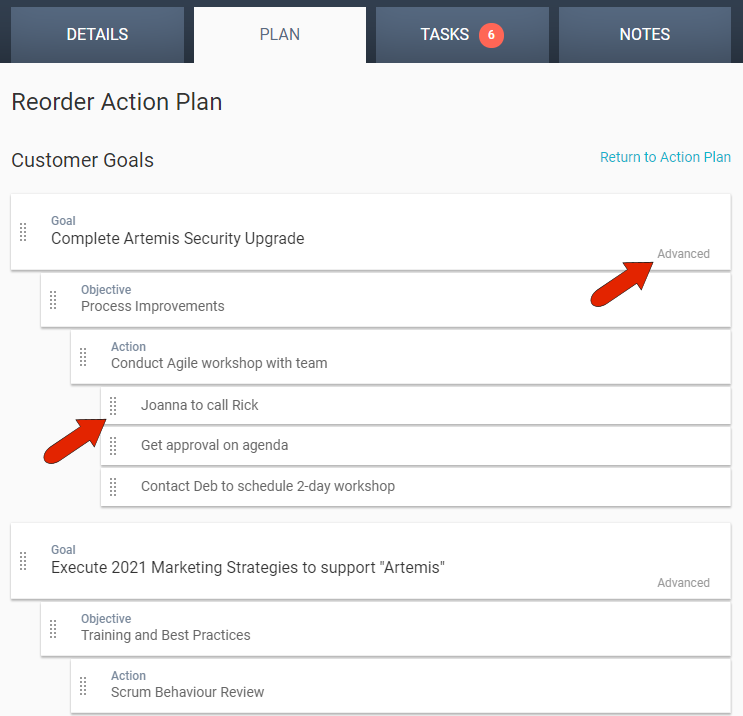
To reorder a goal, objective, or action, drag it by the dotted icon to the left. Each goal is labeled as Advanced, Intermediate, or Basic, so that it's clear what types of items the goal can contain.
Creating a goal from a template
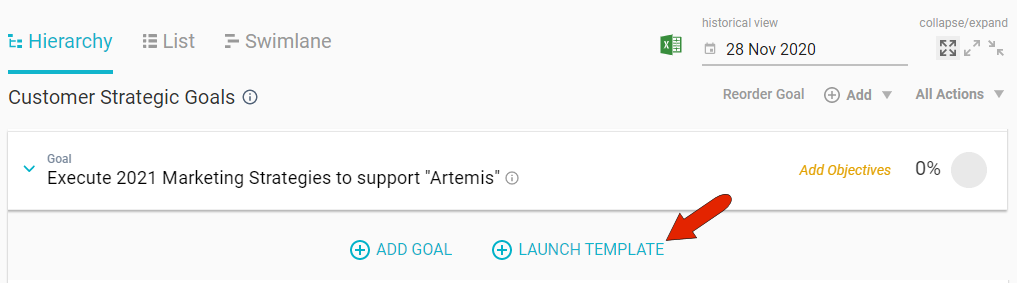
If your administrator has set up and launched pre-populated goal templates, you can use the Launch Template link to bring in the template you want, which can then be edited to suit your needs.
Creating a goal from a contract or opportunity
Find the contract or opportunity in the account’s DETAILS tab, and click the Create Plan link.
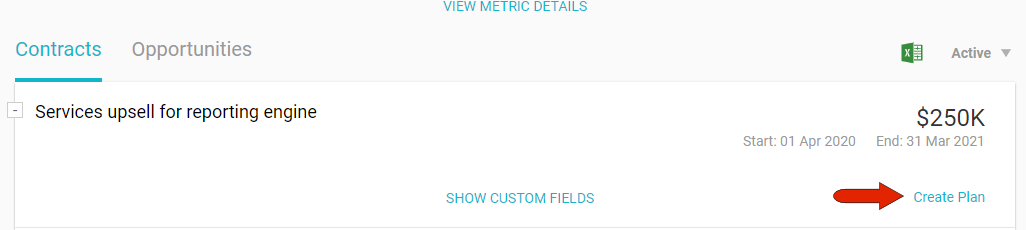
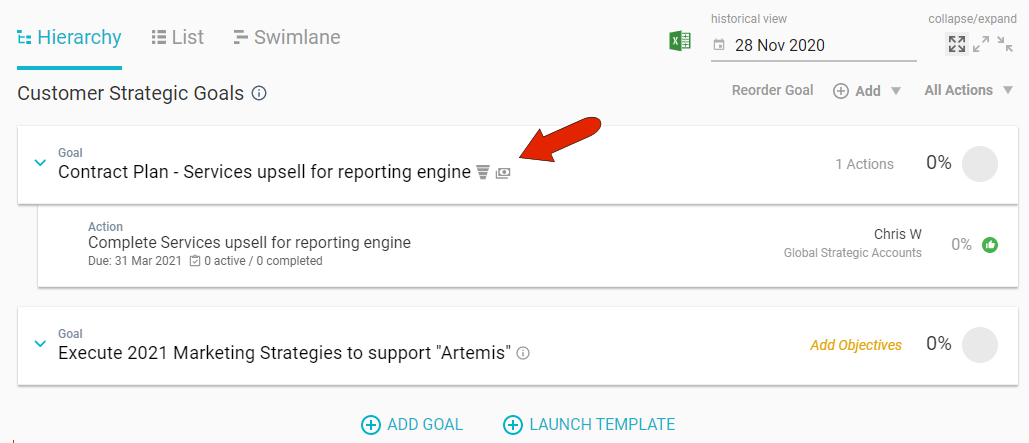
You can choose to create the plan from scratch or from a template. Once created, the plan will appear on the PLAN tab. Goals that have been created this way have icons that link back to the contract or opportunity from where they originated.
Comments
0 comments
Article is closed for comments.