
In an account’s PLAN tab, users can add goals, objectives, and actions as part of two default plans: the customer’s strategic goals and your company’s strategic goals. Any other plans configured by the admin will also appear here.
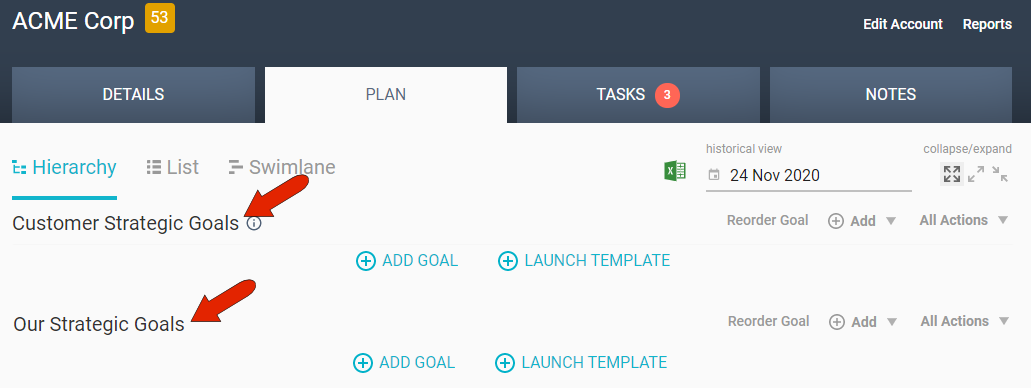
Users can create their own goals toward both of these plans, or, for standard tasks, they can launch and fill out pre-made plan templates.
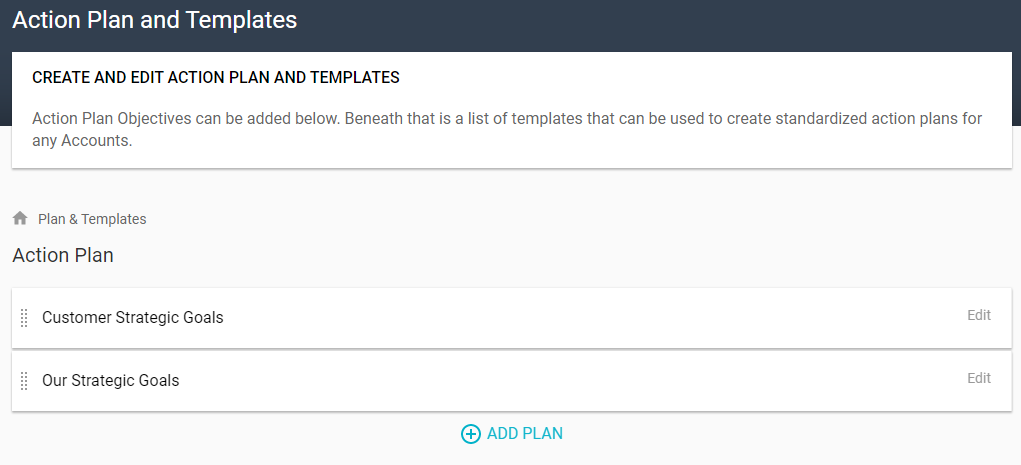
Plans and templates are configured by the administrator in the Plans and Templates Settings. At the top of this page are the two default plans that all users see. You can add another plan, or edit either existing default plan, to rename or to change the plan's leveling structure.
There are three plan levels:
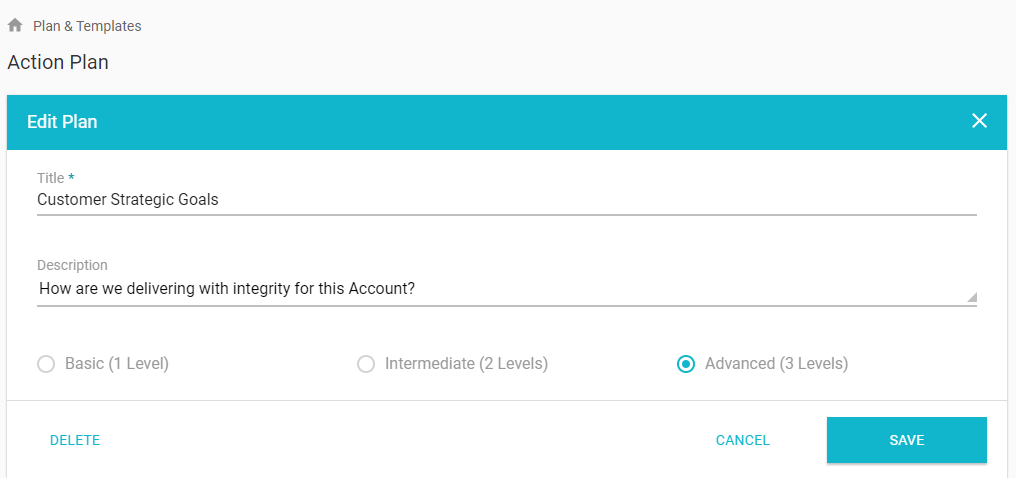
- A Basic (1 Level) plan contains only goals, and the goals themselves serve as actions.
- An Intermediate (2 Levels) plan contains goals, to which one or more actions can be added.
- An Advanced (3 Levels) plan contains goals, to which one or more objectives can be added. Actions can then be added to each objective.
Plan templates are pre-populated goals that your team uses repeatedly. Each template is designed to be added to a specific plan: customer goal plans, internal goal plans, or any other plan set up by the administrator.
Several sample templates are provided in your account, for common tasks such as customer onboarding or customer handoff.
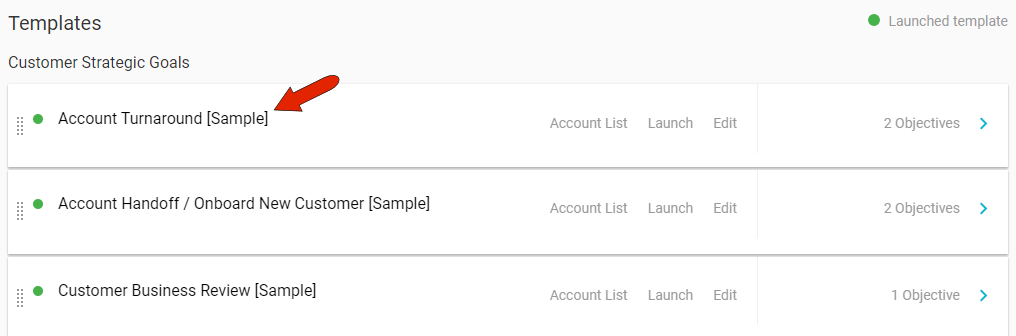
We recommend looking through a few of these to see how they’re set up. If you choose to use a provided template, you can customize every part of it to suit your needs. And when a user launches a template, they can also make their own changes: adding or changing objectives and actions, creating and assigning tasks, etc.
Note: Templates can include events - emails, actions, tasks, or other templates - that are triggered by a threshold or other condition relating to the template.
At the goal level of a template, you can click the Edit link to change goal name, plan, or description. If you plan to make this template available to users, we recommend removing [Sample] from the template name. Or users can edit the goal name after launching the template.
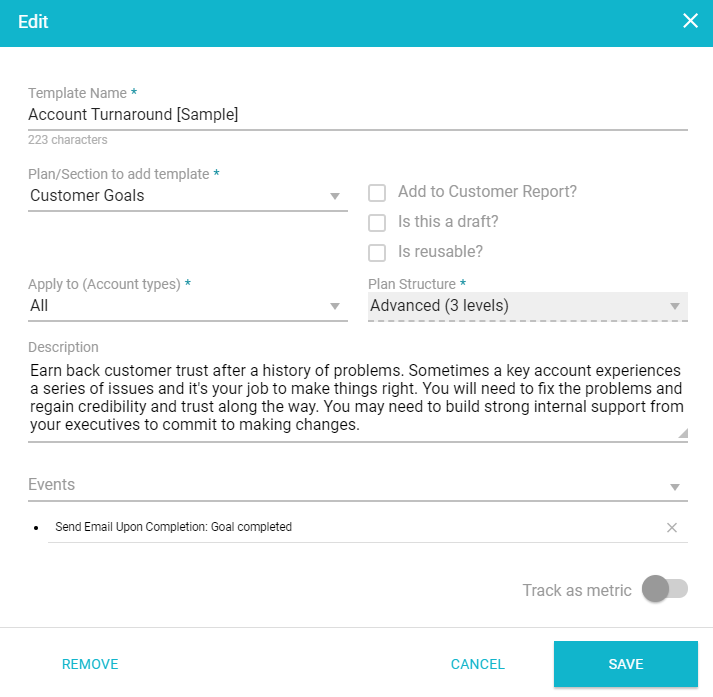
You can also set which accounts this template can be used for, whether to let customers see the goal in reports, or whether to set the template status to draft.
To edit objectives within a template goal, click the Objectives link.

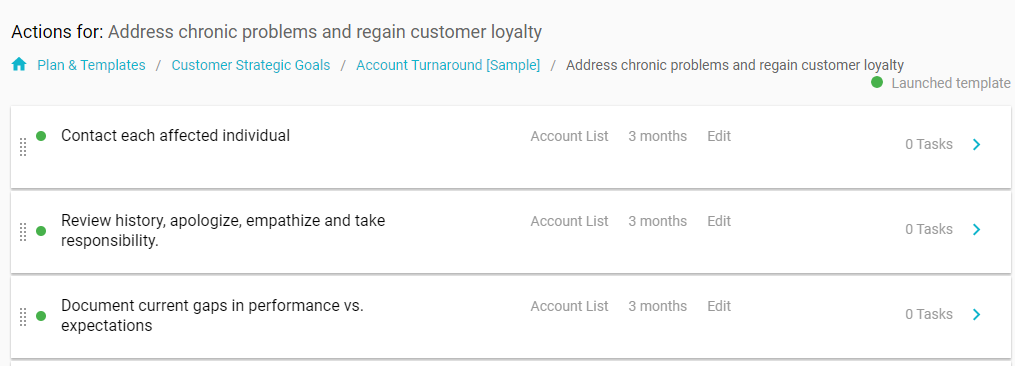
Here you can edit each objective, add a new objective, or drill down into actions and edit those as well.
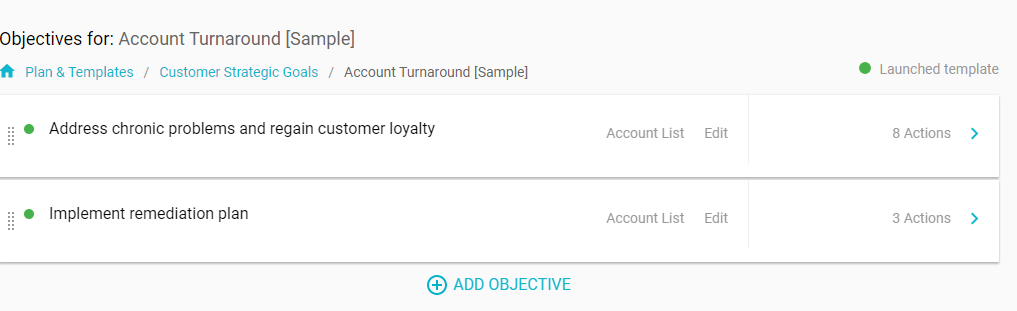
Actions need to have an assigned duration. And within each action, you can also create tasks.
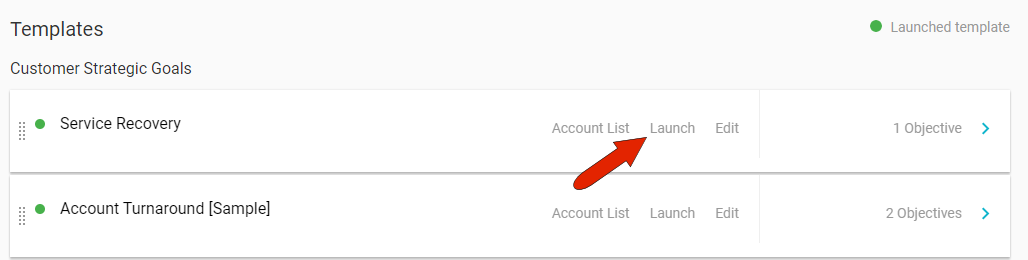
Back at the template level, click a template's Launch link, to start the process of making it available to users.
In the the launch steps, you'll first choose which objectives and actions you want enabled. The next step sets the accounts that can use this template, and after the final preview step, you can click Launch.
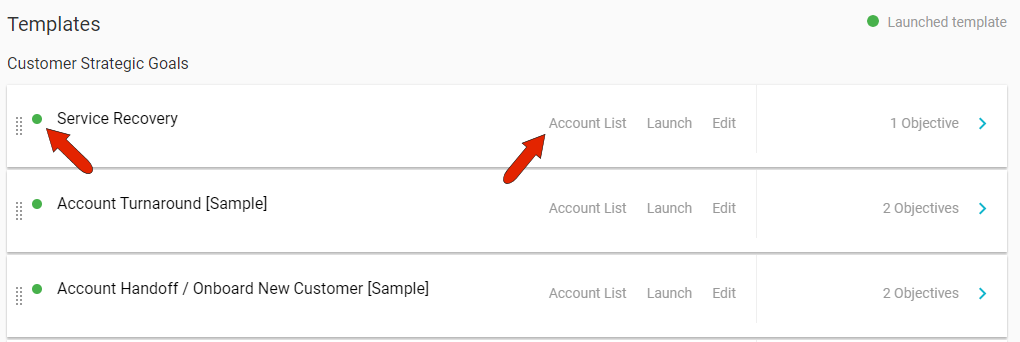
Launched templates are indicated with a green dot, and you can click Account List to see which accounts are using this template as part of their action plan.
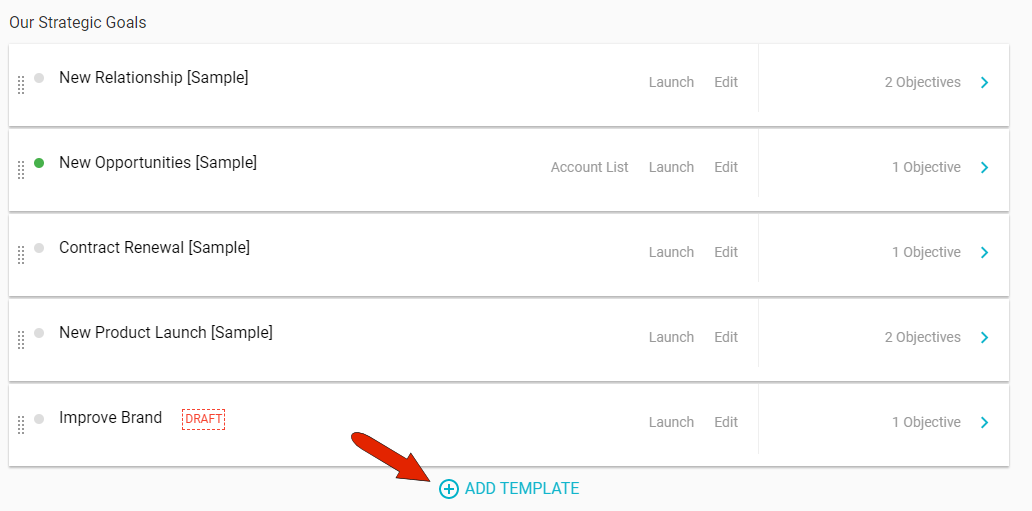
You can also create template goals from scratch, which involves creating all objectives and actions manually.
Comments
0 comments
Article is closed for comments.