
Turning on your Salesforce integration
The salesforce integration is a configurable one way or bidirectional integration. In order to enable it you must follow the directions for creating an Oauth App in Salesforce. Base on the version of Salesforce you have please use the following instructions
Instructions on how to create a Custom OAuth App in a non-lightning Salesforce setup.
Instructions on how to create a Custom OAuth App in a Lightning Salesforce setup.
Once this is done you will need to enter the following
Step 1: You will need to be an experienced Salesforce administrator, or help from someone who is. This integration requires just one user login, reducing your Salesforce license needs. You will also have the ability to push / sync data to and from Salesforce.
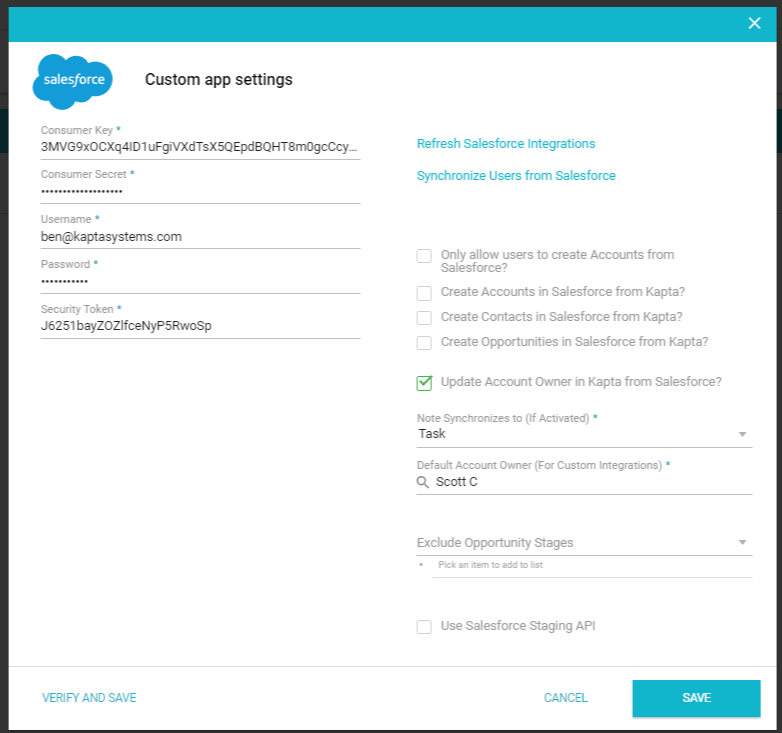
You will be presented with the following form:
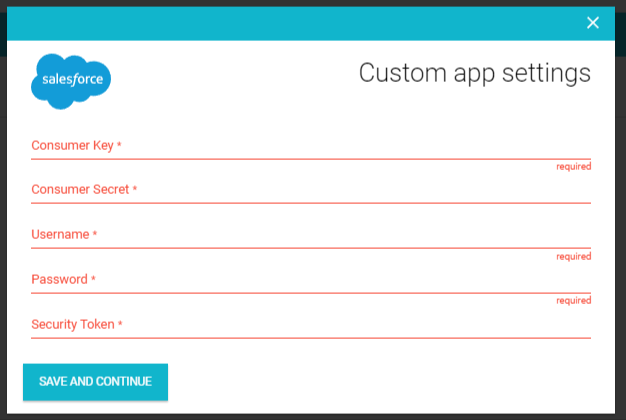
Consumer Key: The key for the Custom OAuth App you have created for Kapta in your Salesforce instance
Consumer Secret: The secret key for the Custom OAuth App you have create for Kapta in your Salesforce instance
Username: The Salesforce user you will be using to access / update data from Salesforce, which needs to have access to Accounts, Contact, and Opportunities as well as the Custom OAuth App.
Password: This Salesforce user's password
Security Token: This Salesforce user's security token
The user you create is up to you, we recommend using a dedicated API user so that you do not have to re-update your credentials anytime a password changes or security token is reset. If you have any issues please email support@kapta.com.
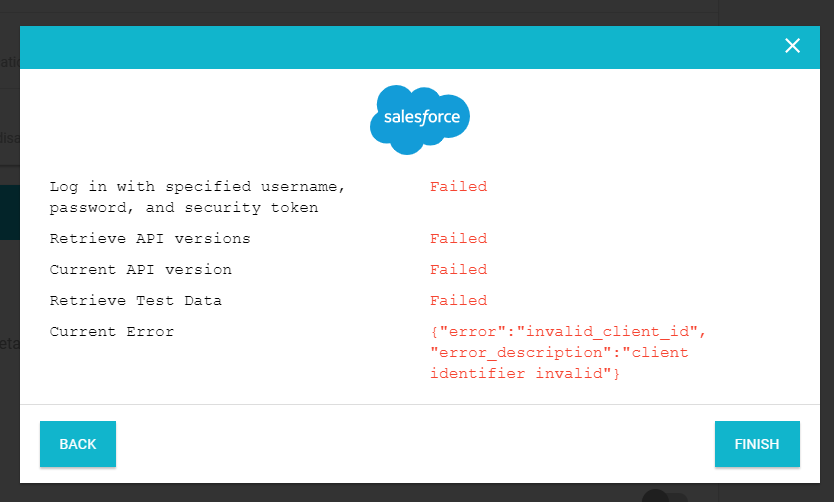
If there is an issue the when you save you may see errors :
(in this case the client id specified was invalid, sometimes due to the time it takes to setup the connected application in Salesforce)
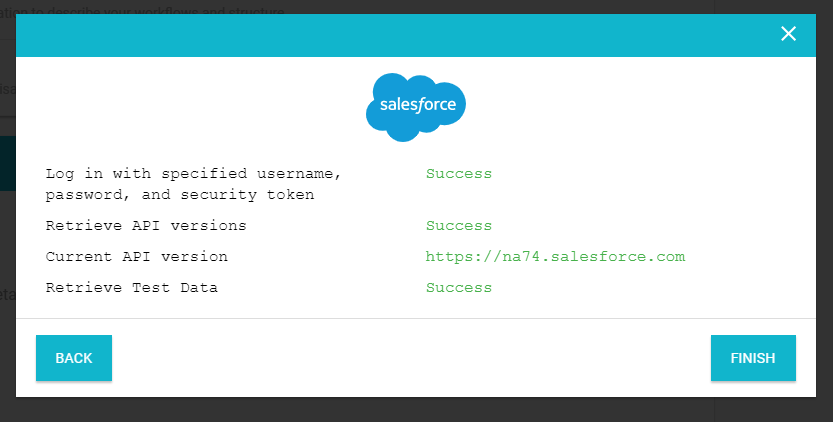
If it is successful you will see a screen that looks like this.
After successfully finishing, you can import Accounts, Contacts, and Opportunities from Salesforce. In addition you will see 6 (4 if you have not licensed Opportunities) new integration processes in your settings dashboard:
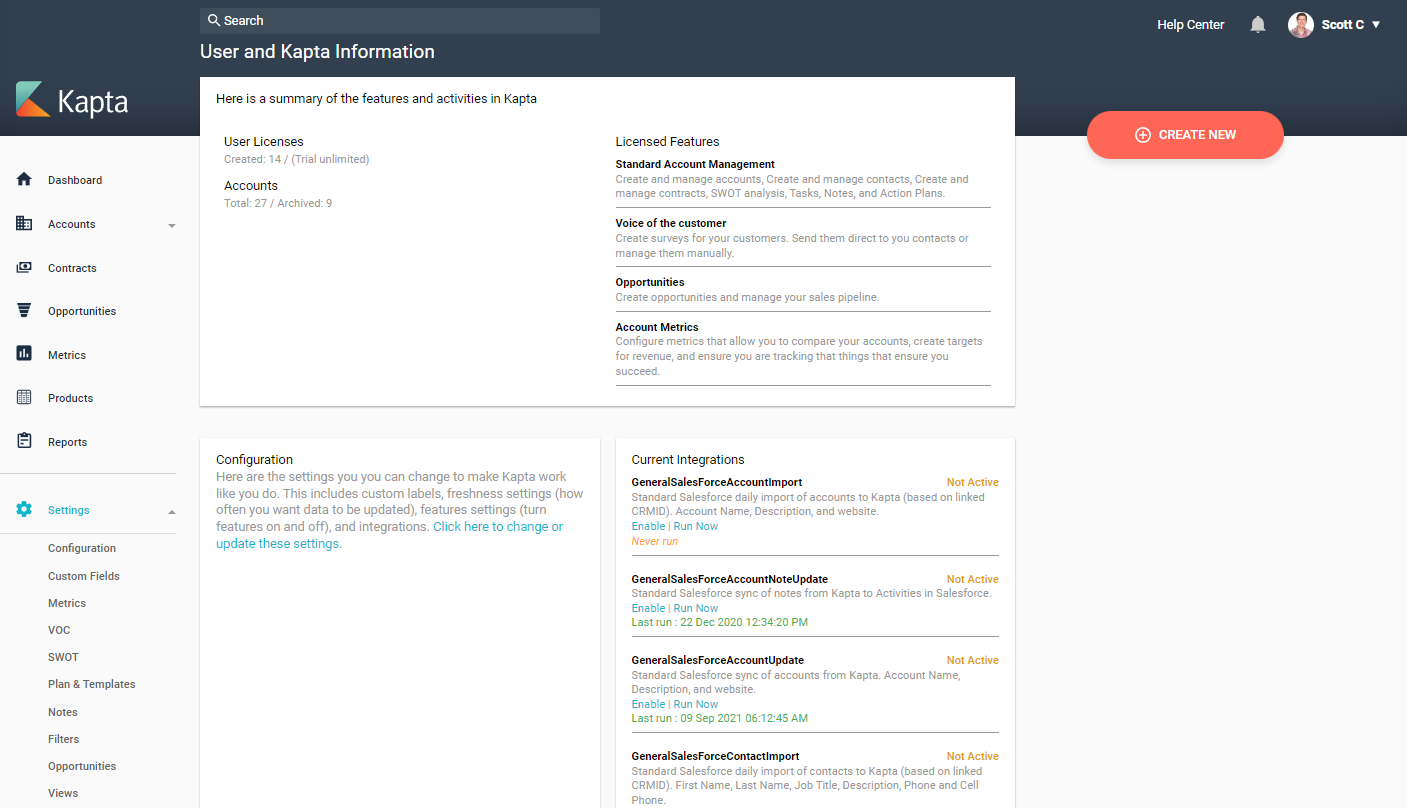
By default, these integration processes will all be disabled. These integrations are used by Kapta to sync data to and from Salesforce.
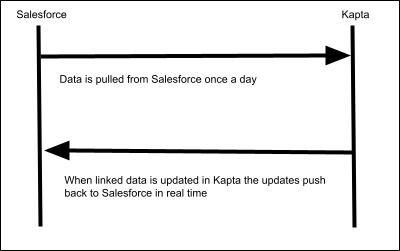
The integrations labeled "Update" are for pushing data from Kapta to Salesforce. Enabling these will mean that changes to standard data in Kapta will be updated to Salesforce if the data changes.
The integrations labeled "Import" are for pulling data from Salesforce. This is done daily at 12:30 GMT. These processes will update any linked data that has changed in Salesforce to Kapta. Please note, if data is not linked (either from importing from the standard dialogs in Kapta or via updating the CRMID in Excel data uploads), it will not be updated. These integrations can be run immediately to automatically sync data if needed.
You can setup various options about the behavior you want. From allowing users to only create accounts from Salesforce to allowing them to create contacts in Salesforce when they are created in Kapta.
Importing Accounts and Contacts
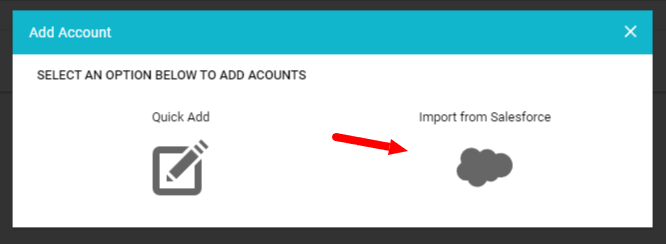
Users can manually import Accounts and Contacts from Salesforce by using the red "Create" button
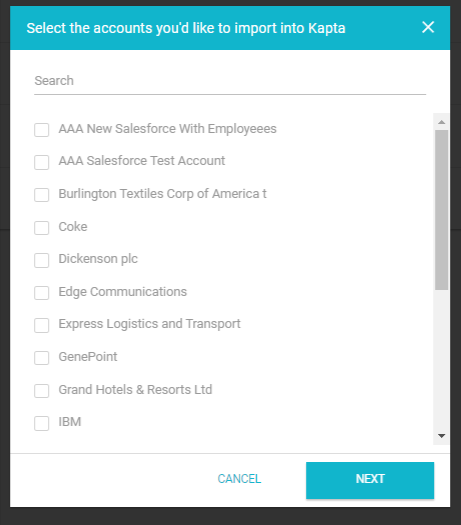
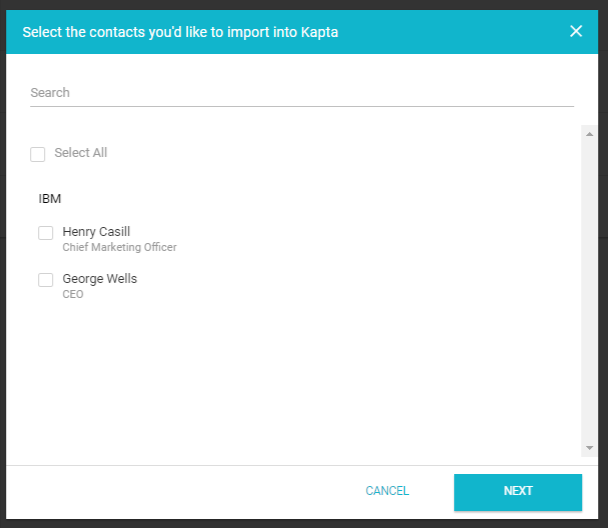
Then they can search for the accounts they want and add the contacts they want as well. We do not recommend importing all contacts and only importing the contacts that important to you.
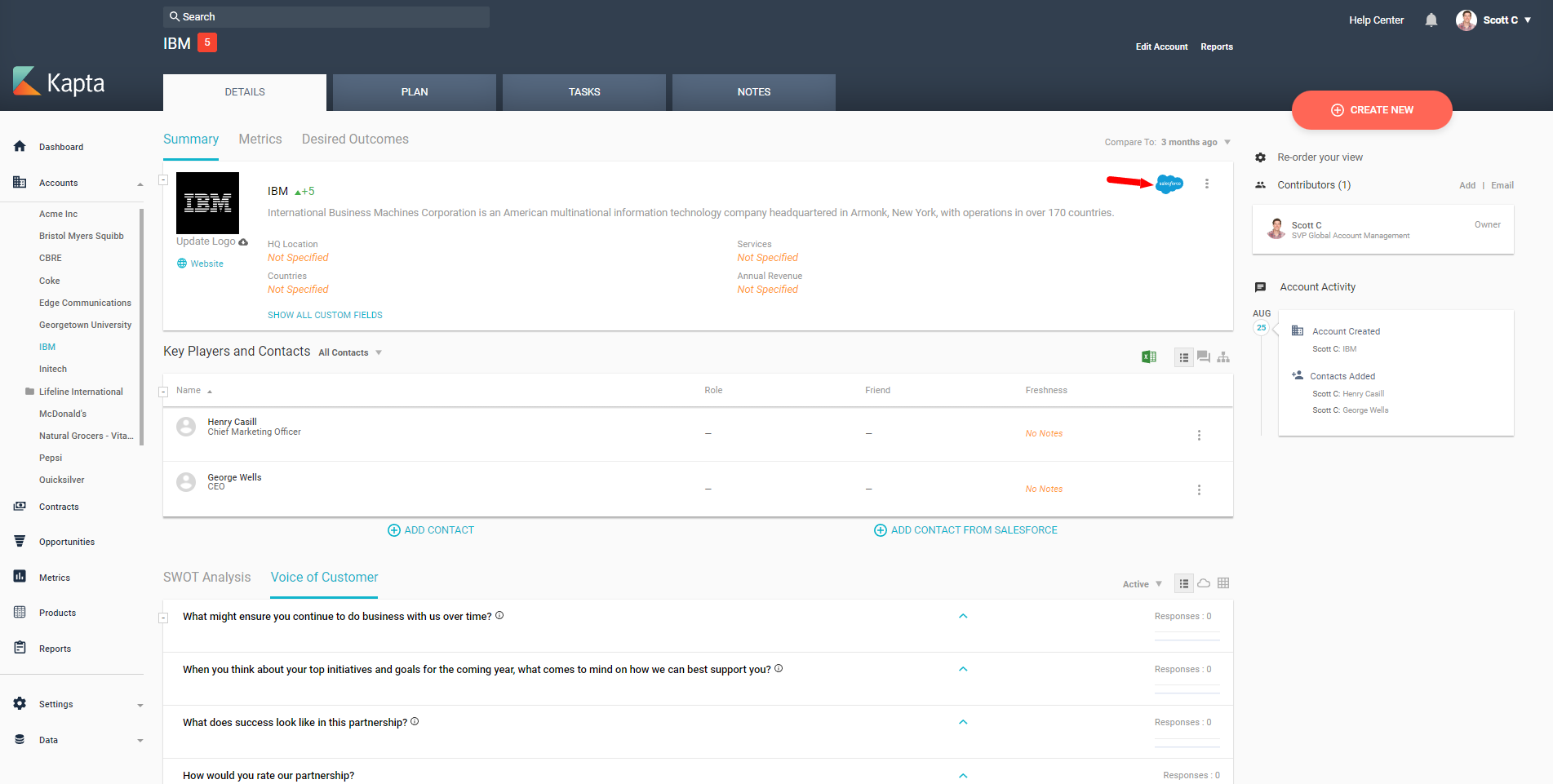
Once an account has been imported from Salesforce you will now see a Salesforce icon on the Account Details tab. You can also import contacts and opportunities from this page as well.
Custom Fields
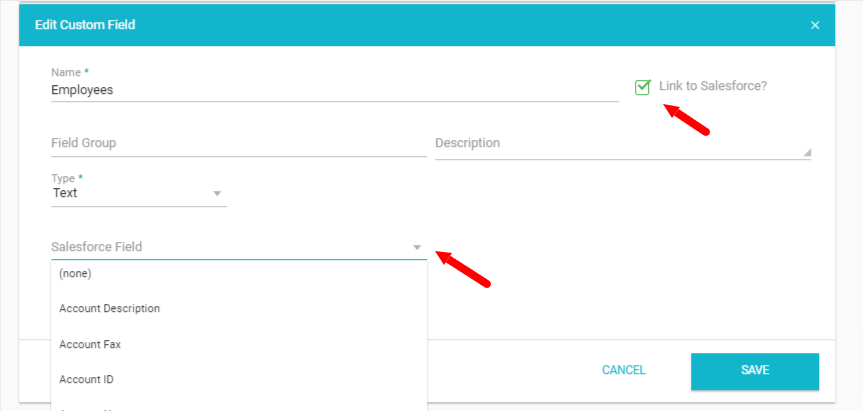
After setting up the salesforce integration you can now link custom fields to your salesforce fields. The custom fields screen will have an additional option to link the field to Salesforce. Then it will present all of the available fields in the corresponding entity (Account, Contact, or Opportunity) that can be imported/synchronized. Standard fields like on a contact Title, First name, Last name, Email will automatically be linked.
Comments
0 comments
Article is closed for comments.