
Zapier integration enables you to import data from a variety of sources into Kapta. By simply setting up Zaps in your Zapier account, you can import data from sources such as Salesforce and Hubspot into your Kapta account, within minutes of the data being entered at those locations.
To set up Kapta as an available app, follow these steps:
1. Sign into your account on Zapier, or sign up for a new account if you don't yet have one.
2. In the My Apps area of Zapier, enter Kapta in the "Connect new account..." field, and select Kapta. You will see a settings screen similar to the one below. Leave this window open but continue with the steps below to locate the necessary settings in Kapta.
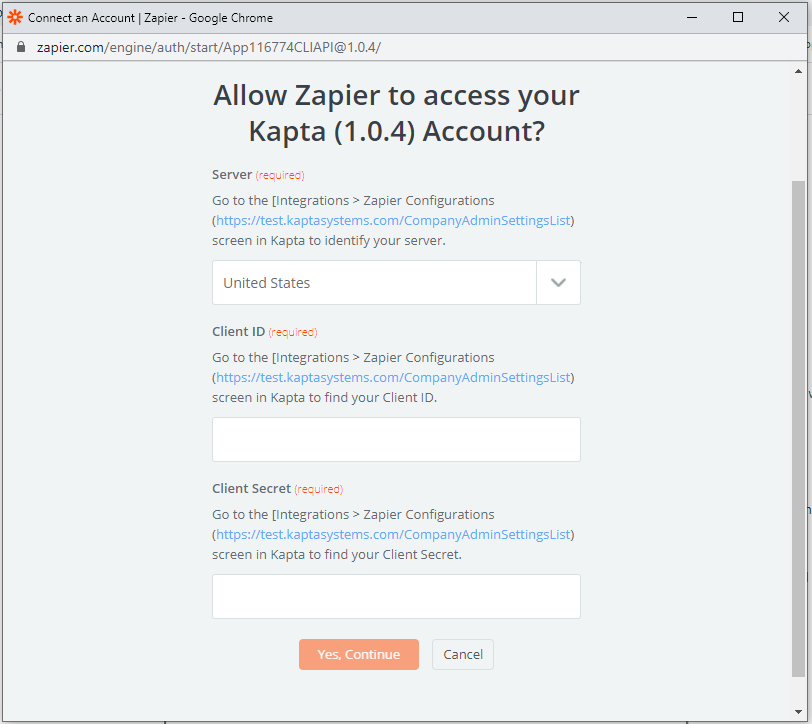
3. in a separate browser tab, open Kapta and open Settings / Configuration, and click the Edit link for Integrations. Use the slider to enable Zapier.
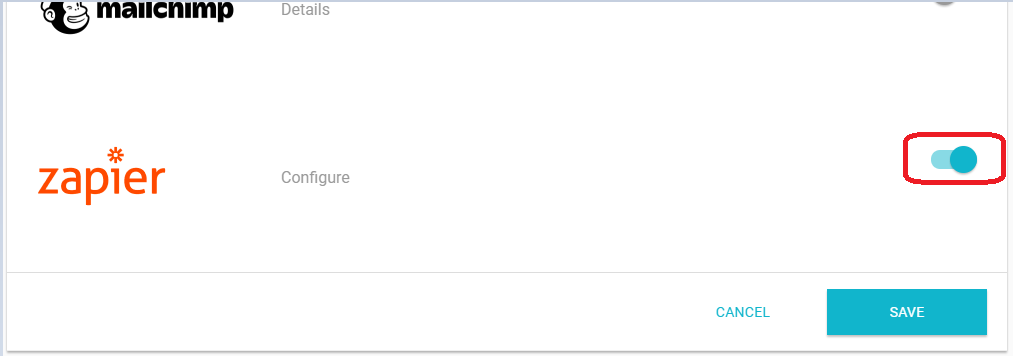
4. Enabling the Zapier integration, or clicking the Configure link in the Zapier integration section, will open the settings for the Kapta App on Zapier.

5. Enter the settings from the above Kapta screen on the Zapier setup screen, and click "Yes, Continue". You'll then see a login window where you can enter your Kapta user and password credentials.
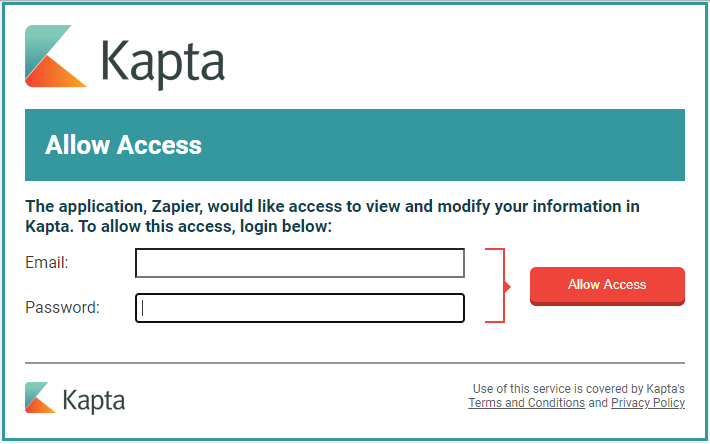
6. Enter your Kapta user and password and click Allow Access. If the signin is successful, Kapta should now be listed in the My Apps section in Zapier.
7. To import data, Kapta will be your data destination. You'll also need to add an app for your data source. Search the "Connect a new account..." filter in My Apps to find a wide variety of apps that can connect to Kapta.
Once you've set up your source and destination apps in Zapier, you can open the Zaps section in Zapier and begin creating your own Zaps. In Zapier, Zaps perform transfers of data from a source to a destination, based on the apps and the field cross-references that you set up.
For more information, follow the Zapier documentation on setting up Zaps. Be aware that Kapta has a number of prebuilt Zaps, so consider using one of those before setting up your own Zap from scratch.
Comments
0 comments
Article is closed for comments.