
When setting up Kapta with Jumpcloud SSO you will need to have both Kapta and the Jumpcloud admin open to save all of the settings. Otherwise you can save the Kapta setup first and then edit it after you setup in Jumpcloud.
In Kapta you will be setting SSO as a SAML solution.
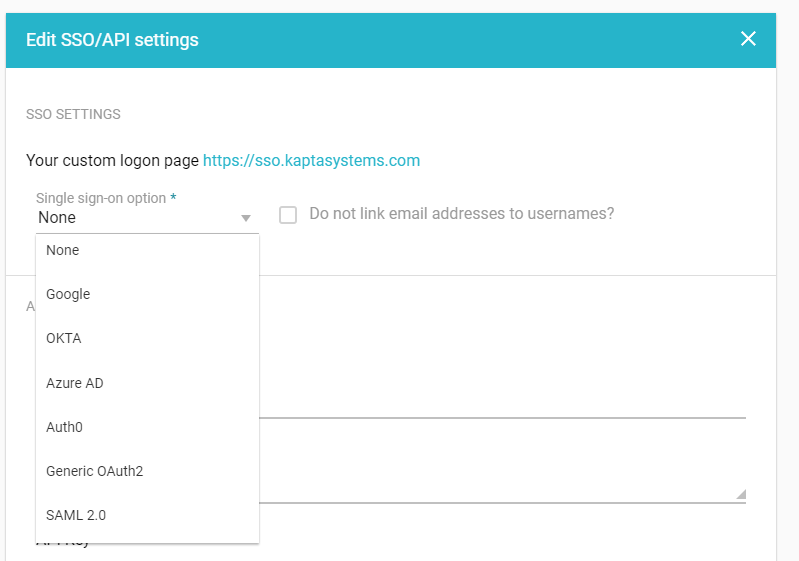
This is done by going to Settings -> Configuration -> SSO and API
You will see a drop down titled "Single sign-on option", please choose SAML 2.0
Once you pick that you will see a number of autogenerated values and it will ask you for your company IDP URL. (the Jumpcloud default value is https://sso.jumpcloud.com/saml2/saml2 or it may be customized for your organization see below as to how to find it)
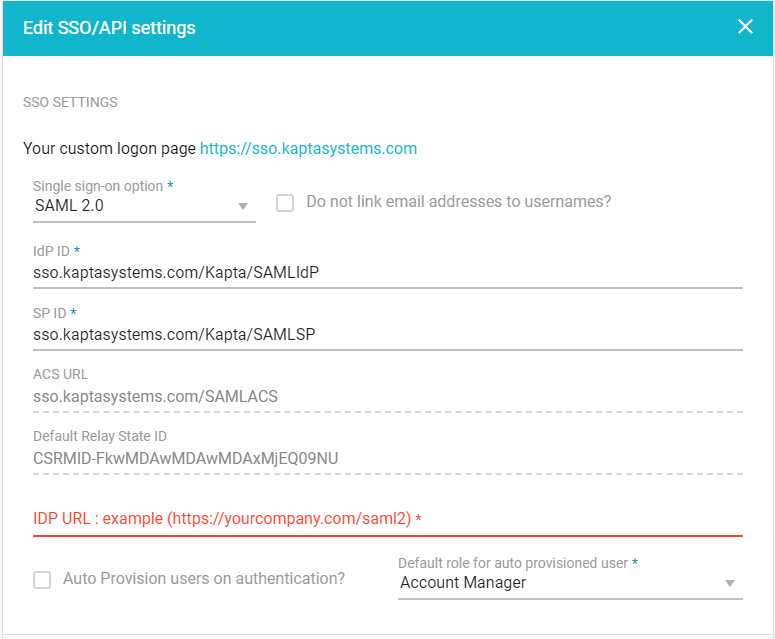
Once you enter the IDP URL you can click save and then continue to the Jumpcloud configuration. You will want to keep Kapta open so you can copy and paste the various values to Jumpcloud.
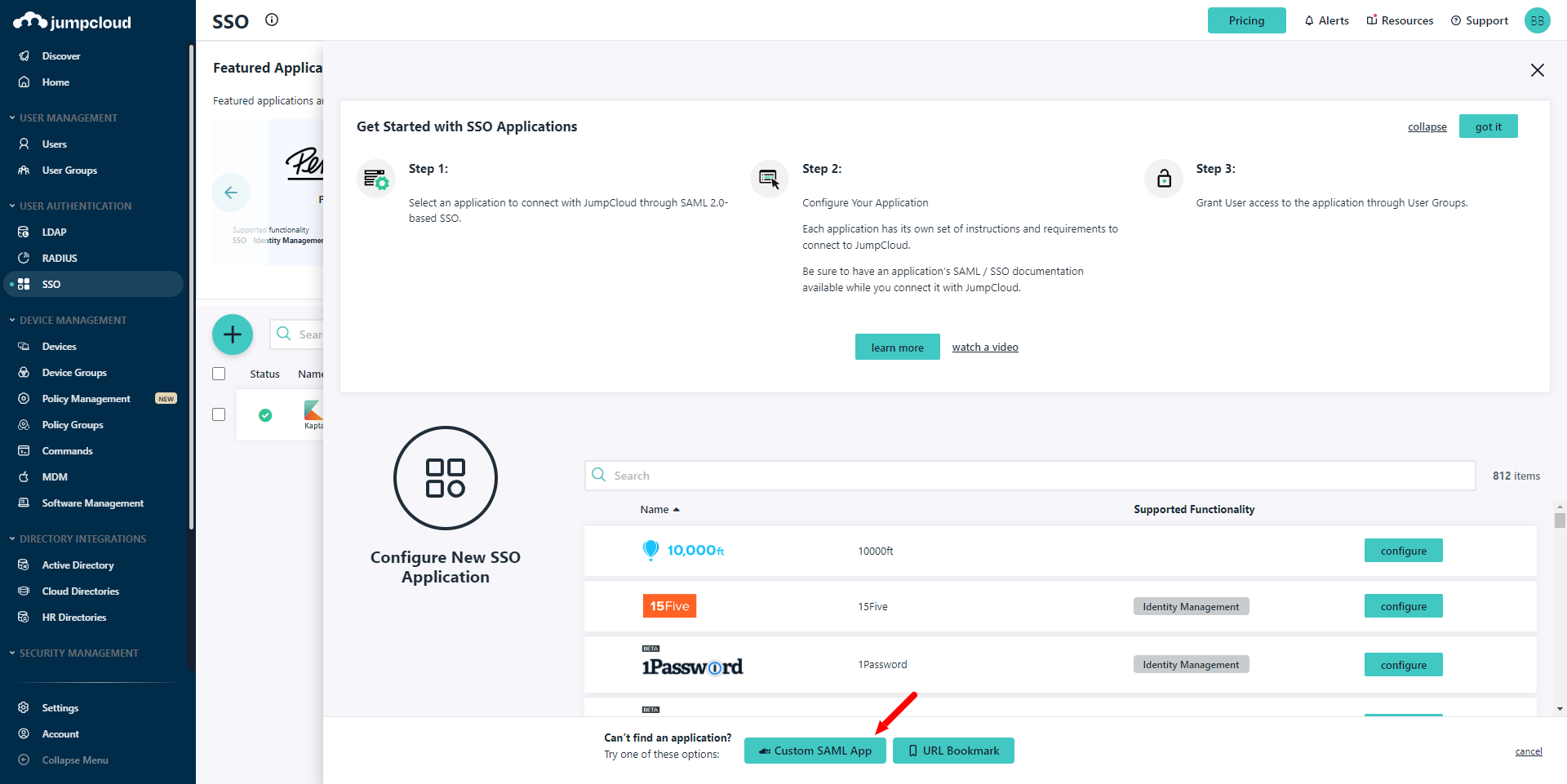
In Jumpcloud Admin goto SSO and create a new SSO Application and choose the Custom SAML App at the bottom.
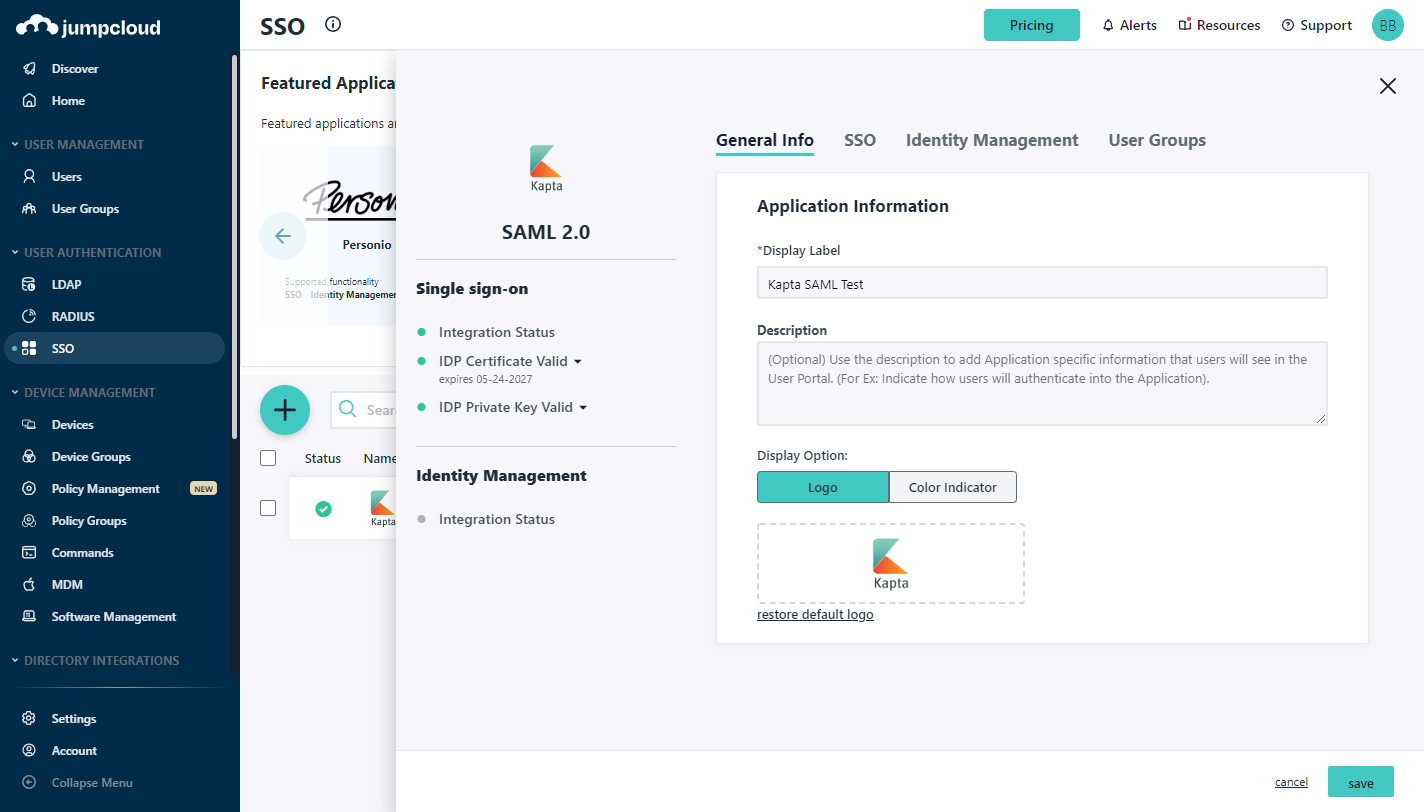
For Display Label enter "Kapta" or anything else your organization might recognize as Kapta. If you want a logo you can find one here
Next you will need to setup the SSO settings.
You will need to fill in the following items that are all on the Kapta SAML setup.
- IdP Entity ID
- SP Entity ID
- ACS URL
- Default Relay State ID
In addition you will need to pick "email" as your NameID.
You will need to pick urn:oasis:names:tc:SAML:2.0:nameid-format:unspecified as your NameID Format.
RSA-SHA256 for your Signature Algorithm.
Lastly you will need to add 2 user attributes (First Name and Last Name).
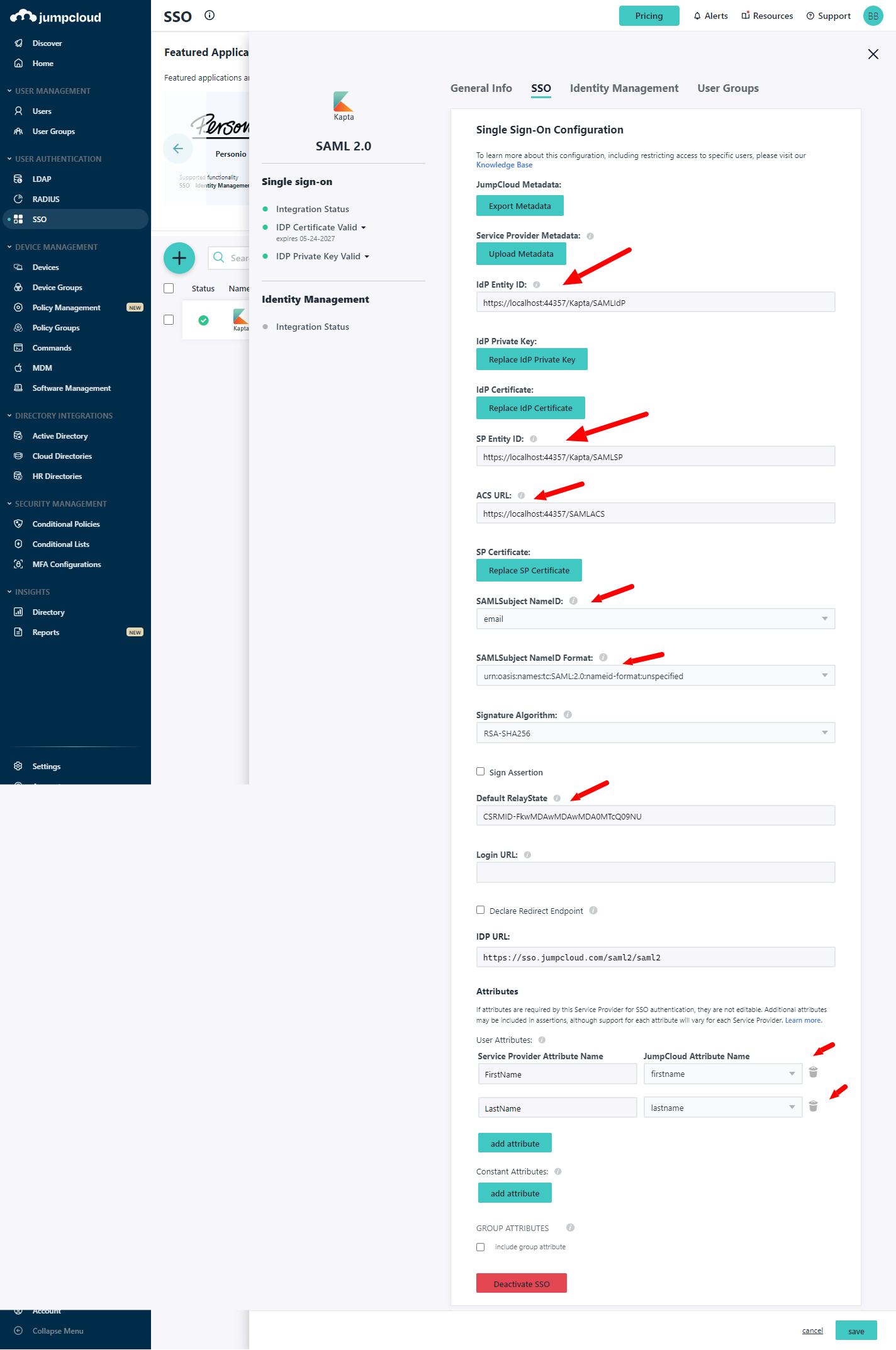
Also you will find your Jumpcloud UDP URL above Attributes. This will need to be copied and updated in your Kapta SAML configuration.
Once these setting are all setup you can click activate to save in Jumpcloud. Also make sure you save in Kapta as well.
SSO will then be enabled and you can either login via your customized kapta URL (as seen in the Kapta SSO setting and usually is companyname.kaptasystems.com) or you can login from the Jumpcloud User portal if the user has access to Kapta.
Comments
0 comments
Article is closed for comments.