
The Kapta Connect extension for Outlook is a powerful tool, providing quick and helpful information associated with Kapta-related emails, and providing links for performing actions such as completing tasks or submitting notes. Kapta Connect users can quickly access information on a Outlook sidebar without having to navigate into Kapta itself, making it far easier to keep accounts current.
Get it at the Microsoft App Source store (MS Appsource)
Once installed, when you view an email you can click on the Kapta Connect add-in and a sidebar will appear. The first time you do this, you'll be prompted to login to Kapta.

Click Kapta Login, and it will prompt you to open a new window. Choose Allow and then enter your Kapta credentials. (Note: if you are using Single Sign On (SSO) or have already logged in, you will just continue.)
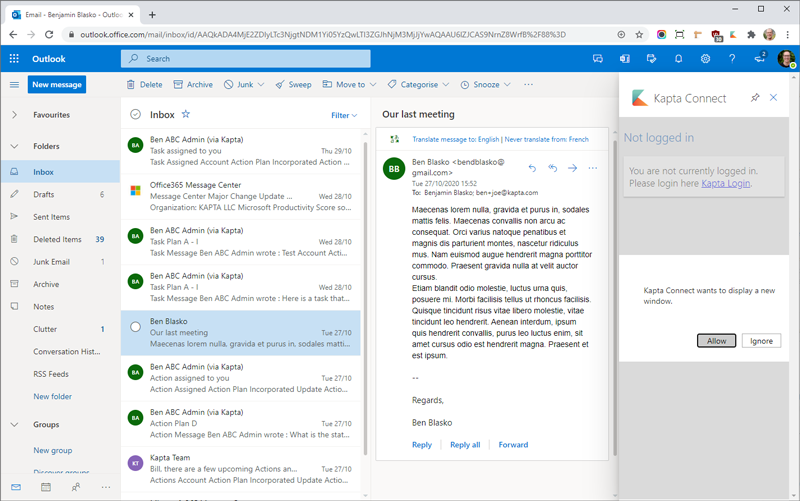
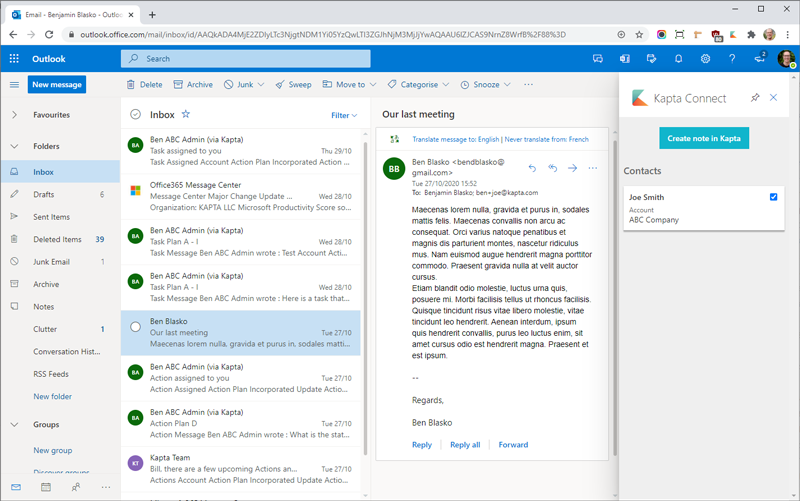
Once logged in, the sidebar will display information about your Kapta contacts. If an email does not have any related contacts from Kapta it will just reflect that nothing is known. For emails that have information about linked contacts, you can create notes in Kapta that will use the email content and link it to the selected contact (s) and account.
TIP: If you pin the task bar, then you don't need to run the add in each time you view a new email.
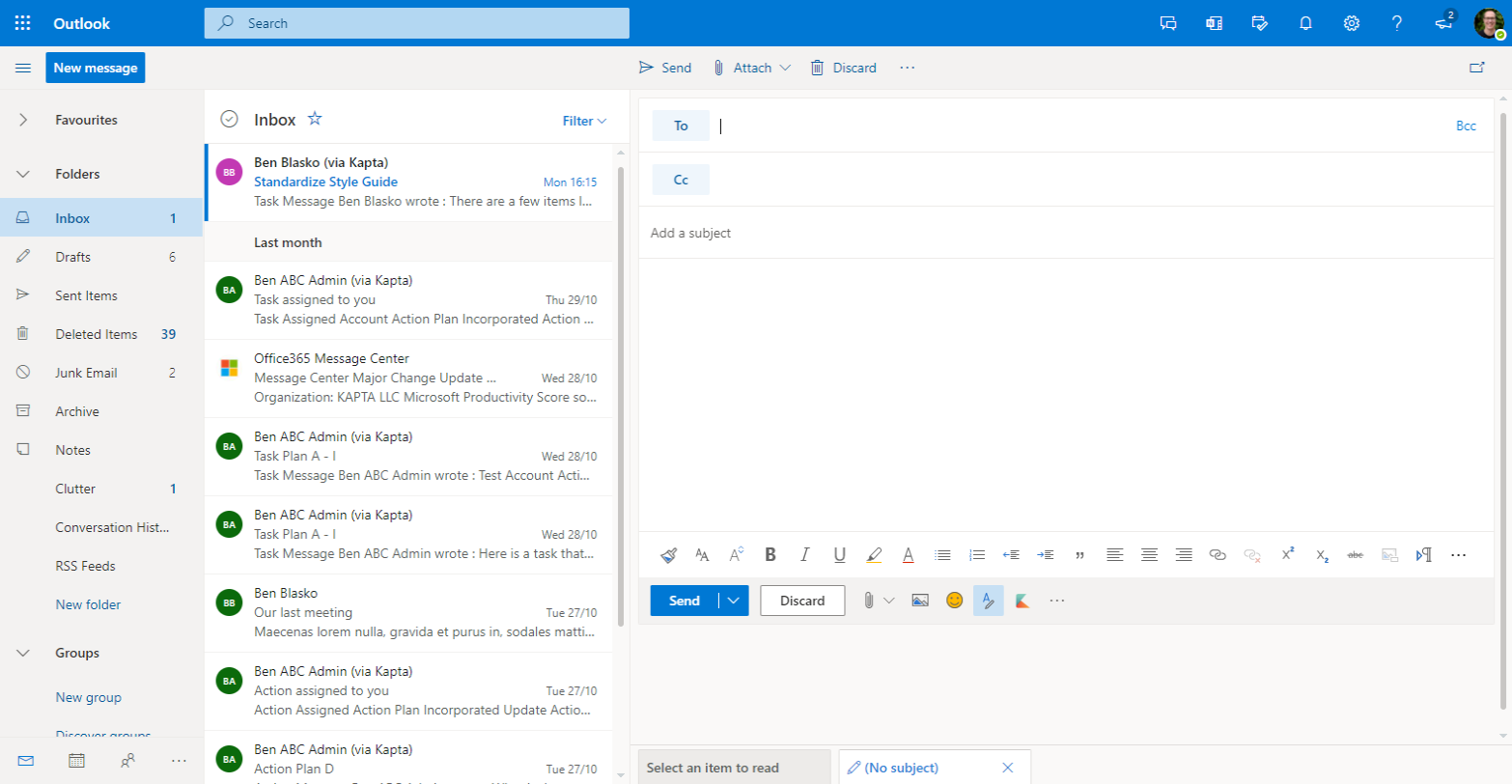
In addition to creating notes from existing emails, you can also now click Send to Kapta when composing new emails. This will automatically BCC note@kapta.
Depending on your screen size you may need to expand the "•••" symbol to see the Send to Kapta button.
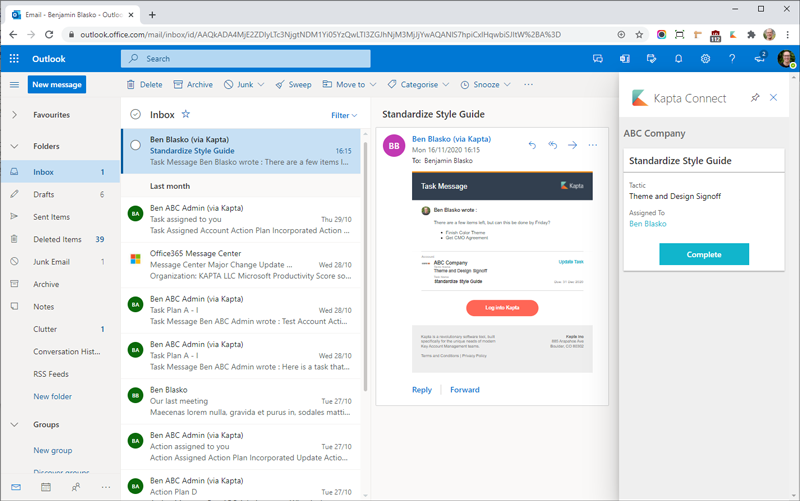
System-generated emails from Kapta will also enable you to update actions and tasks without the need to log into Kapta. The example below is a task message; vlicking the Complete button will automatically mark the task as complete. The same will apply to emails about upcoming actions that you receive.
Comments
0 comments
Article is closed for comments.