
With Mailchimp integration, you can easily add your contacts to your Mailchimp audience lists. Contacts can belong to multiple lists via Mailchimp tags, enabling you to customize your marketing as needed for each contact.
Important: Tags added to contacts in Kapta will additionally be updated on Mailchimp, while tags added to members on Mailchimp are not automatically updated for Kapta contacts. For this reason, we highly recommended that Mailchimp tags be maintained only in Kapta. Maintaining member tags on Mailchimp may lead to synchronization issues and lost settings.
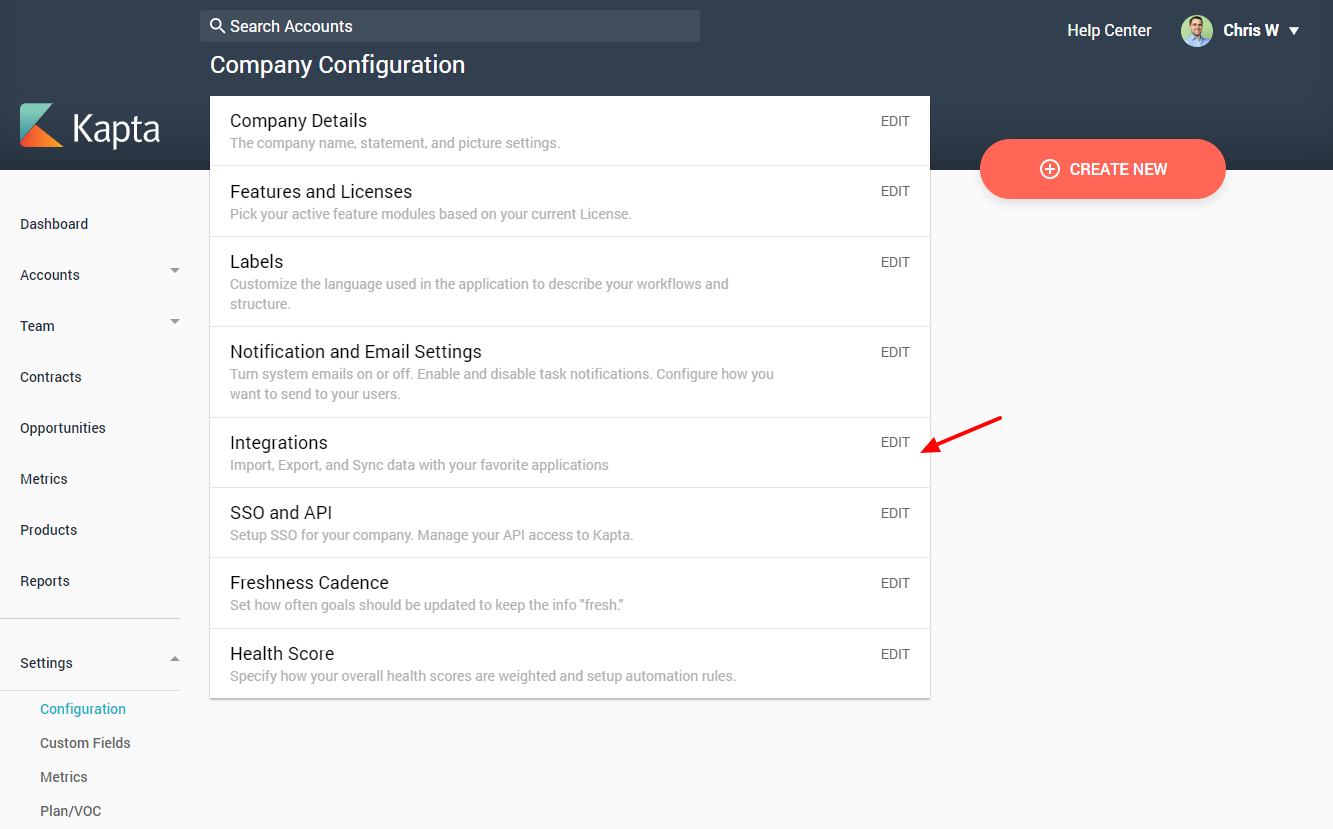
From Kapta, go to Settings / Configuration, and click the Edit link for Integrations.
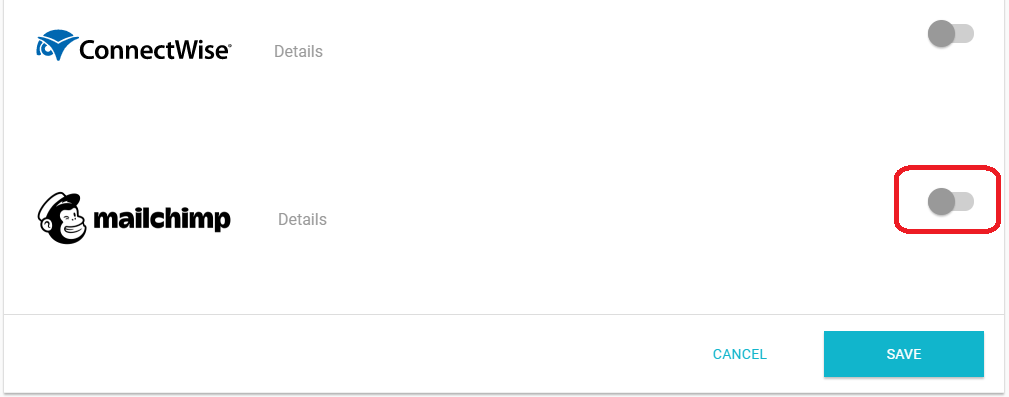
Use the slider to enable Mailchimp integration.
You'll then see the API configuration window.
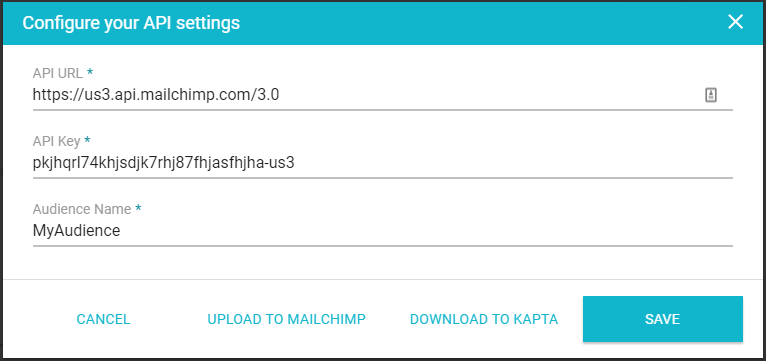
To find the keys to enter, log into your Mailchimp account.
To location your API URL, view the web address you use to access your Mailchimp account, then use this guide (provided by Mailchimp):
Example: https://<dc>.api.mailchimp.com/3.0
The <dc> part of the URL corresponds to the data center for your account. For example, if the last part of your Mailchimp API key is us6, all API endpoints for your account are available at https://us6.api.mailchimp.com/3.0/.
To locate your API Key, follow these steps in Mailchimp:
- Click your profile name and select Account.
- On the following page, select Extras > API Keys
- Copy and existing key, or click Create A Key to create a new key.
To locate your Mailchimp Audience, follow these steps in Mailchimp:
- Click the Audience menu at the top of your Mailchimp dashboard.
- In the Manage Audience dropdown, select View Audiences
- Of the available audiences, use the audience name you'd like your Kapta contacts to use.
Once you have entered the necessary values in your Mailchimp API Settings, click Save, or Save And Synchronize. Clicking Save will save your settings without verifying the values; Mailchimp will not be immediately accessed and no synchronization will be performed.
Upload To Mailchimp
This option uploads contacts to Mailchimp. When clicking Upload To Mailchimp, a second window will appear, allowing you to add one or more tags only to the new contacts being uploaded. Contacts that already exist on Mailchimp will not be changed.
Download To Kapta
This option pulls the tags from Mailchimp, ensuring contacts in Kapta have the same tags as on Mailchimp. Note that this is not a bi-directional synchronization - tags on Kapta contacts are not uploaded to Mailchimp during this synchronization.
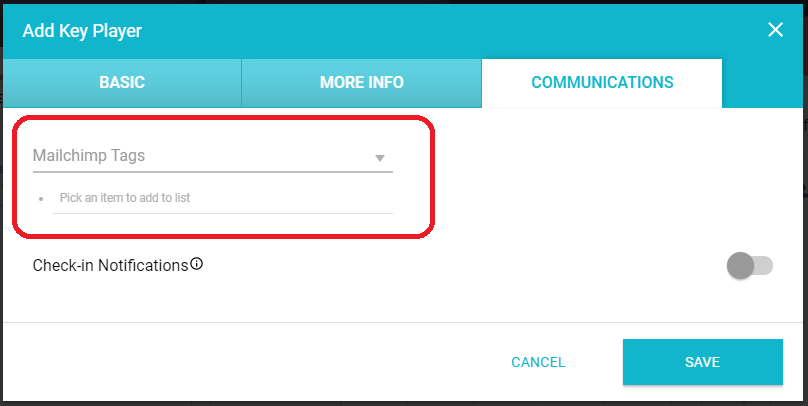
Once the setup is complete and integration enabled, Mailchimp tags can be found on the Communications tab of the Key Player window. Select the tags you'd like to add, and click Save to update them on your Mailchimp account. Note that adding new contacts also adds them to the configured Mailchimp audience.
Mailchimp contacts and tags can be viewed and maintained by importing and exporting Excel spreadsheets. To export your Kapta contacts and associated Mailchimp tags, click the Data menu in Kapta and then select Mailchimp Contacts and Tags.
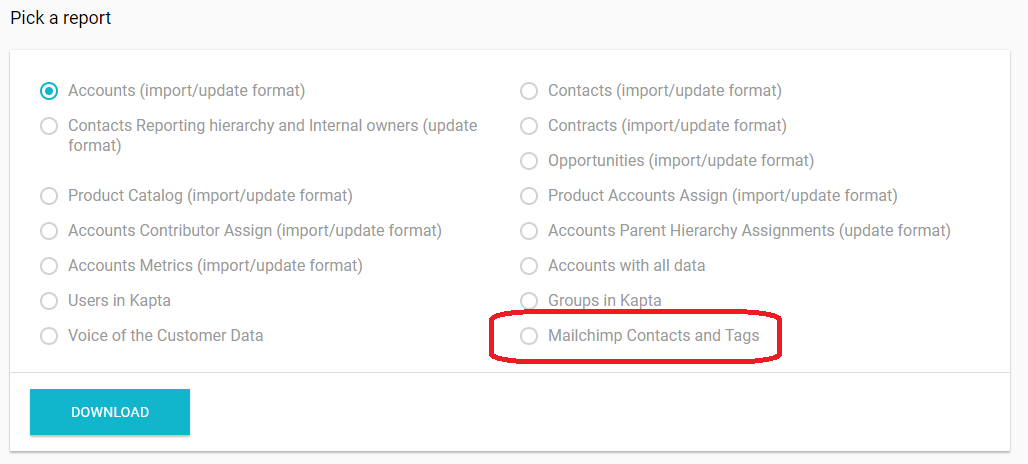
After processing, an Excel spreadsheet will be downloaded, containing the Mailchimp settings for your current contacts.
Before importing Mailchimp contacts and tags, we recommend that you first export the report using the steps mentioned above. This will provide you with a template with the required formatting.
Importing Mailchimp Contacts and Tags performs two functions:
- Adds contacts to your Mailchimp audience that have not yet been added
- Adds/removes tags to your Mailchimp contacts as defined in the spreadsheet being imported
The Mailchimp tags used by your audience will be provided in individual columns as shown here:
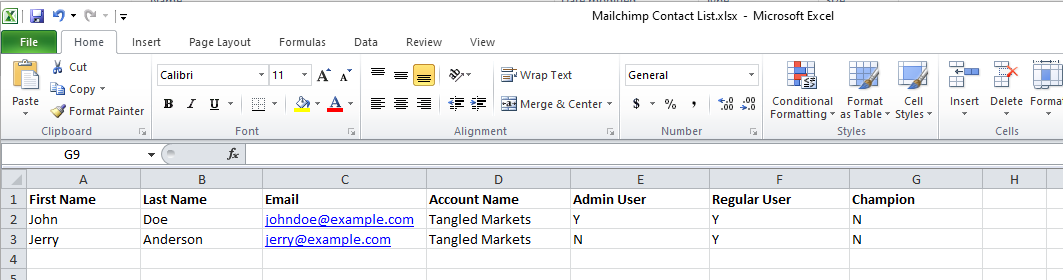
There are 3 tags used with this example audience:
- Admin User
- Regular User
- Champion
Note: tags must be defined on the Mailchimp website prior to importing. Undefined column tags will be ignored.
There are 2 values for defining each contact's ownership of a tag:
- Y - The tag will be added to the contact if it has not yet been added
- N - The tag will be removed from the contact if it is present
- Any other value will be ignored, neither adding nor removing the tag for the contact
To import Mailchimp Contacts and Tags, navigate to the Data menu, and then select Import Mailchimp Contacts and Tags from the Import dropdown.
Comments
0 comments
Article is closed for comments.