
The following steps are for the new Salesforce Lightning experience:
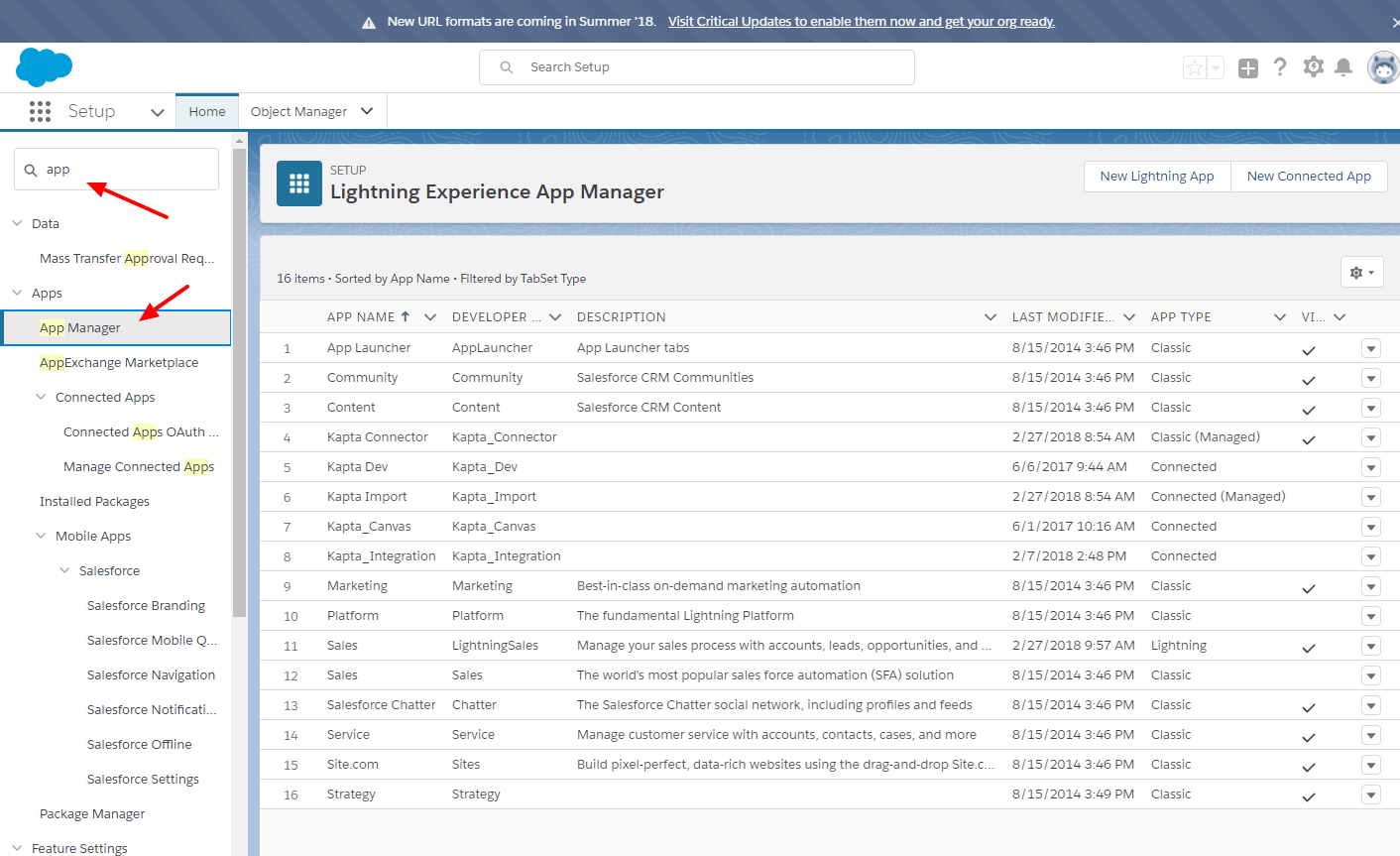
Step 1: Go to Salesforce setup as an administrator and use the quick search to search for "app." Choose App Manager from the search results.
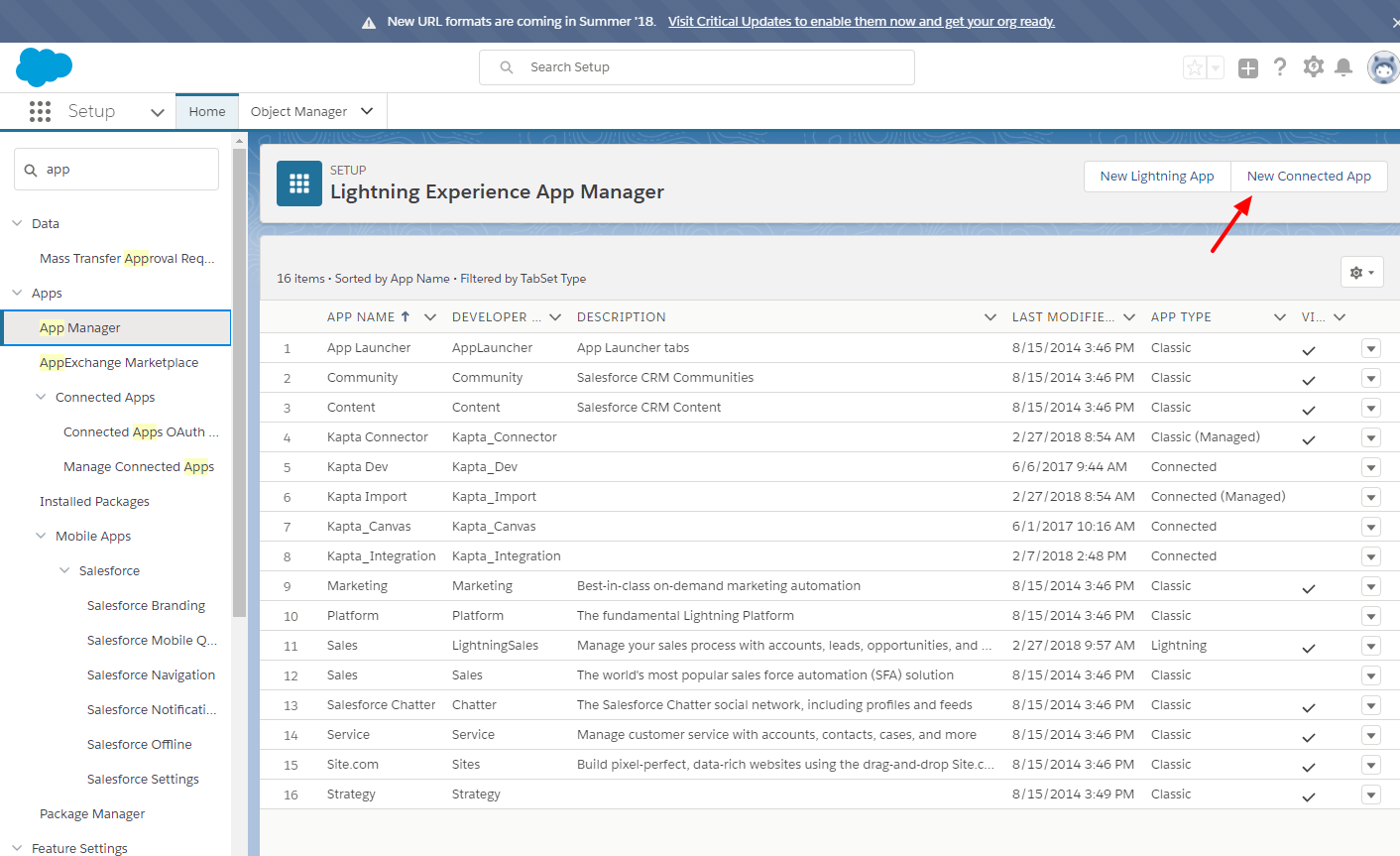
Step 2: Click New Connected App.
Step 3: You will need to create an OAuth application for Kapta. We recommend naming it "Kapta_Integration" and listing support@kapta.com as the contact email.
Click Enable OAuth Settings under the API (Enable OAuth Settings) section. You will need to add the following callback URLs:
http://localhost:59497/SalesForceOAuth2
https://app.kaptasystems.com/SalesForceOAuth2
https://appeu.kaptasystems.com/SalesForceOAuth2
If you have a dedicated server, you will also need to add a callback to that URL as well.
Finally, add the OAuth scope Manage user data via (API).
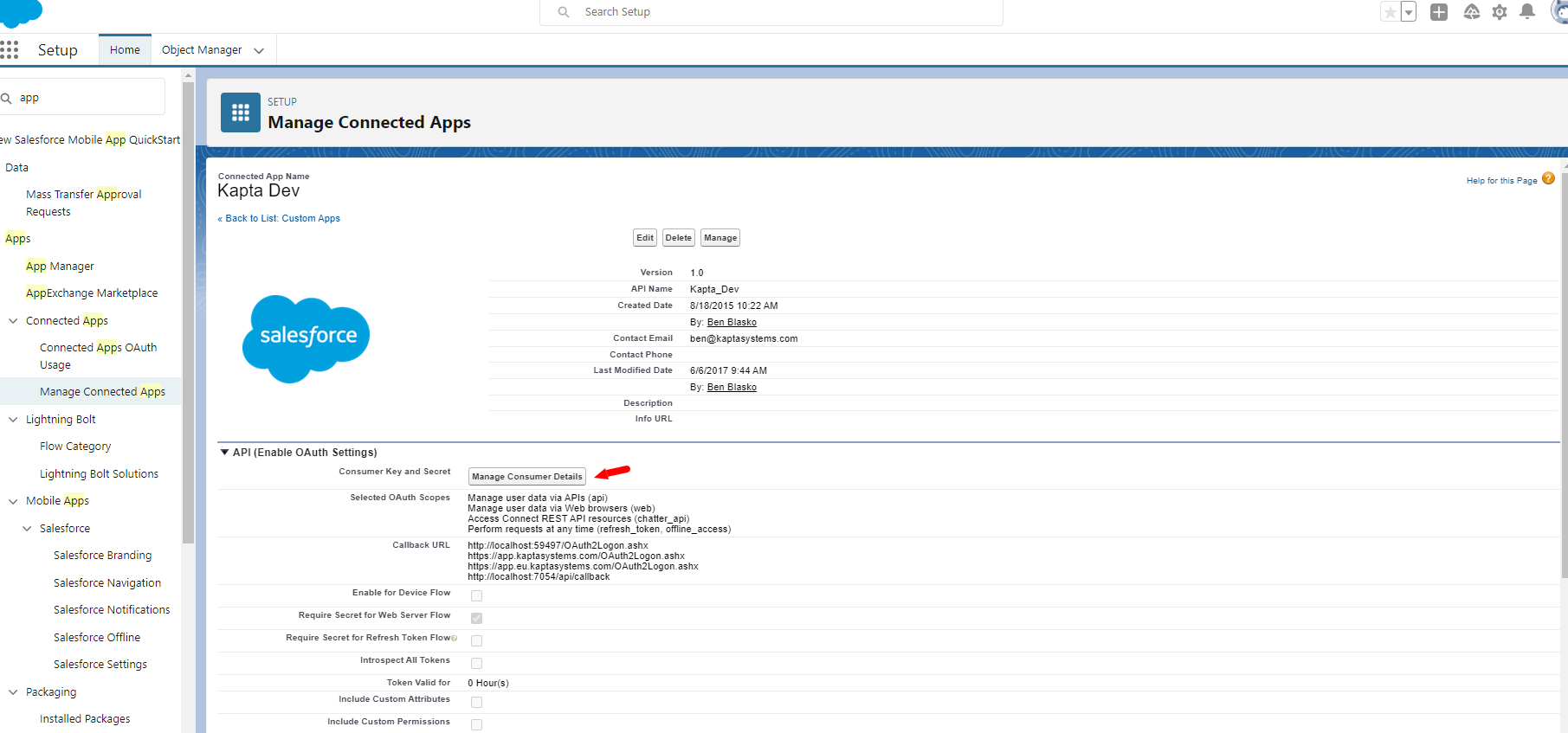
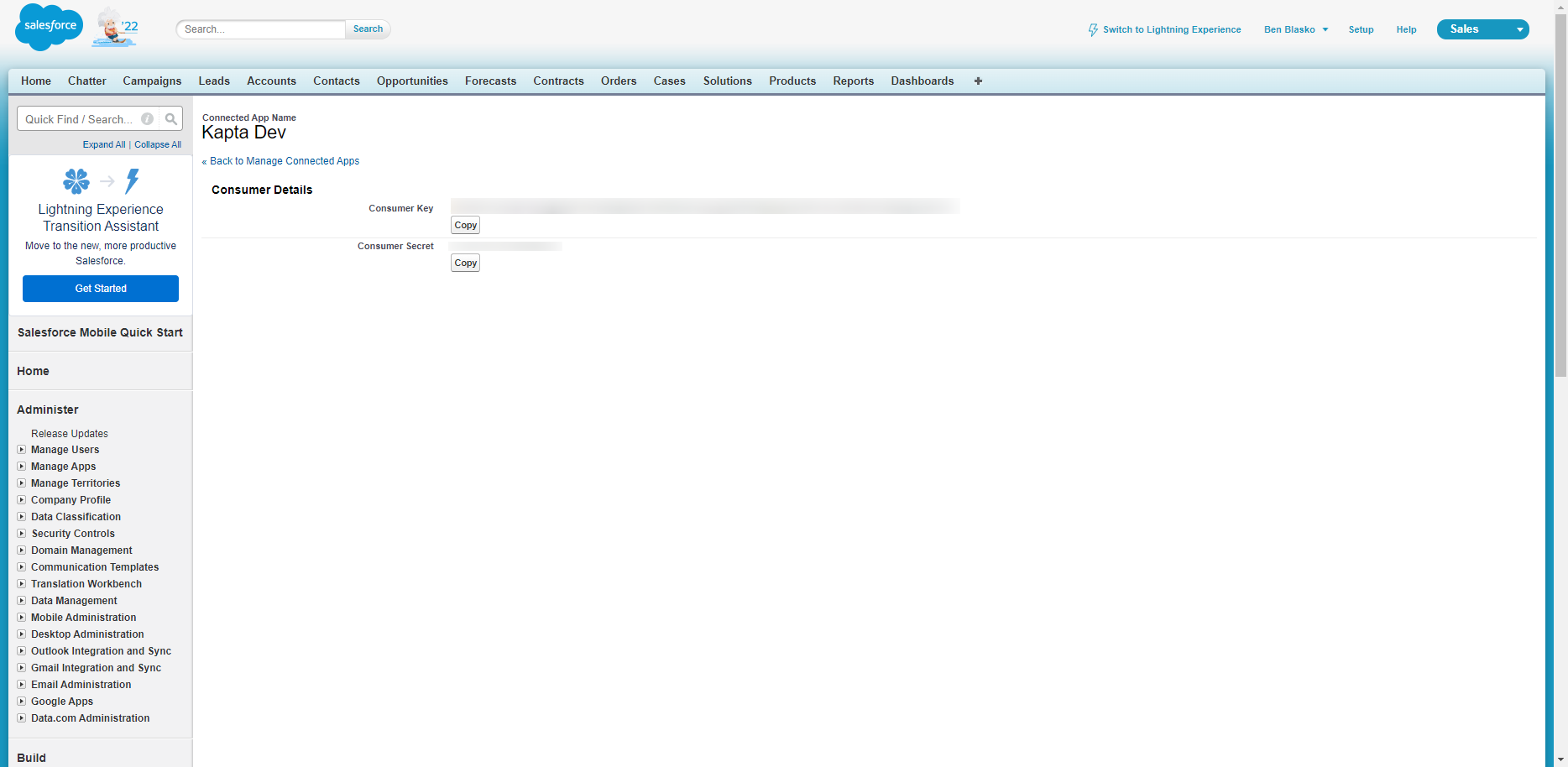
Step 4: Click Save, after which you'll be able to get the Consumer Key and Consumer Secret Key that are needed to update your Kapta integration settings. Salesforce may email you a one time code for verification or activate your MFA if that is enabled.
Comments
0 comments
Article is closed for comments.