
Objectives are enabled in goals if the action plan is Advanced (3 level). Action plan structure is configured by the administrator.
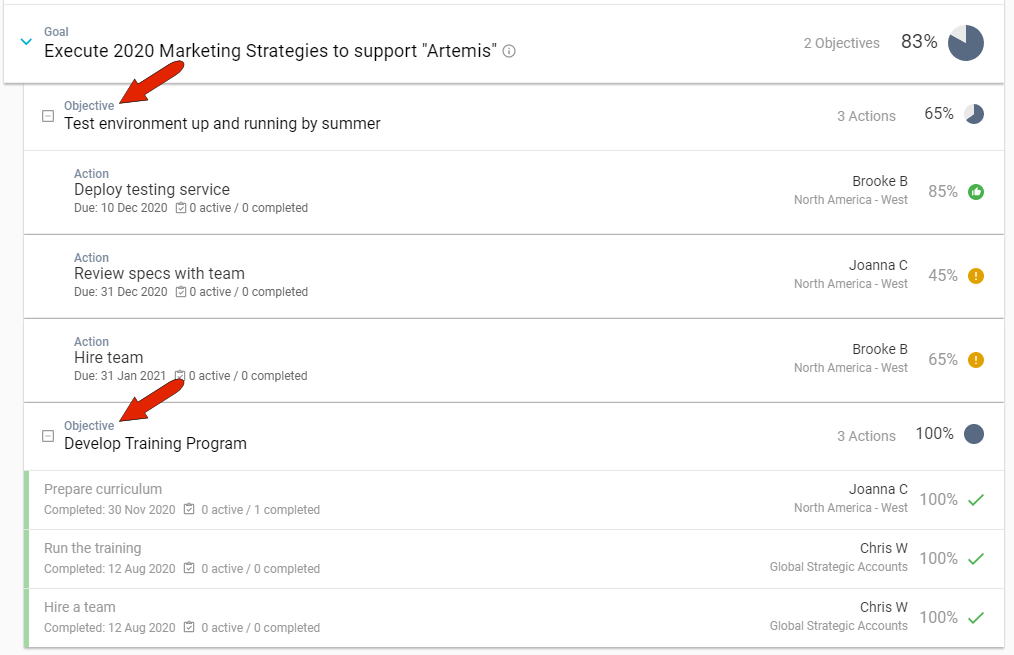
Objectives can be added manually to a goal, or, if you’re working with a pre-populated goal template, you can edit an objective to suit your needs.
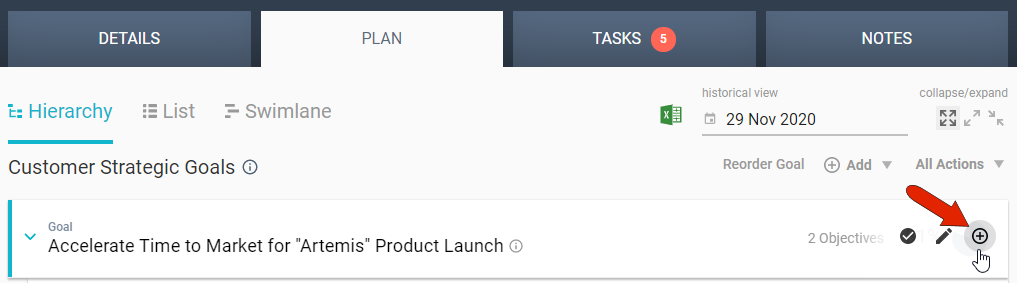
To add an objective manually, start in the Hierarchy section of the account’s PLAN tab. Hover over the goal where the objective is to be added, and click the Add Objective icon.
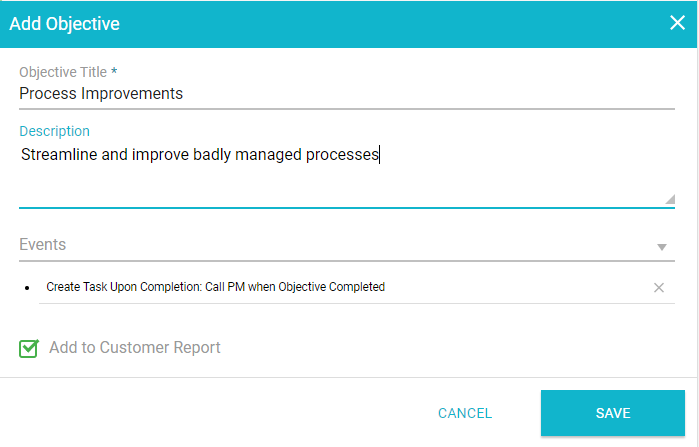
Enter a detailed objective title, an optional description, and set whether this objective will appear in the Customer Report. An objective can also include one or more events: an email, action, task, or template that will be launched when the objective reaches a specific threshold or condition.
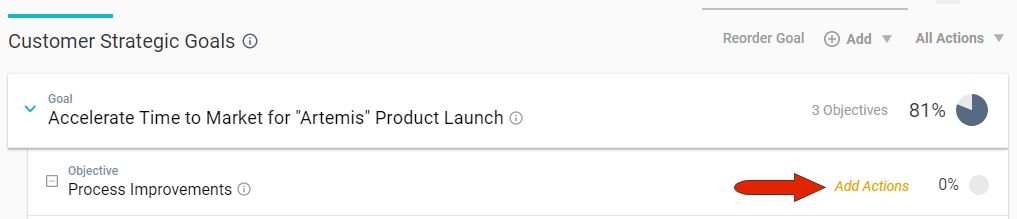
Once the objective is created, you’ll be notified to add actions.
Hovering over an objective displays icons at the right, which can be used to mark the objective as complete, edit the objective title or description, or add an action.

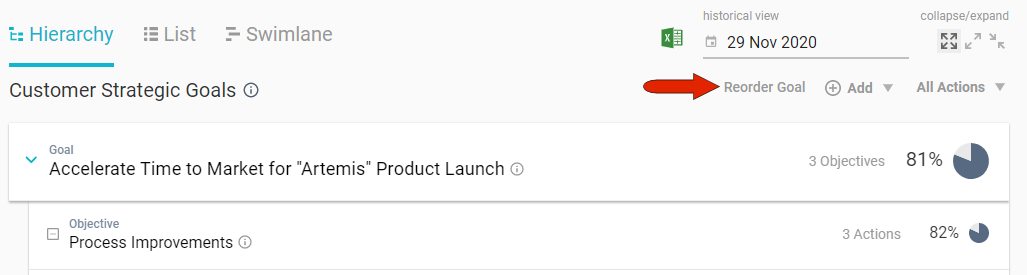
New objectives are placed after any existing goals. You can use the Reorder Goal link at the top right to change the order of either goals themselves, or the order of objectives, actions or tasks.
Comments
0 comments
Please sign in to leave a comment.