
All opportunities related to an account should be added to the Opportunities section of an account’s DETAILS tab.
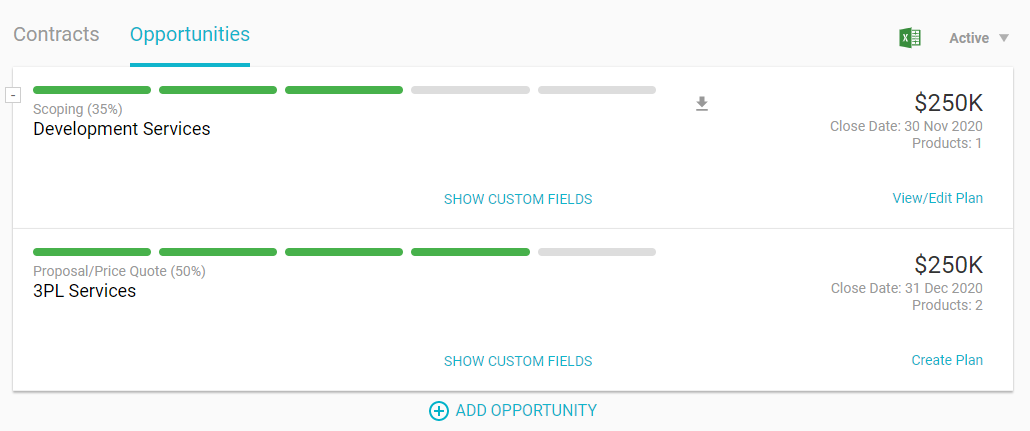
Opportunities can be added manually, or they can be imported by the administrator. If an account has imported opportunities, we recommend checking over each one to be sure that all information was included and is correct.
There are two ways to manually add an opportunity to an account.
From anywhere within Kapta, you can click CREATE NEW / Opportunity.
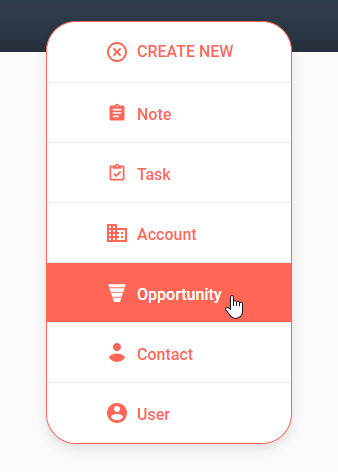
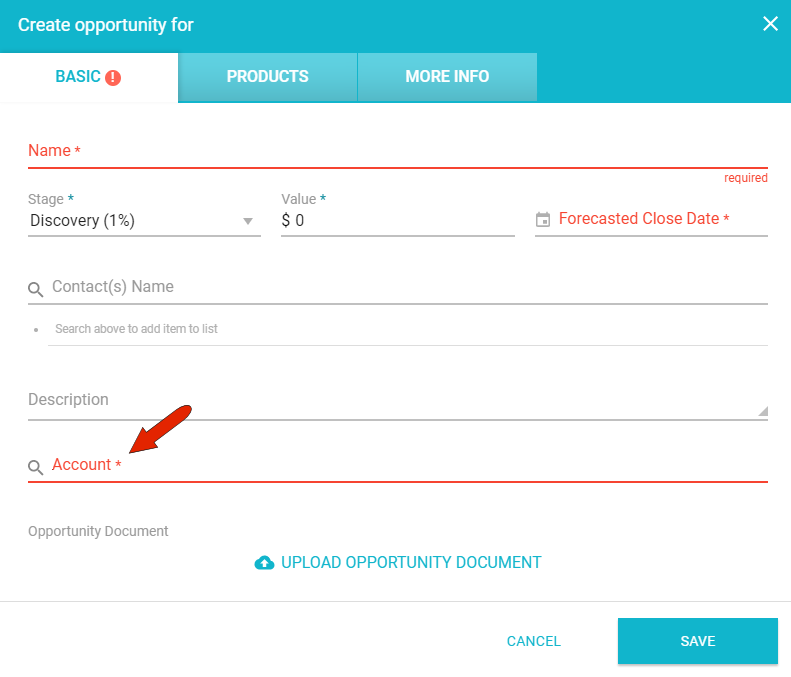
You'll have to specify the account, if this field isn’t auto-populated from an account that’s currently open.
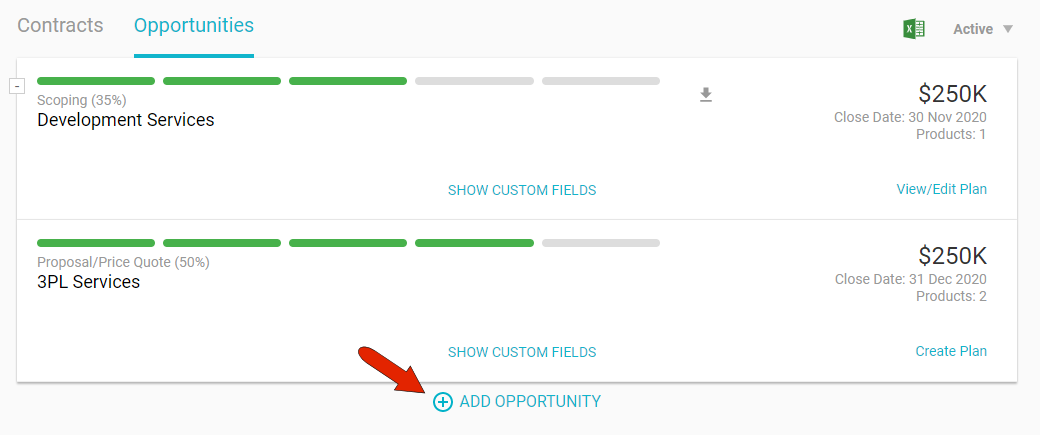
Or, if an account is open, find the Opportunities section in the DETAILS tab, and click Add Opportunity.
Fill out the mandatory fields on the BASIC tab, as well as any other details. The opportunity stages, such as Discovery, Qualification, and Negotiation, as well as their probabilities, are configured by the administrator. An opportunity can also include one or more events: an email, action, task, or template that will be launched when the opportunity reaches a specific threshold or condition.
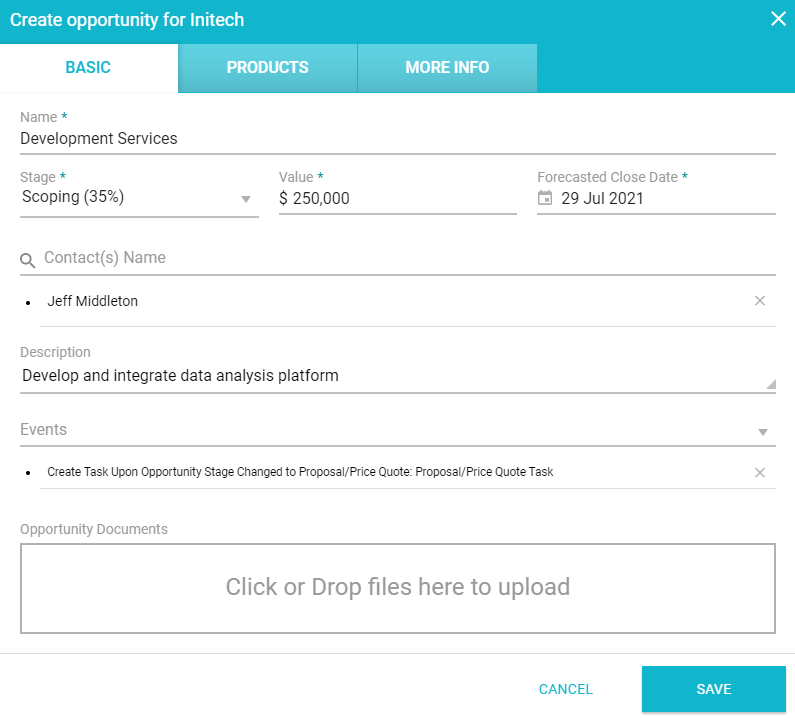
We also recommend uploading any documents related to this opportunity, so that all contributors will have access to the most up-to-date set of documents.
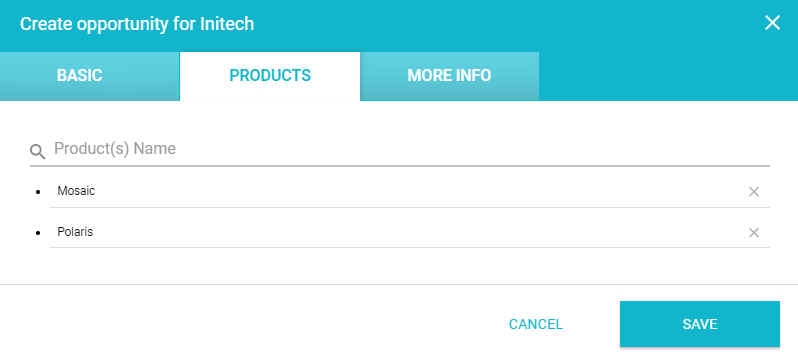
If you have products enabled, you can specify one or more of your company’s products that will be included in the opportunity. Products are set up by the administrator.
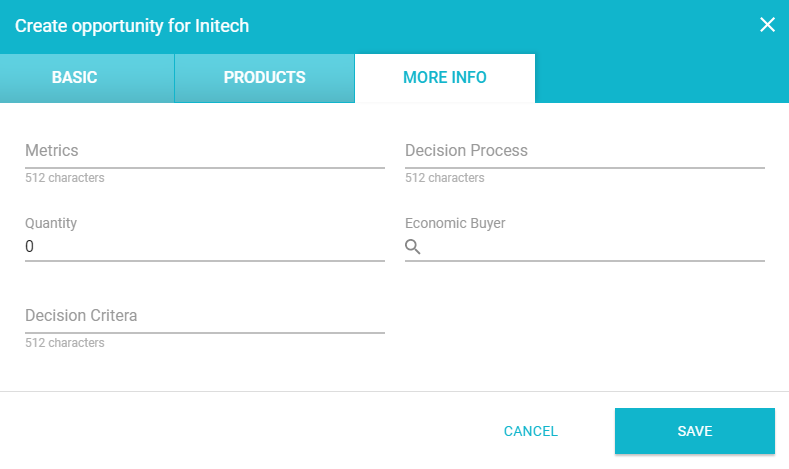
The MORE INFO tab contains custom fields related to opportunities, such as Decision Process or Quantity. Custom fields are set up by the administrator.
In the Opportunities list, the default filter for opportunities is Active, but you can change this to show opportunities on hold, closed and won, or closed and lost. The opportunity list can also be downloaded as a spreadsheet.
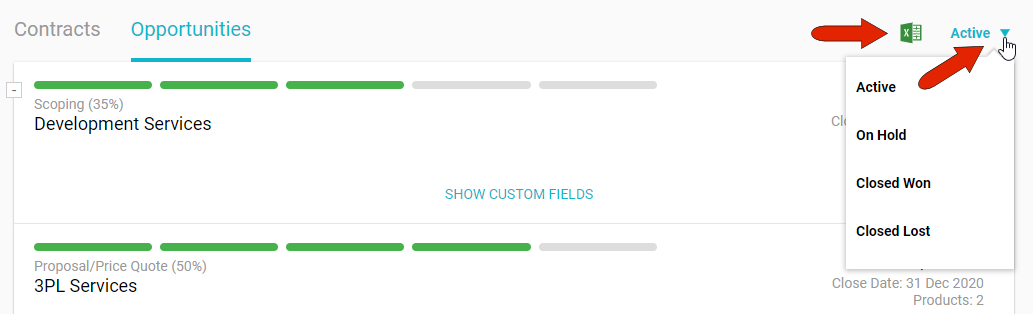
Each opportunity is listed with its stage, close date and value, number of products, and has a link to start on the action plan. You can also create action plans directly on the PLAN tab. Any custom fields can be displayed as well.

Minimizing the opportunities table displays the total number of opportunities, total value of closed opportunities, and the estimated value based on current stage probabilities.

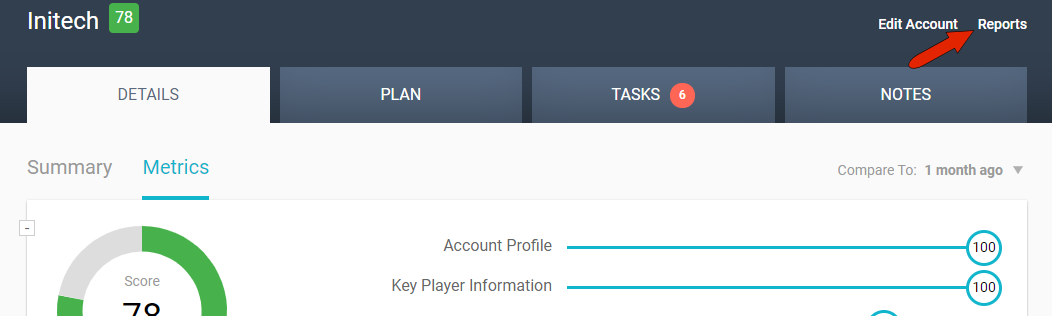
To download a report of account opportunities, click the Reports link at the top right of the page.
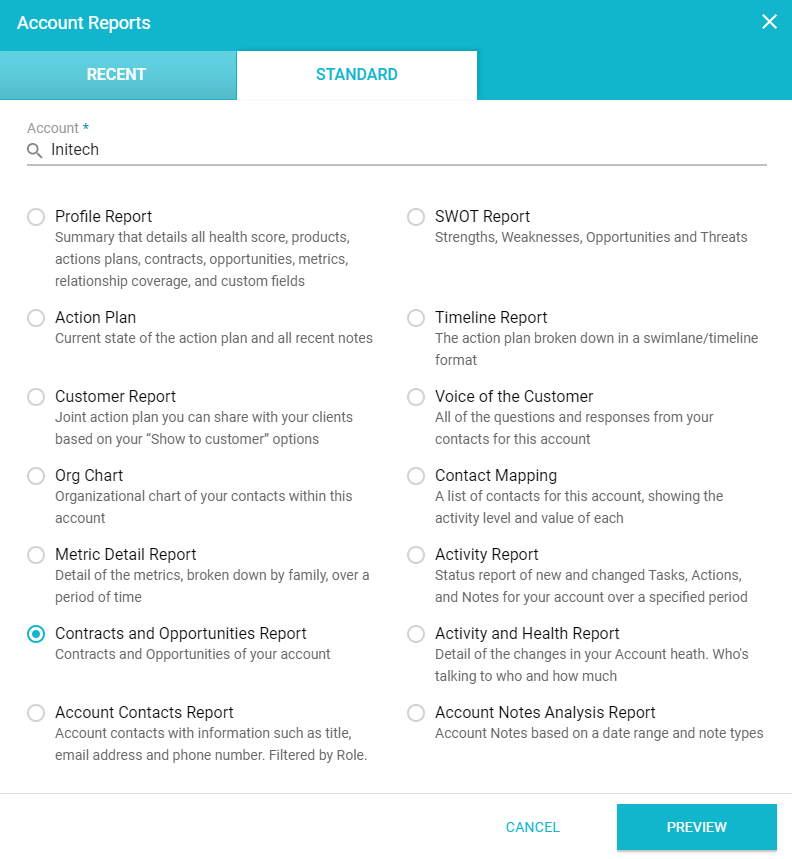
The STANDARD tab lists of all available account reports, which are set up by the administrator. Here you’ll find, if enabled, the Contracts and Opportunities report.
Comments
0 comments
Article is closed for comments.