
The following instructions are for the new Salesforce Standard (not Lightning experience):
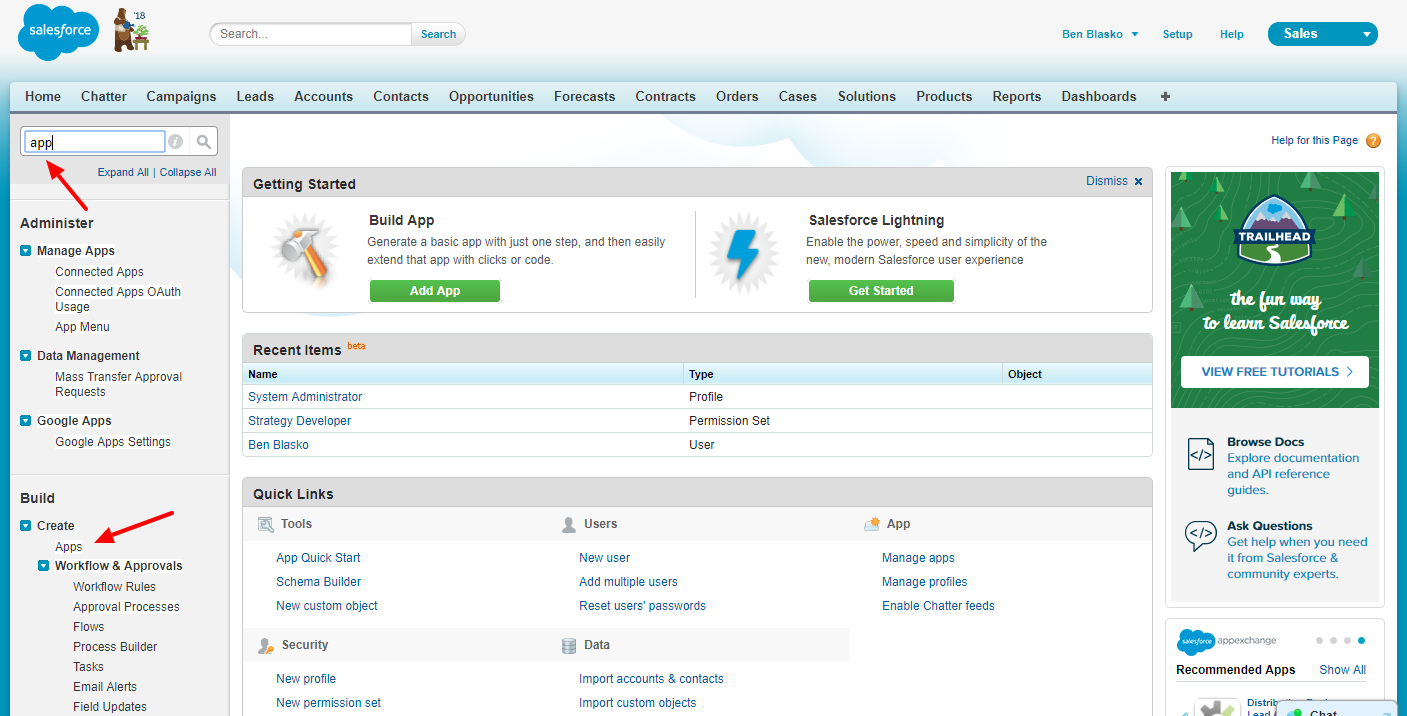
Step 1: Go to the Salesforce setup as an administrator, and use the quick search to search for "app." Under the options presented, choose Build / Create / Apps
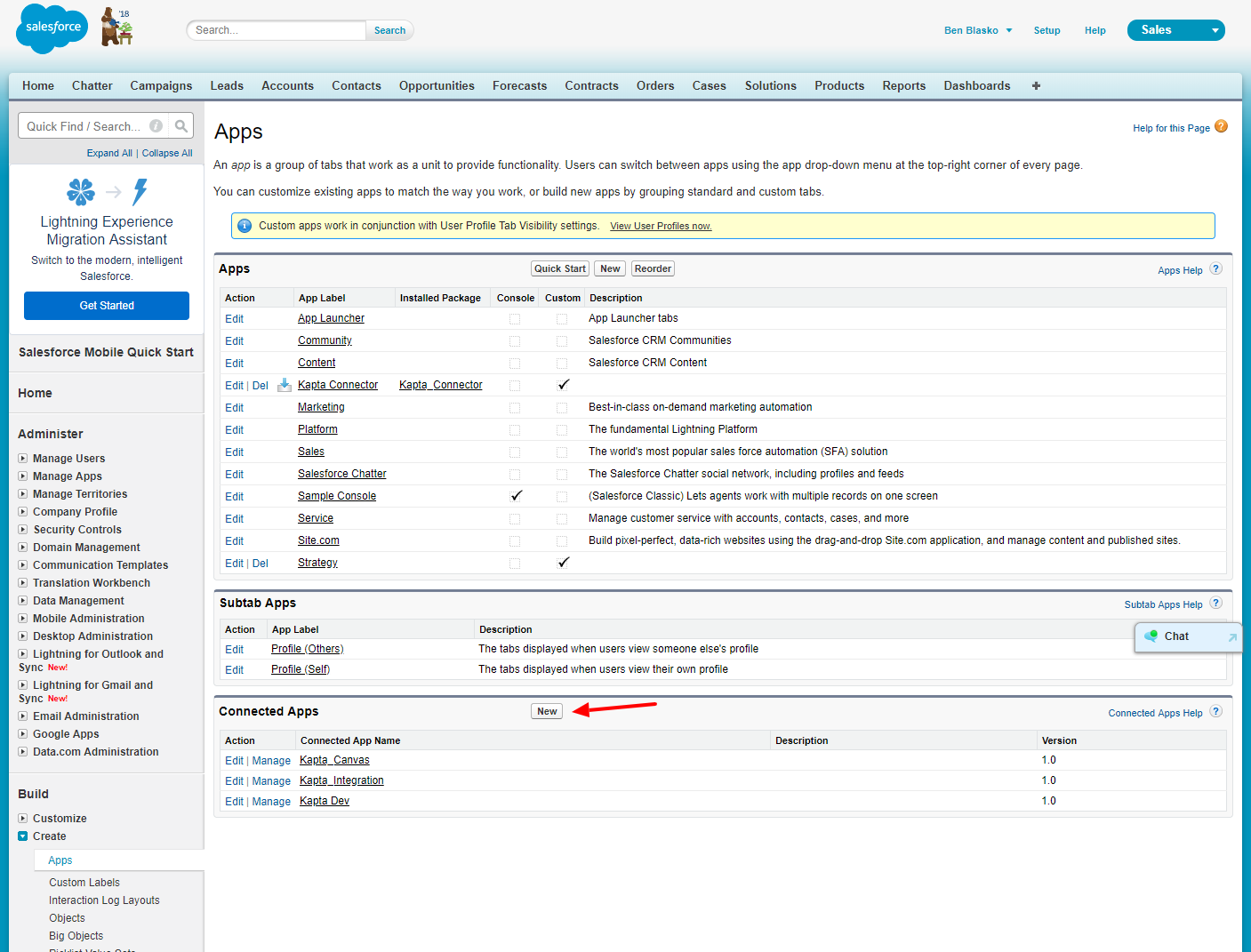
Step 2: Scroll down to Connected Apps, and click New.
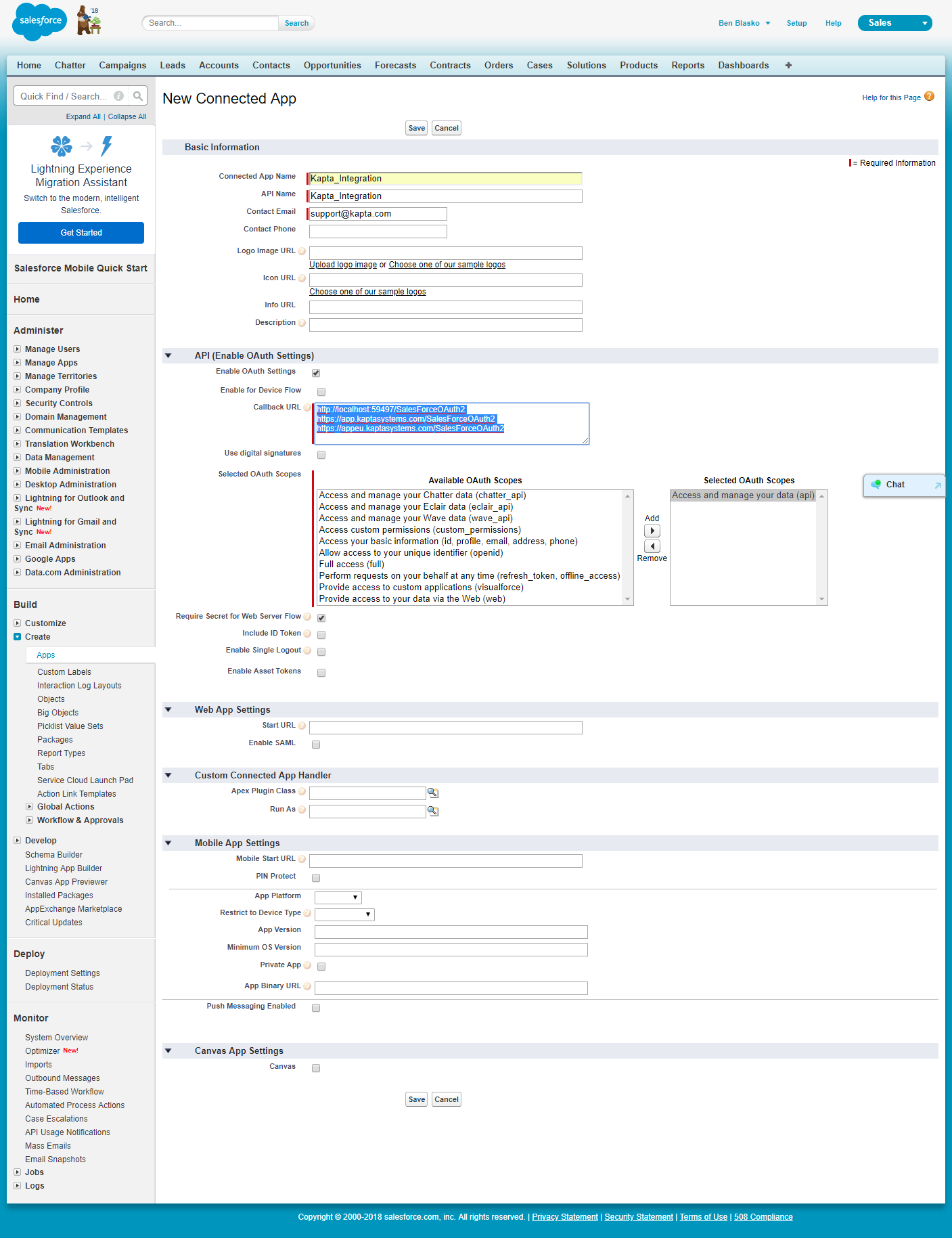
Step 3: Create an OAuth application for Kapta named "Kapta_Integration," and list support@kapta.com as the contact email.
Click Enable OAuth Settings under the API (Enable OAuth Settings) section. You will need to add the following callback URLs:
http://localhost:59497/SalesForceOAuth2
https://app.kaptasystems.com/SalesForceOAuth2
https://appeu.kaptasystems.com/SalesForceOAuth2
If you have a dedicated server, you'll also need to add a callback to that URL.
Finally, add the OAuth scope Access and Manage your data (api).
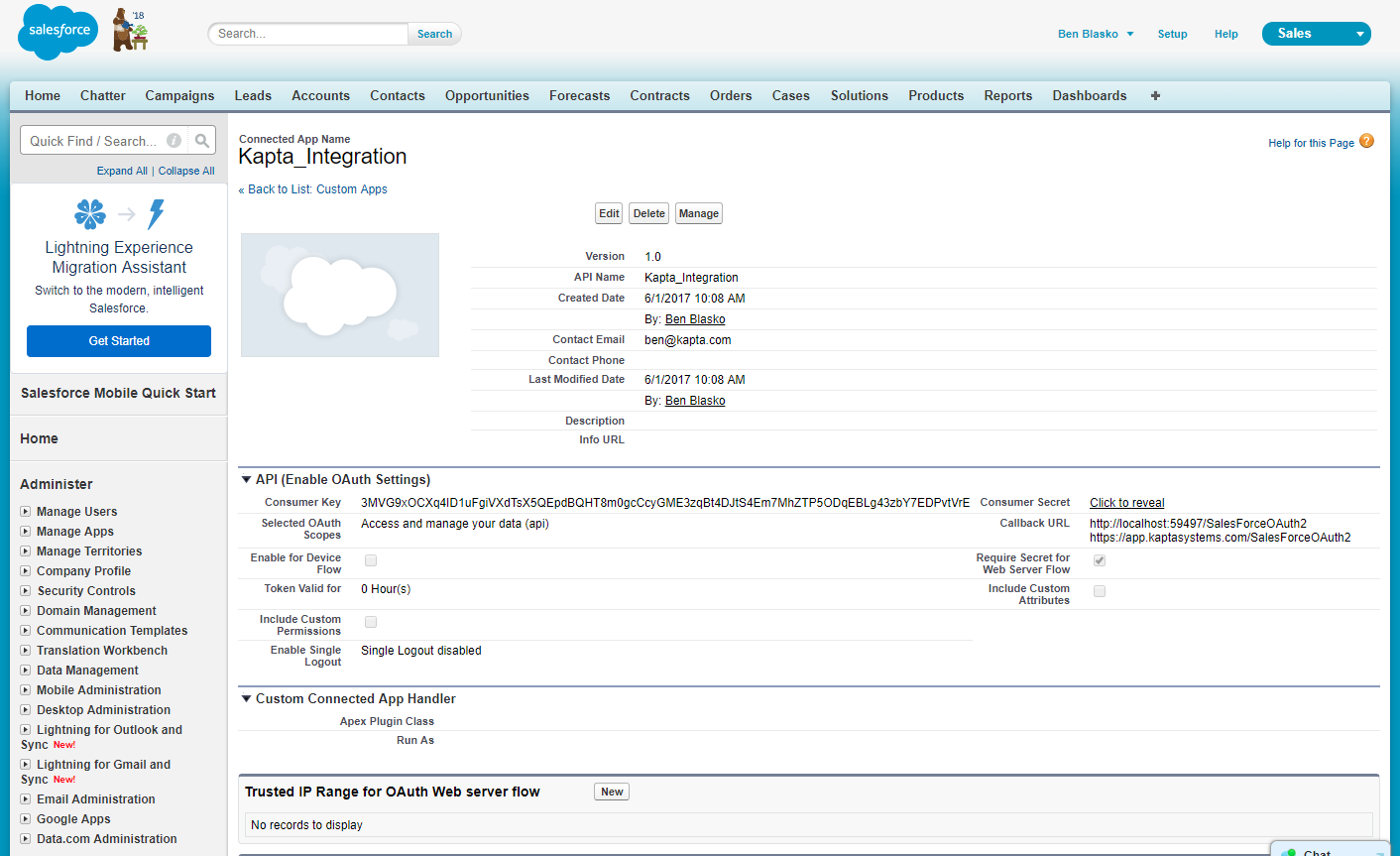
Click Save, after which you can access the Consumer Key and Consumer Secret key you'll need for updating your Kapta integration settings.
Comments
0 comments
Article is closed for comments.