
The Configuration settings affect how users interact with several aspects of the Kapta UI. We strongly recommend that administrators take some time to open and explore each of these categories of settings, to ensure that your entire team gets the most out of your Kapta license.
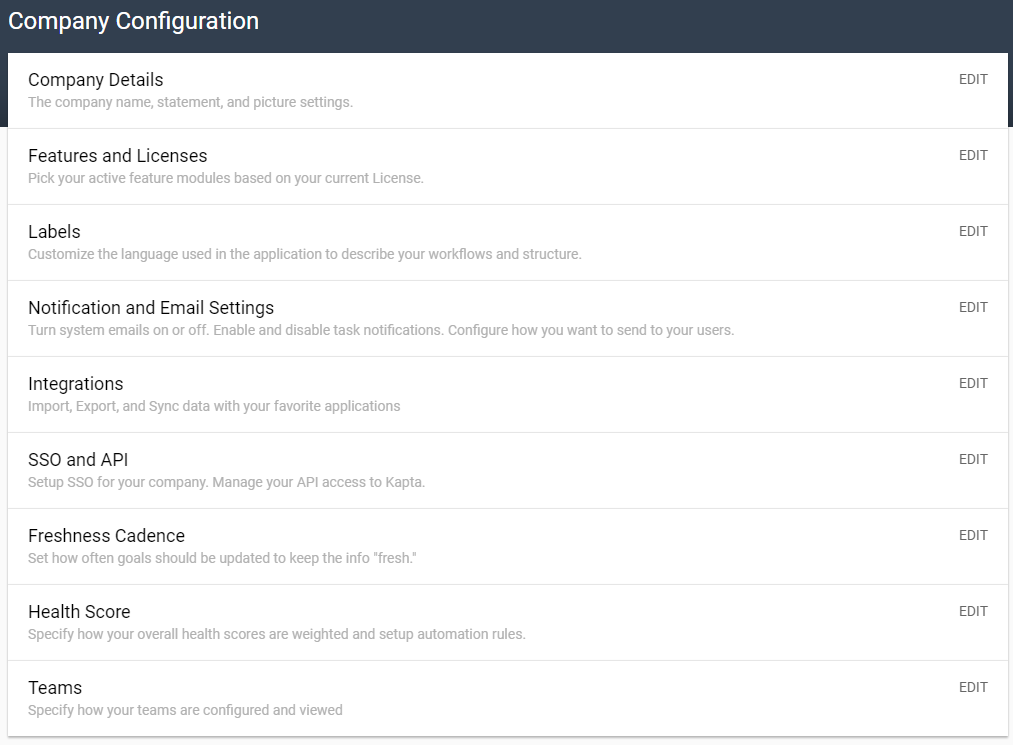
In particular, be sure to look at Notification and Email Settings, Freshness Cadence, and Health Score.
The vast majority of these settings are self-explanatory. Click any category to open it, and if you make any changes, be sure to click Save.
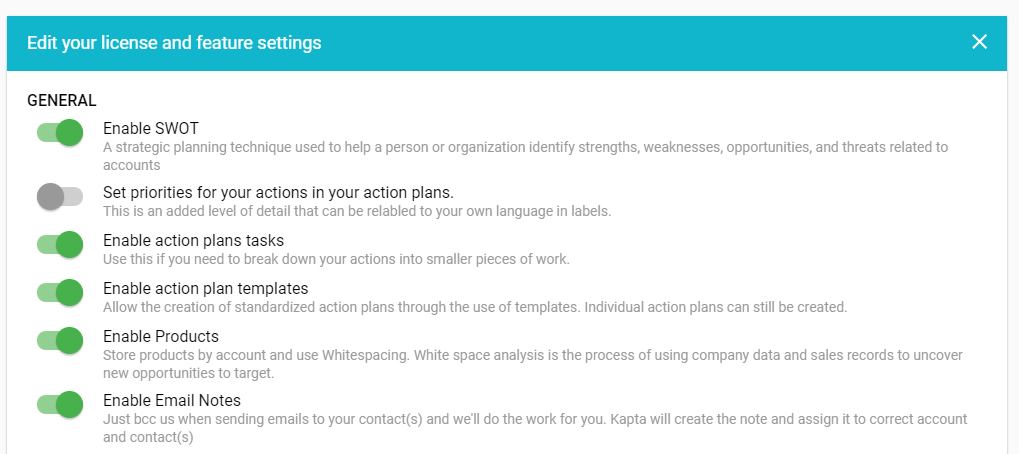
As an example, if you click Features and Licenses, you can enable or disable SWOT, Products, templates, and more.
Company Details: In addition to company name, currency, financial year end, and revenue, here is where you can set PDF and PowerPoint export settings.
Features and Licenses: Your available features depend on your type of Kapta license. But within the features that you have, there are settings that can be enabled or disabled. For example, you can disable products, or enable action plan templates. If your users are looking for a particular feature they can't find, this configuration category may be the place to turn that feature on. In addition to General UI settings, you can set default time periods for due dates and metrics comparisons, toggle metrics settings, and adjust security settings.
Labels: The Kapta UI uses default terminology such as Account, Contract, Product, Goals, Executive Sponsor, etc. If you want different terms for these things, such as Target instead of Goal, this is where you can make those changes.
Notification and Email Settings: Here is where you can enable or disable system emails, and set which automatic notifications will be sent out and how often. For example, you can set contract renewal emails to be sent within 30 and 60 days of contract expiration. Similar notifications can be set for actions and tasks, to remind users to keep up with key players and VOC, and to notify a task creator when the task is complete. The options at the bottom are for email digests sent to account managers.
Note that if you want to set up email events, system emails must be enabled.
Integrations: Here you can enable integration with popular CRMs such as Salesforce, Slack, and Hubspot, and email applications such as Mailchimp. See the Integrations articles for details.
SSO and API: In this section you can enable single-sign on, and get the API keys you’ll need to use for integration with other apps.
Freshness Cadence: This important section keeps track of how often your team needs to update actions and keep in touch with contacts. Contact freshness is maintained by adding contacts to notes, for instance, adding a note documenting an email exchange with a contact. Action freshness is updated manually, and actions that aren’t updated within the expected time will be tracked as blind spots.
Health Score: Here you can assign weights to the factors that comprise an account’s health score. We recommend including freshness in the calculation.
Teams: In this section, you can set the number of recent announcements and completed tasks, and sub-types for account notes. You can also change the setup of the Team options that appears in the left menu.
Comments
0 comments
Article is closed for comments.