
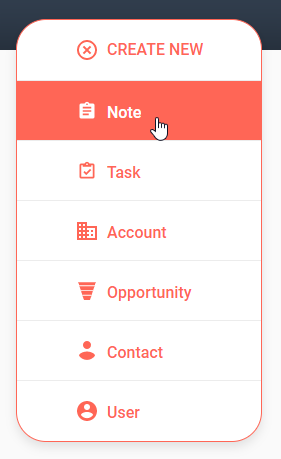
From anywhere within Kapta, you can click CREATE NEW / Note.
In the New Note window, specify the account if this field isn’t auto-populated from an account that’s currently open. Other mandatory fields are Title, Activity Type, and Date, which is auto-populated by default.
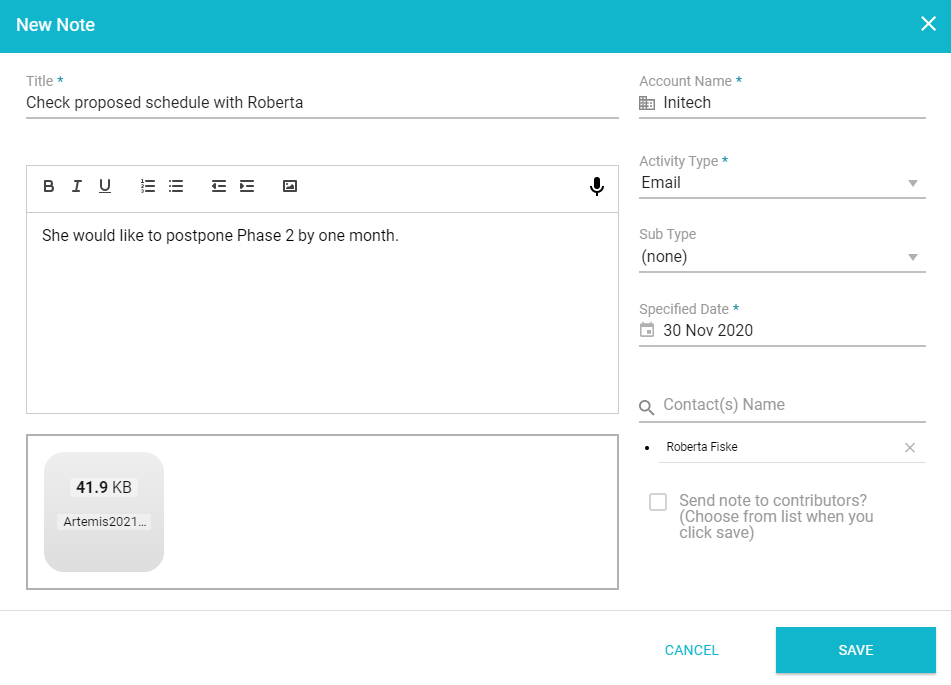
Sub type is optional, and these are configured by the administrator. As an example, a sub type named Client Check-in can be configured to include the standard questions your team members will be asking their contacts.
The note text can be formatted, can include images, and you can click the microphone icon for note dictation. This feature is supported in the Chrome and Edge browsers, and most mobile devices provide a dictation option on the keyboard.
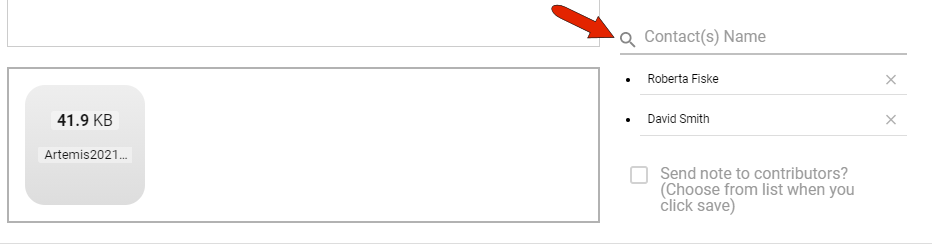
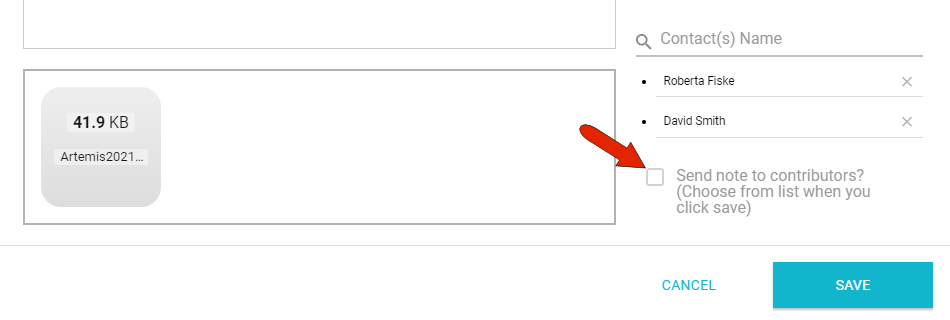
If the note is from or about one or more contacts, you can list those contacts here. Any notes linked to a contact will appear in the list of notes in the contact’s profile page.
Any files or documents related to the note should be uploaded here.
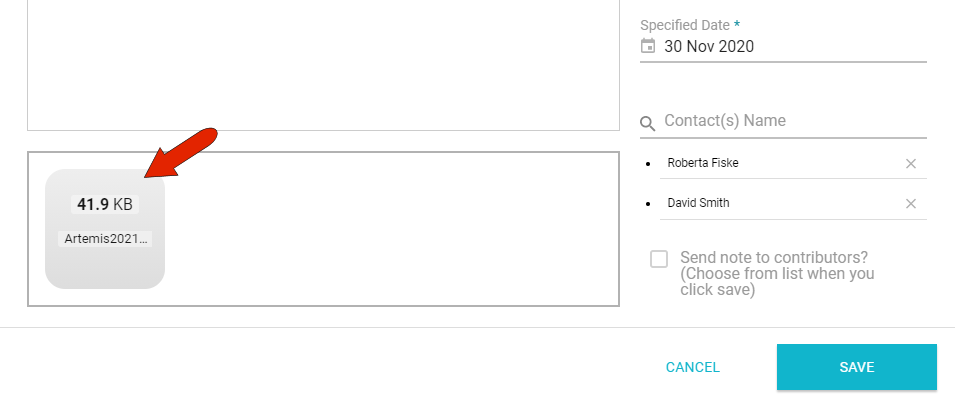
All documents added to notes will appear in the Documents section of an account’s DETAILS tab.
You can also choose to email a copy of this note to account contributors. After clicking Save, you’ll be asked which contributors will receive the email.
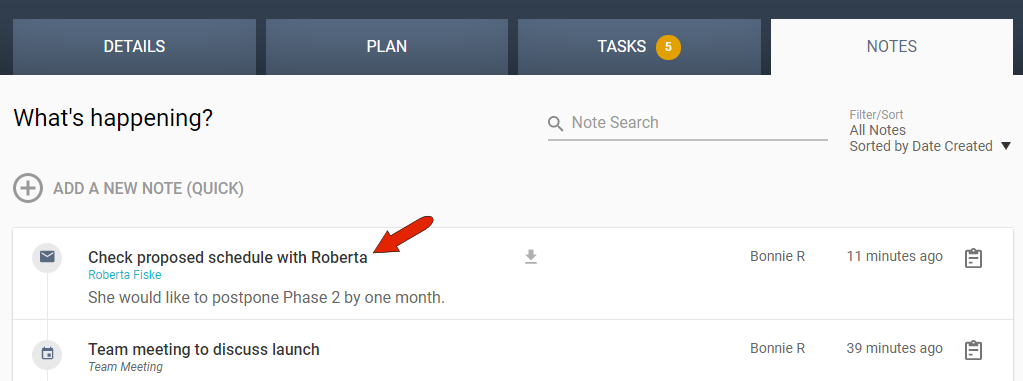
Once saved, the note will appear in the account's NOTES tab.
Comments
0 comments
Article is closed for comments.