
All key players and contacts added to an account are listed in the Key Players and Contacts section of the account's DETAILS tab.
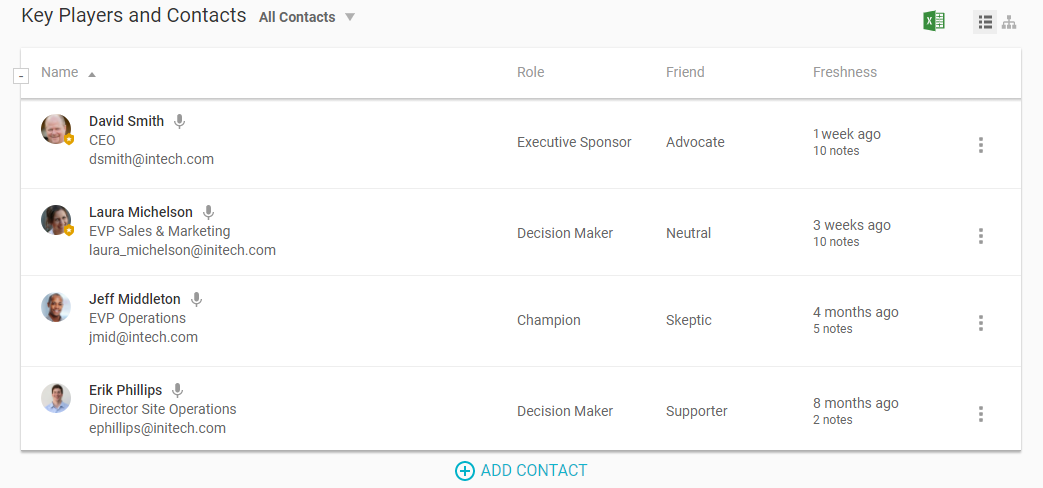
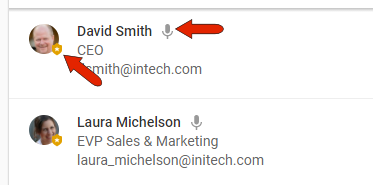
In this list, primary contacts have a badge icon, and the microphone icon means that the contact has answered Voice of Customer questions.
Minimizing the contacts table displays the total number of contacts, how many have completed the Voice of Customer questions, the freshest contact (with the most recent note), and number of contacts with no notes within the last year.

The table can be sorted by any column header, such as Freshness.
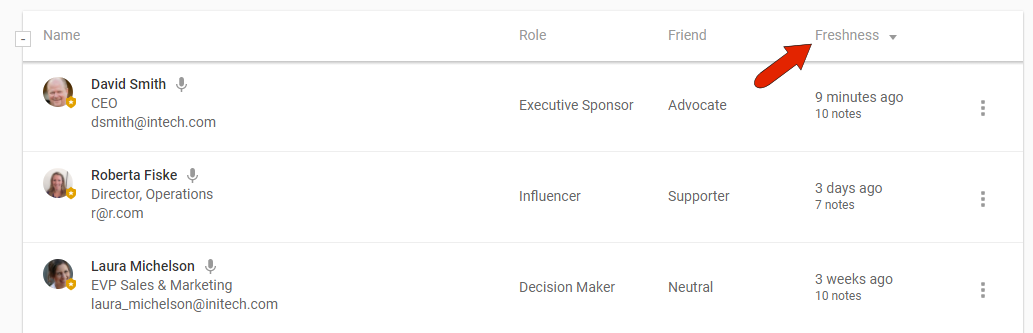
Freshness is based on the most recent note that mentions the contact, so be sure to check this column often so that your contacts hear from you consistently. Regular contact with key players can also help you stay on top of potential new opportunities. When creating or editing a contact, you can use the COMMUNCATIONS tab to set up regular check-in reminders.
You can filter the contacts list to show All Contacts or only Primary Contacts, and the administrator can set up additional system-wide contacts filters. You can also click Add Filter to create your own filter, which will be available only to you.
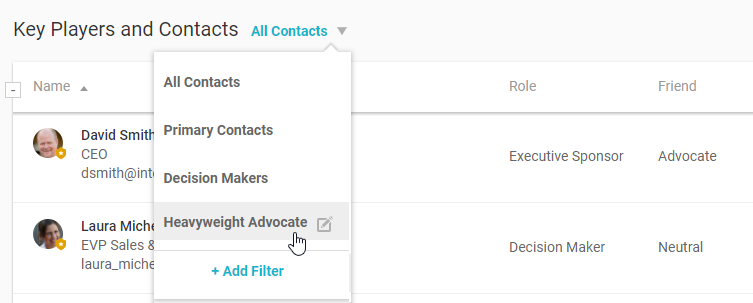
As an example, you can set up a filter to show contacts with a specific role or decision power. For any filter you create, you can click its Edit icon to change or remove it.
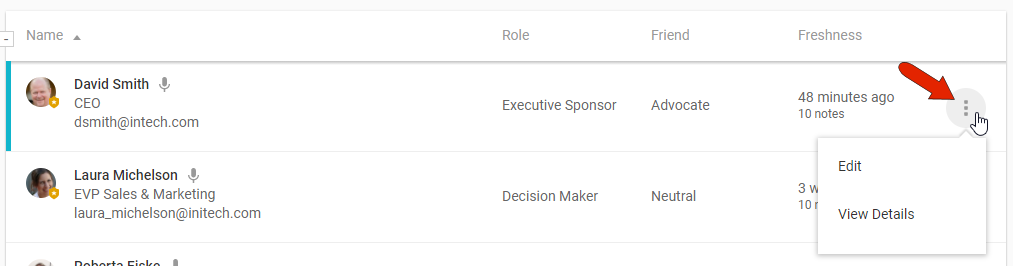
For any contact, you can click the three-dot icon to make edits, or to view details including notes and Voice of Customer answers.
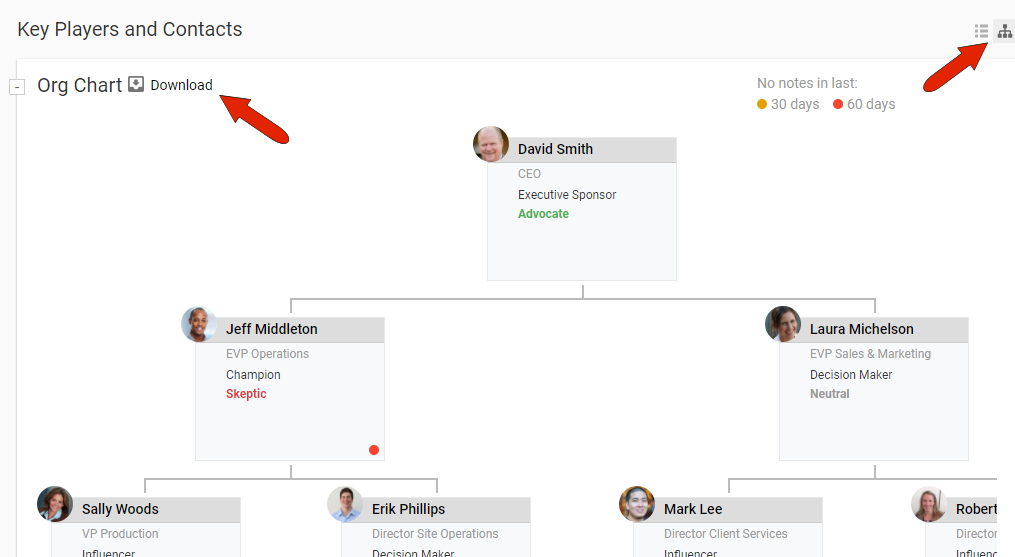
You can switch from list view to a downloadable Org Chart view, which provides an at-a-glance view of who reports to whom, roles, and friend / foe status, and freshness of notes.
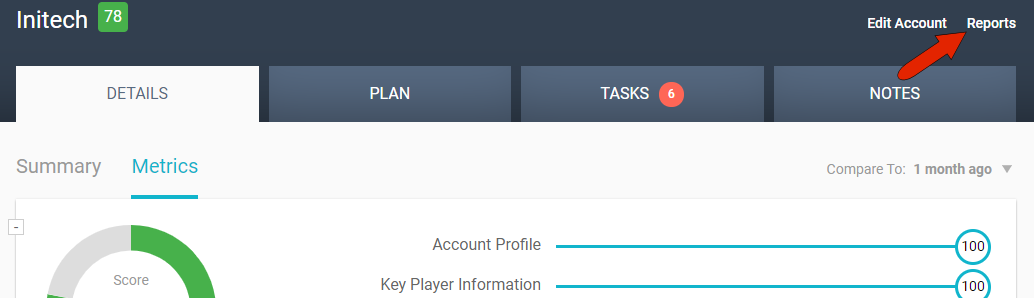
For other contact-related reports, click the Reports link at the top right of the page.
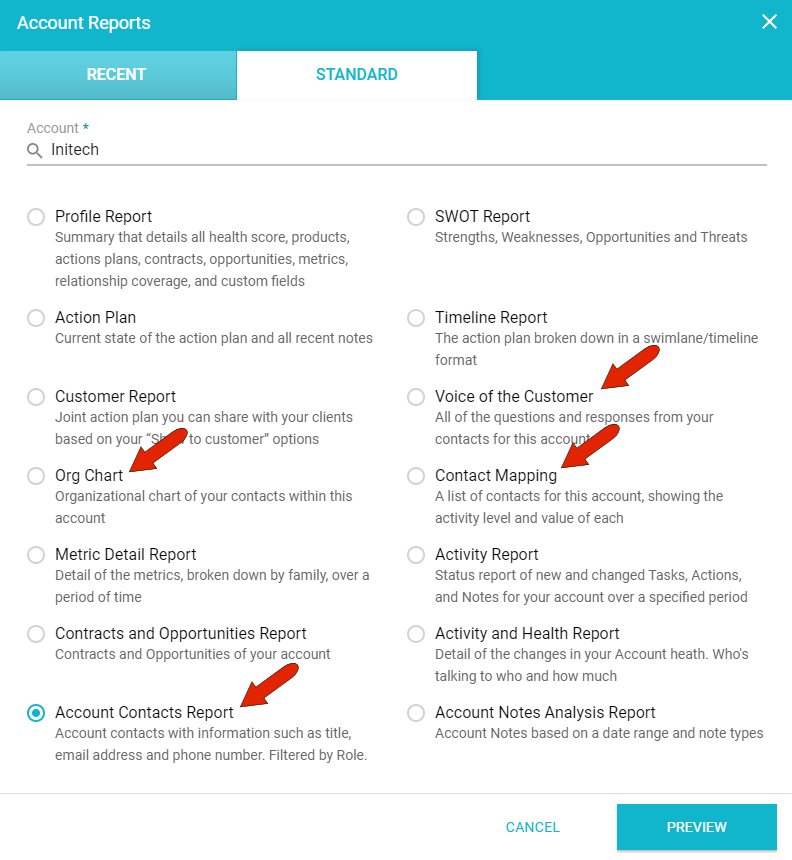
The STANDARD tab lists of all available account reports set up by the administrator. Here you’ll find, if enabled, Org Chart, Account Contacts, Voice of Customer, and Contact Mapping reports.
Comments
0 comments
Article is closed for comments.