
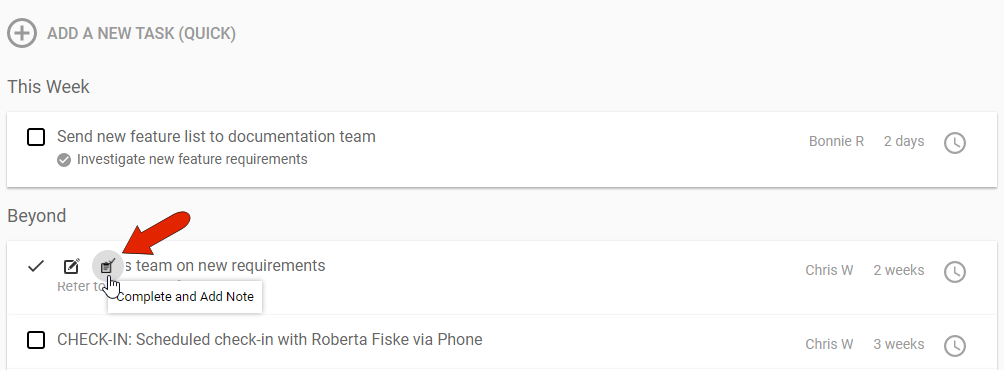
When viewing a task within an action, you can hover over the task checkbox to display icons along the left. The last icon enables you to complete the task while also adding a note.

After adding the note, the task will be marked as complete.
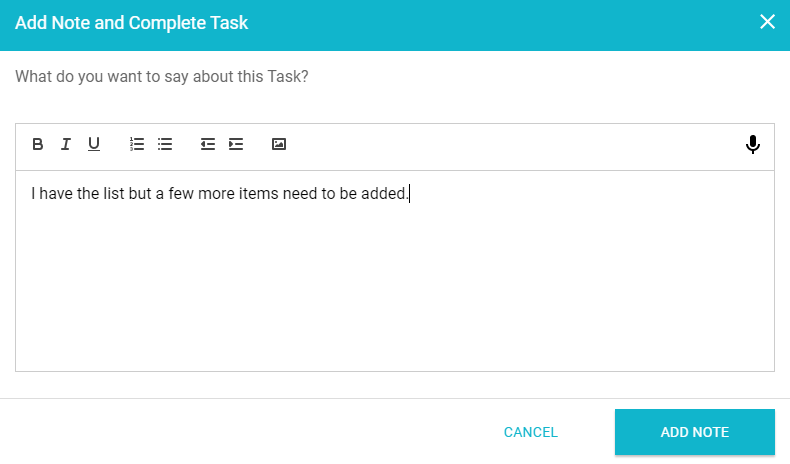
You can also add notes directly to tasks in the TASKS tab.
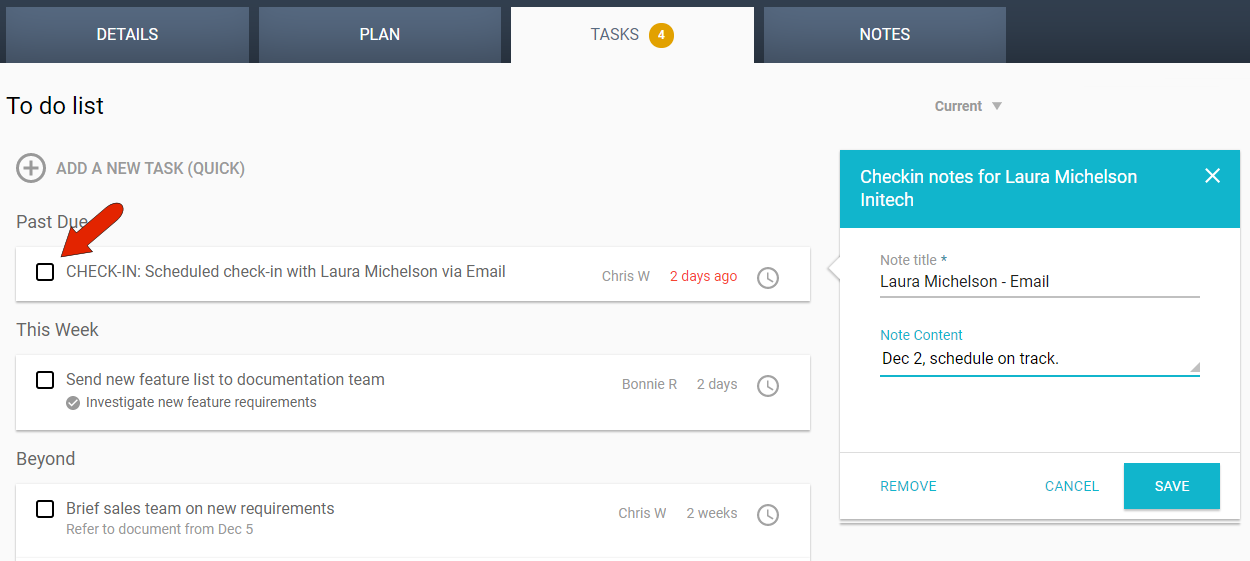
If the task is an automatically generated check-in, based on the frequency set in the contact’s profile, you can click the task and enter the note that will mark the task as complete.
For other types of tasks, you can hover over the task to display the Complete and Add Note icon.
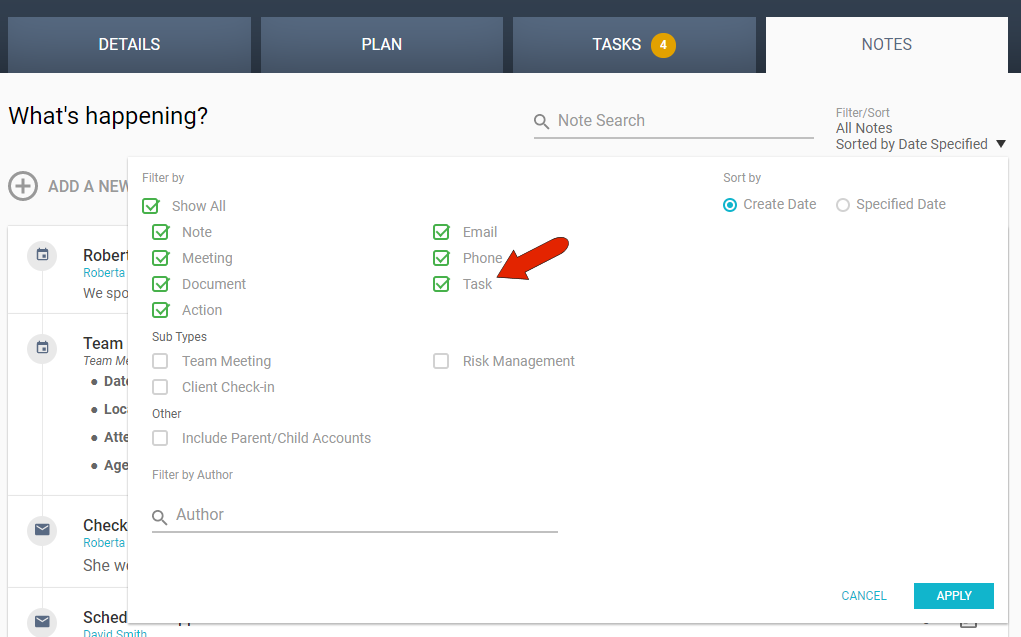
In order for task notes to appear in the account's NOTES tab, the filter must be set to include task notes.
Comments
0 comments
Article is closed for comments.