
There are several ways to create and assign tasks for an account.
Note: If an account note or SWOT item contains an actionable item, you can use the item text to generate a task. You can also create team tasks, which will be not be linked to an account.
The CREATE NEW button, which is always available in Kapta, has a Task option.
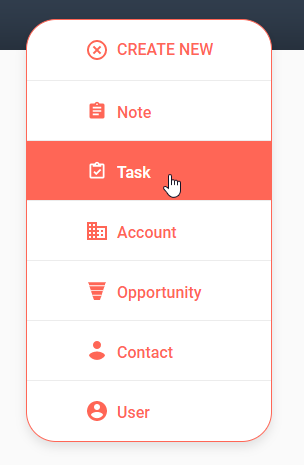
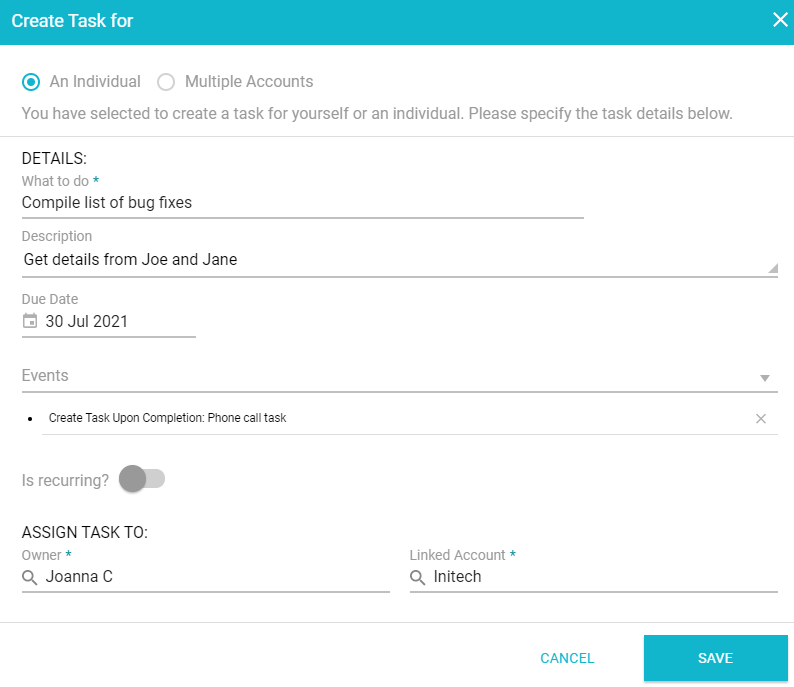
In the Create Task For window, you can assign the task to an individual or to one or more accounts.
For a task assigned to an individual, assign the task a name and optional description, a due date, task owner, and linked account. If the task is recurring, such as a weekly meeting, set the start date and frequency. A task can also include one or more events: an email, action, task, or template that will be launched when the task reaches a specific threshold or condition.
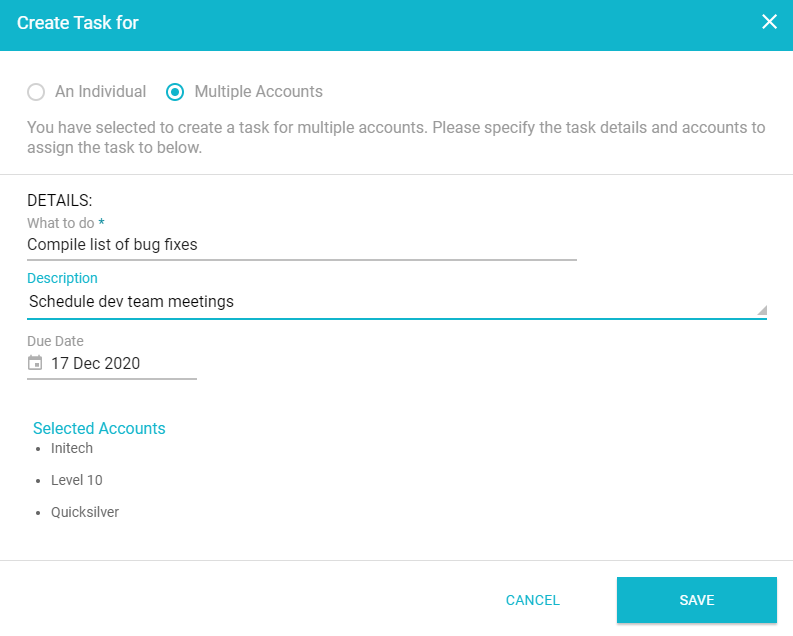
If the task is assigned to some or all accounts, then all team members working on the accounts will see this task listed in their account TASKS tabs, with the account manager listed by default as the task owner.
Tasks can also be created and assigned within an action of an account plan.
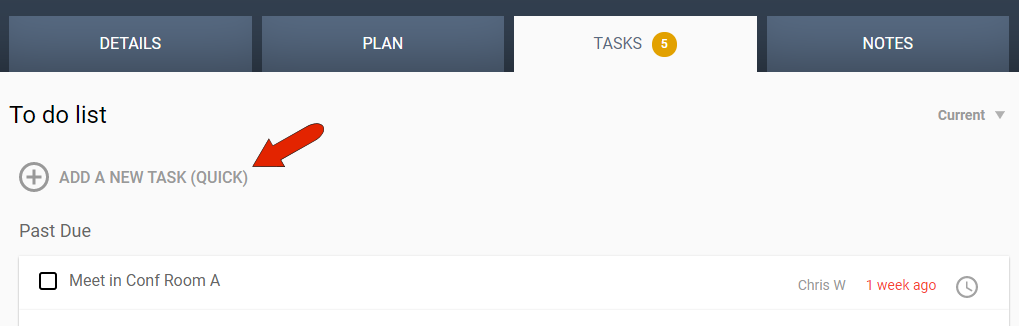
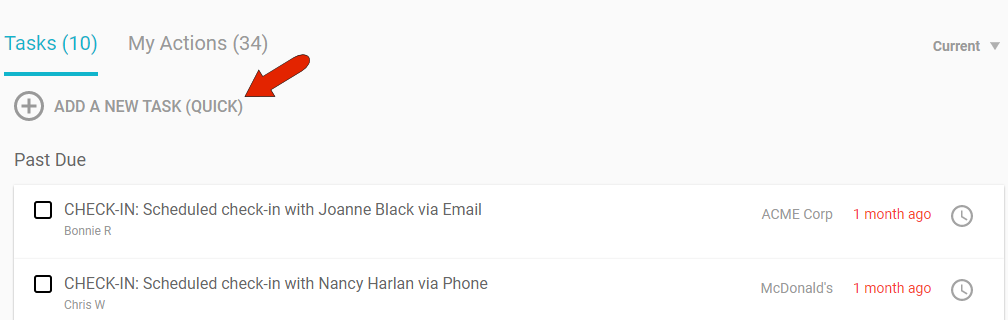
You can also create a task directly from an account’s TASKS tab by clicking the Add a New Task link at the top. This Quick-task format produces tasks assigned to an individual, not accounts.
Quick tasks can also be created in the HOME tab of your Dashboard, in the Tasks section.
Comments
0 comments
Article is closed for comments.