
Throughout the Kapta UI, there are numerous places where you can use filters to narrow lists and change the resulting displayed data.
Filters are implemented by drop-down menus. As an example, in the Dashboard, the default list of Tasks on the HOME tab include all current tasks for your entire team.
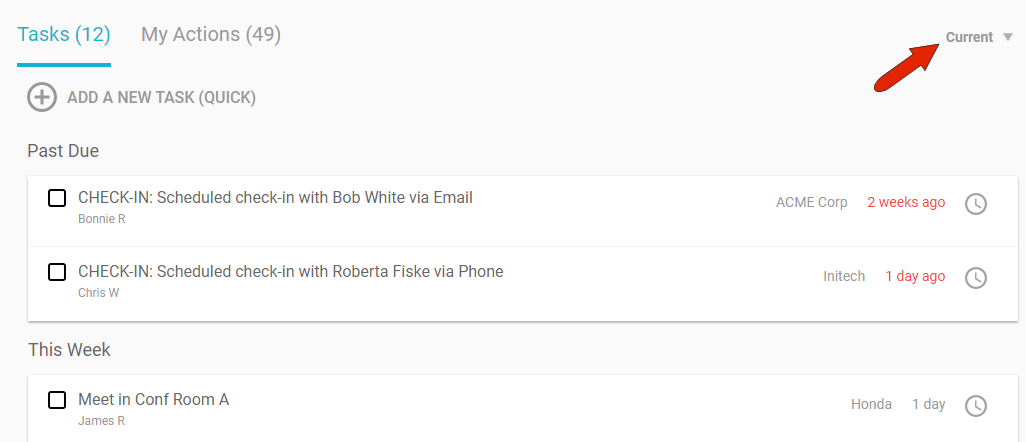
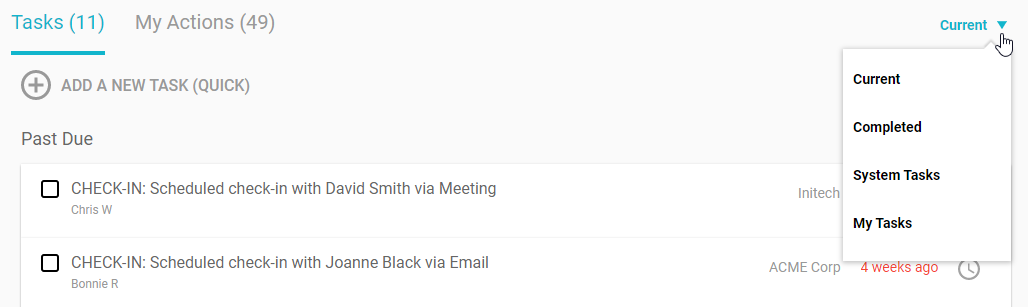
You can click this drop down to show only completed tasks, system tasks, or your tasks.
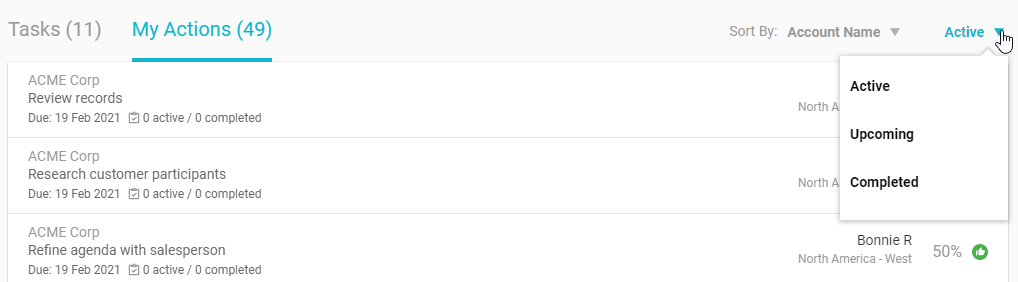
If My Actions are displayed, you can filter to show upcoming or completed actions.
One of the most commonly used filters is for accounts. When looking at data on your Dashboard, or your Metrics page, or in Reports, Contracts, Opportunities, or Products, the various numbers and graphs are based on data from All Accounts, as indicated by the current filter at the top left.
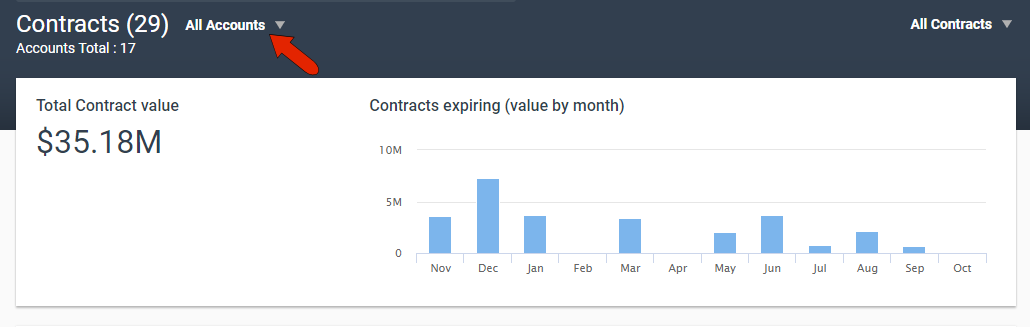
There are two standard filters for accounts: My Accounts which includes only accounts for which you’re the owner, or Contributing Accounts, for which you’re a contributor.
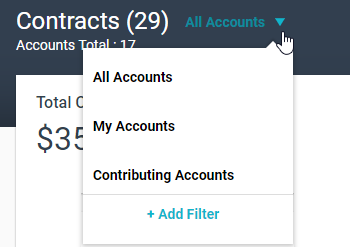
In addition to these standard filters, the administrator can also set up system-wide account filters, which will be available for all Kapta users in your company.
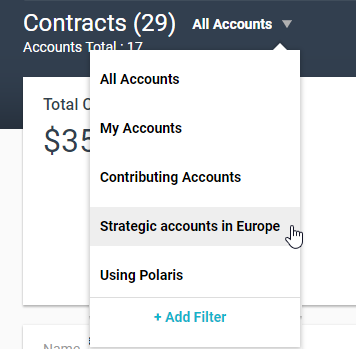
In addition to account filters, the administrator can also set up system-wide filters for contacts, documents, contracts, opportunities, and products. You can also set up your own filters, which will be available only to you.
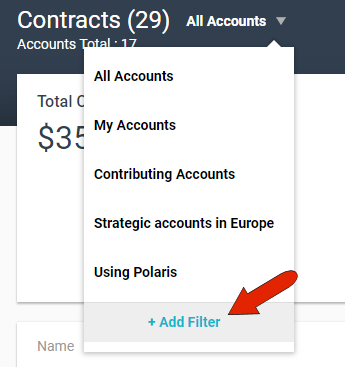
For example, to create your own account filter, click Add Filter at the bottom of the account filter list.
In this example, the BASIC tab has fields to filter by owner and by account type. This filter will find all accounts of either of the two owners listed, that are either Strategic or Flagged.
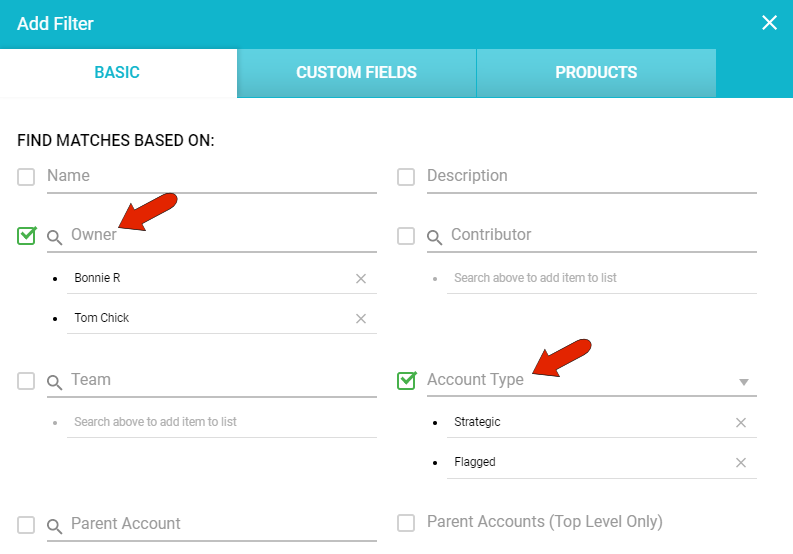
You can also filter by fields in the CUSTOM FIELDS and PRODUCTS tabs.
If you click SAVE without naming, this filter will be applied just once, to the current list. For a filter you expect to use repeatedly, assign it a name so that it will be saved for later.
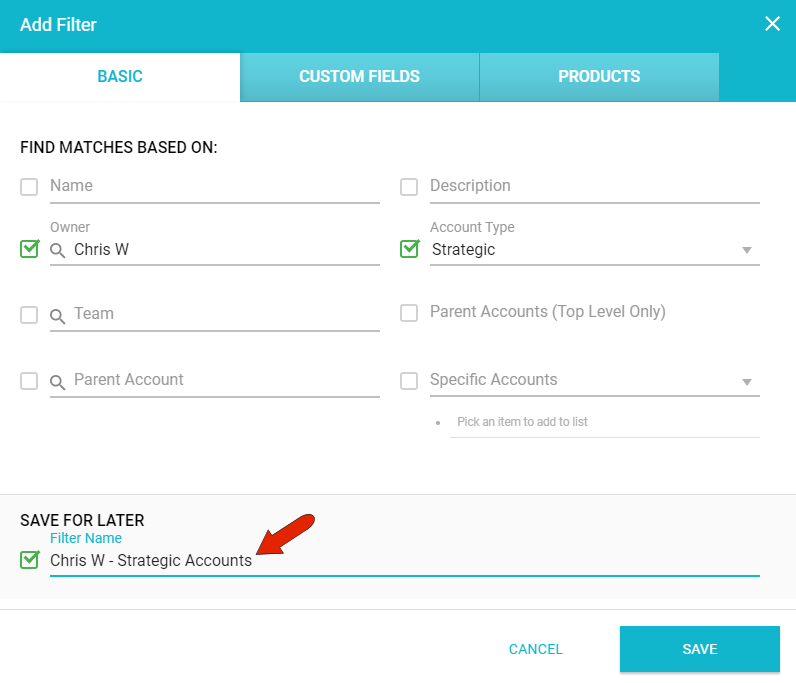
Once saved, you can use this filter wherever account filters can be applied.
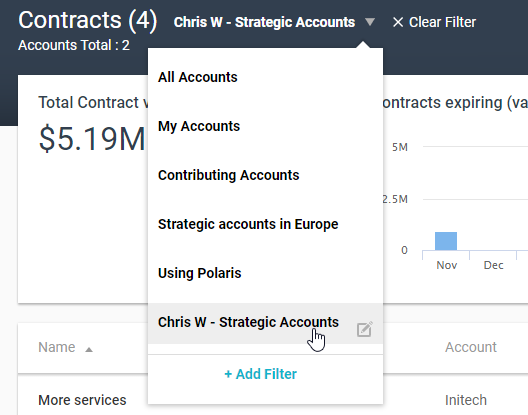
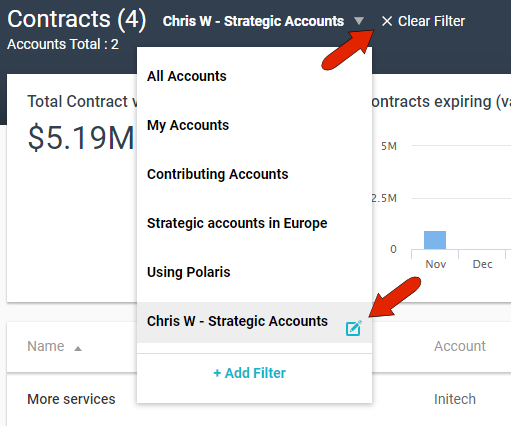
Once a filter is applied, it will become the default until a new filter is applied, or until the filter is cancelled by clicking the Clear Filter link. To edit or delete a filter you created, click its Edit icon.
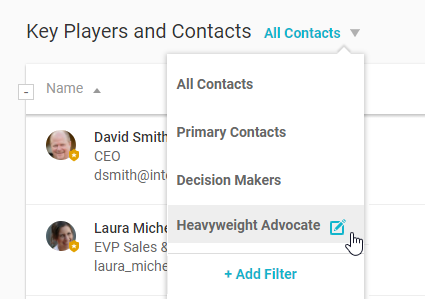
Another popular place to apply a filter is the Key Players list in an account. The default filters are All Contacts and Primary Contacts. In this example, the administrator added a system-wide filter to show only Decision Makers, and a user-created filter was created to show advocates with heavy decision power.
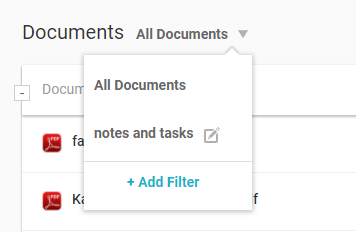
As another example, you can set up a Documents filter to show only documents linked to notes and tasks.
Comments
0 comments
Article is closed for comments.