
The answers to Voice of Customer survey questions are a crucial part of the Know component of our Know - Act - Measure process. These answers can be entered in an account’s DETAILS tab.
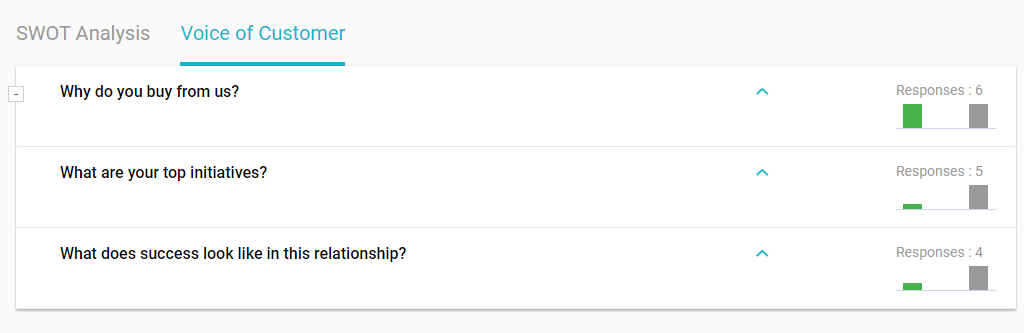
In the Voice of Customer section, you’ll see the list of survey questions that were set up by the administrator. There are typically 3-5 open-ended or multiple-choice questions, which should be sent to the top two or three contacts from the account. The total number of answers appears alongside the question, with color-coded bars indicating positive, negative, and neutral responses.
Ideally, these questions are asked in person or by phone, after which you can record each answer, add any notes, and list the contact who provided the answer. The VOC survey can also be emailed to customers.
We recommend checking in with your contacts every 90 days or so, to refresh these answers.
To add an answer to an open-ended question, click the question itself, which opens the list of all answers that have already been recorded.
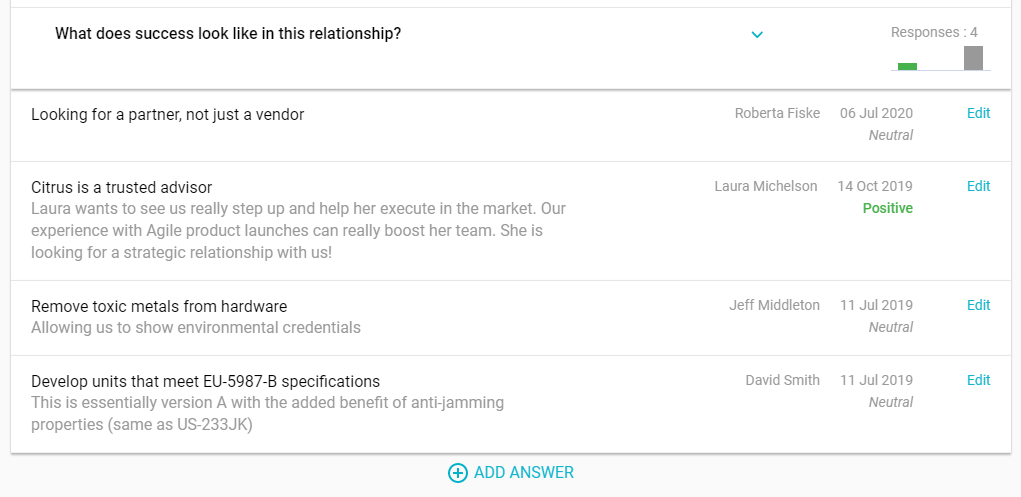
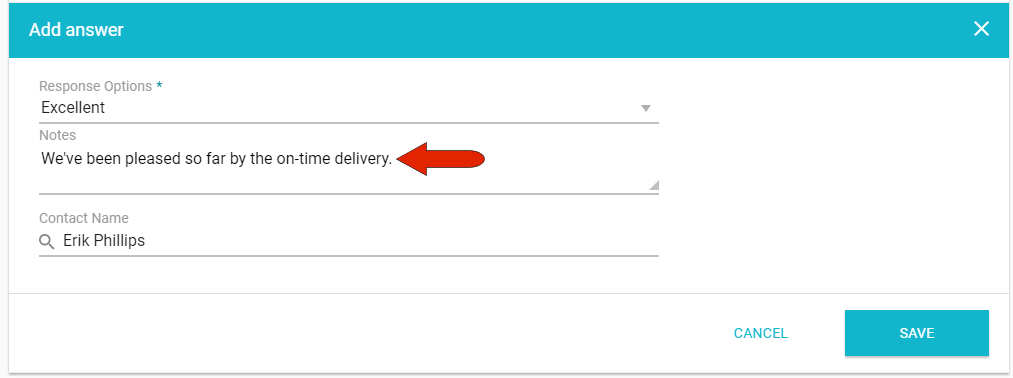
Click Add Answer, and in addition to entering the contact’s response and any notes, be sure to include the name of the contact providing the answer.
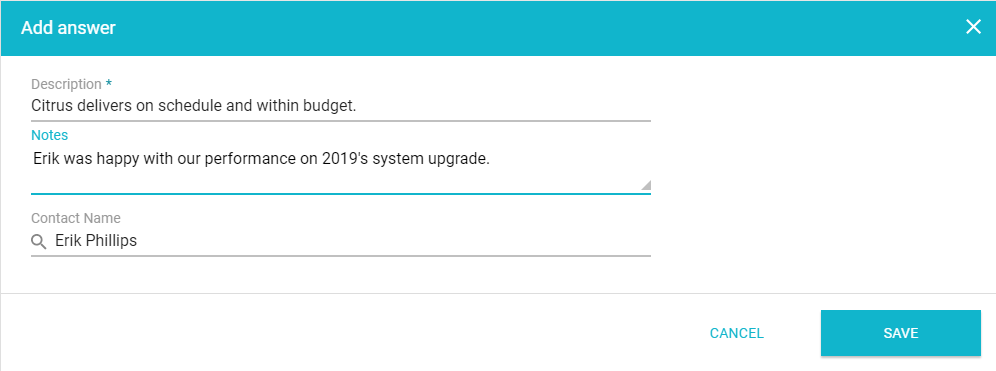
Answers are scanned by Kapta’s AI language processor, and scored as positive, neutral, or negative.

To add an answer to a multiple-choice question, click Add Answer and choose the response from the drop-down menu.
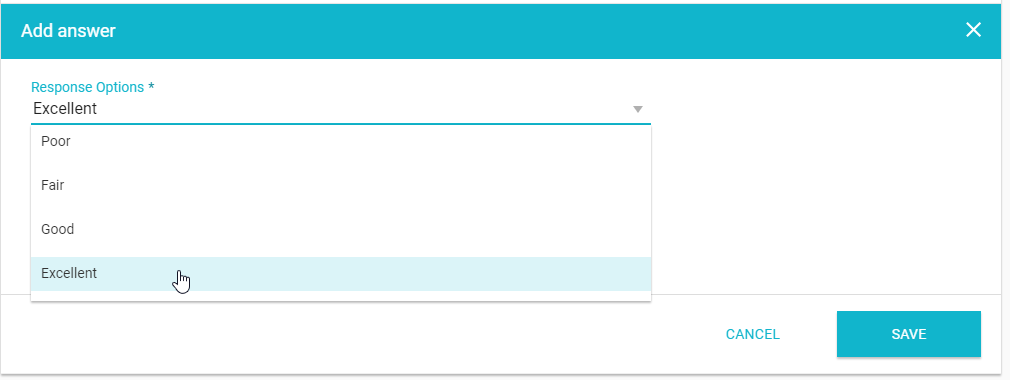
If a comment is added in the Notes field, the comment text will be used for the AI language scoring.
Minimizing the Voice of Customer section displays the number of completed questions.

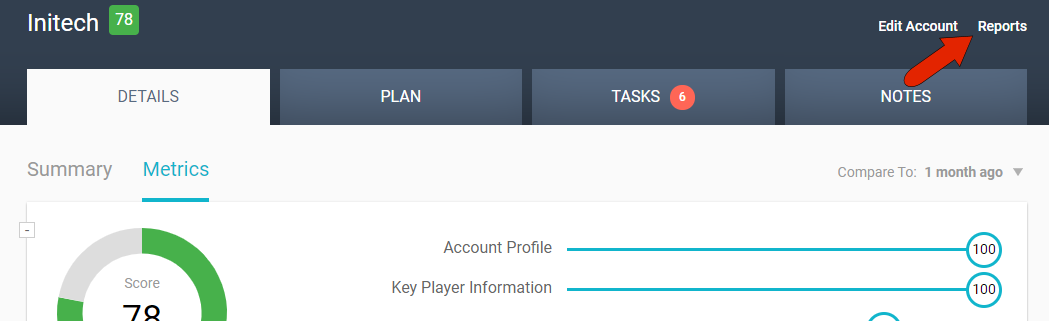
To download an account’s Voice of Customer answers as a report, click Reports at the top right of the page.
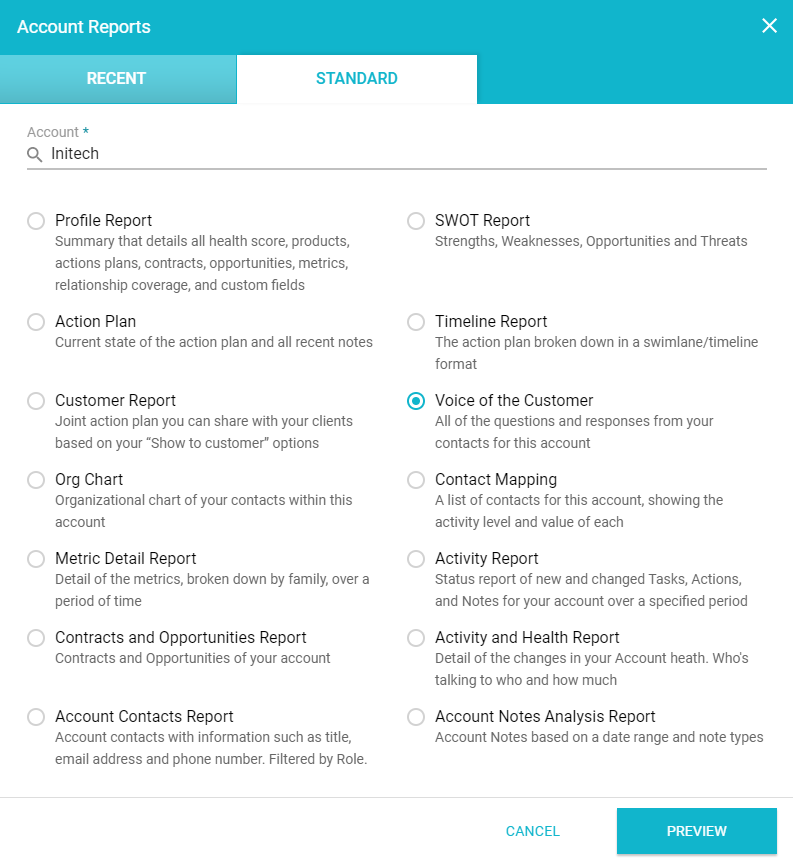
The STANDARD tab lists all available account reports, which are set up by the administrator. Here you’ll find, if enabled, the Voice of Customer report.
Comments
0 comments
Article is closed for comments.