
Knowing your customer's key players is a crucial part of the Know component of our Know - Act - Measure process. Defining the key players and contacts is typically done as the first step in setting up a newly created account.
The administrator can set up or import contacts, but you may still have some cleanup to do, such as fill in any missing details, or removing contacts you don’t need. You don’t need the full list of the company’s employees; just keep the 10-15 that have the most impact on this particular account.
There are two ways to manually add a contact to an account.
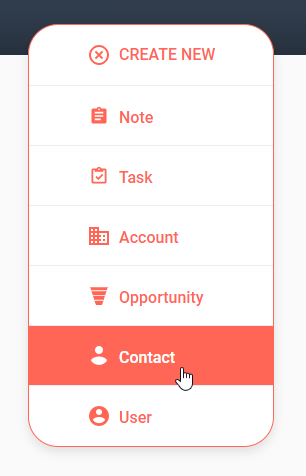
From anywhere within Kapta, you can click CREATE NEW / Contact.
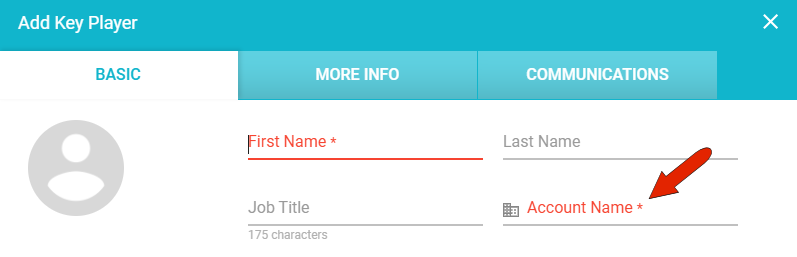
You'll need to specify the contact's account, if this field isn’t auto-populated from an account that’s currently open.
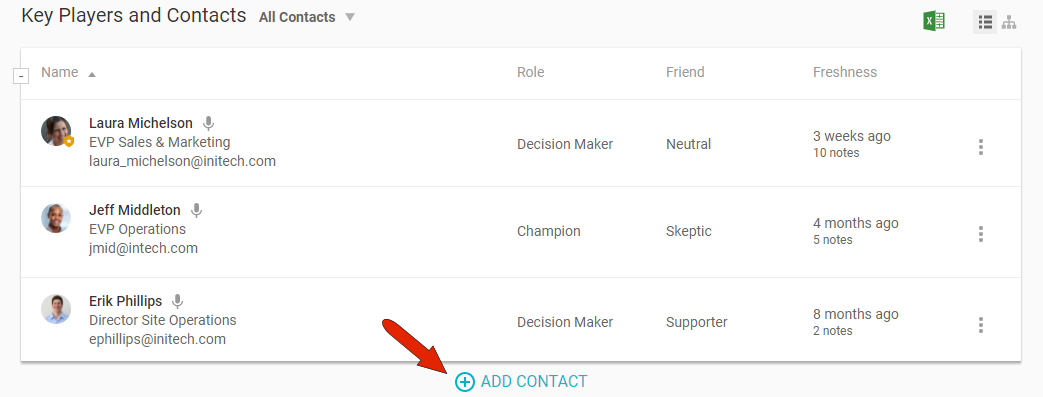
Or, if an account is open, find the Key Players and Contacts section on the DETAILS tab, and click Add Contact.
On the BASIC tab, in addition to name, title, and contact details, it’s important to define Role, Friend/Foe, and Decision Power.
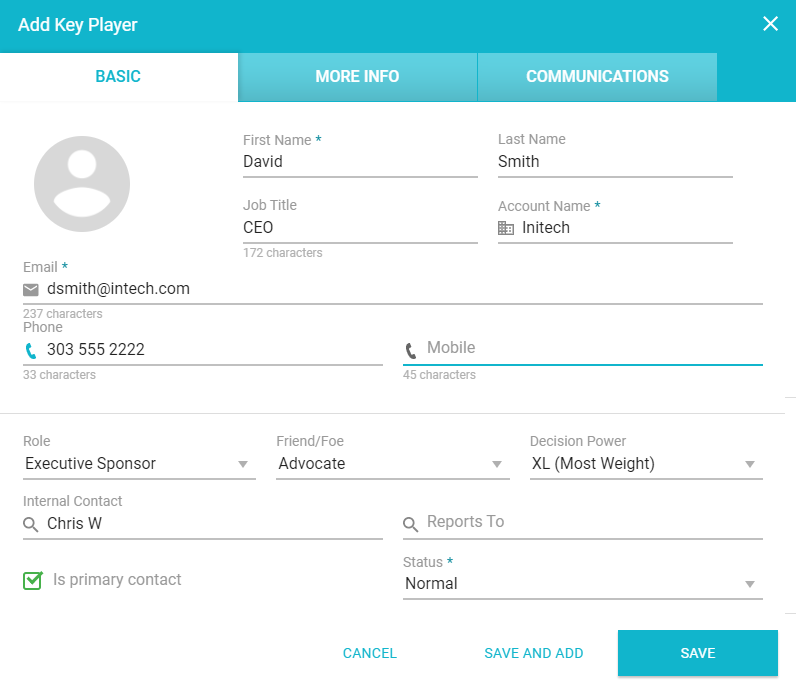
- Role isn’t necessarily the person’s position within their company, rather it answers the question of “what does this person mean to me and my company.” The executive sponsor typically signs the contract, a decision maker green lights the projects you’re working on, and a champion is one of your company’s supporters. Key players can also include influencers, recommenders, and points of contact.
- Friend / Foe is how this person feels about your company, from advocate to hostile.
- Decision Power describes this person’s influence over decisions relating to this contract.
- Internal Contact is the person within your company who this key player most often communicates with.
- Reports To is this key player’s immediate supervisor, also set up here as a contact. It’s important to get the hierarchical structure correct, so that Kapta can build an accurate org chart.
- A Primary Contact is someone you or a team member will be contacting directly, and primary contacts are displayed at the top of the key players list. Contact status is Normal, and can be archived later if the contact is no longer needed in your contacts list.
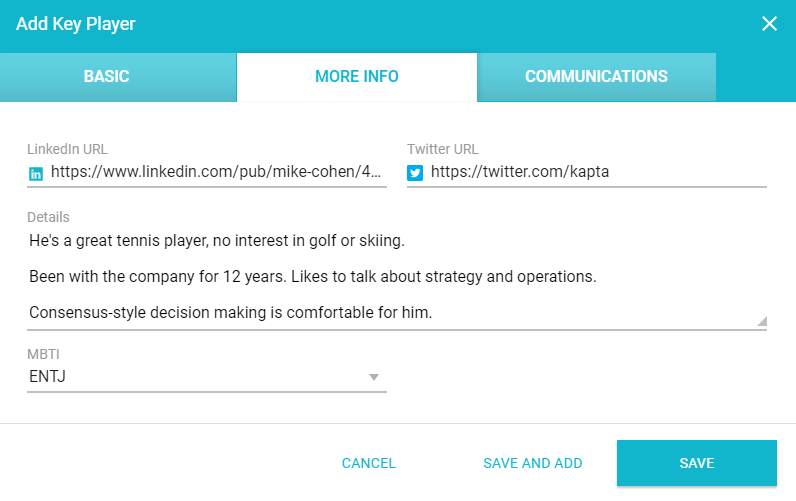
The MORE INFO tab contains social links and personal details, plus any contact-related custom fields set up by the administrator.
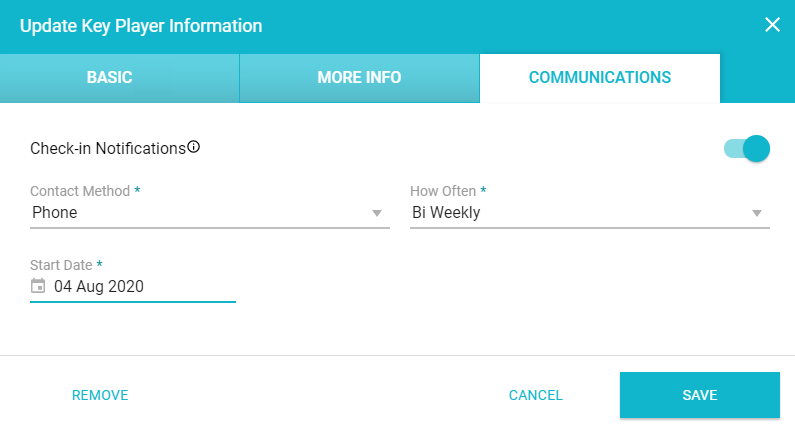
The COMMUNICATIONS tab enables you to set the method and frequency of regular check-ins with this contact. Check-in reminders will appear as tasks assigned to the account owner, and will be listed in your account tasks.
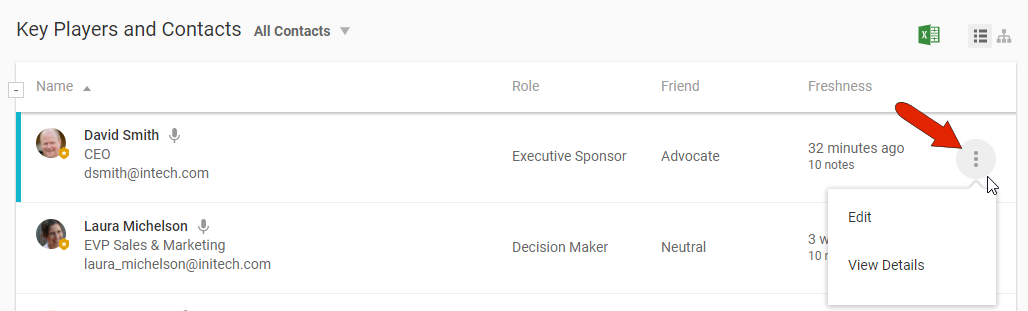
Once a contact is saved, they will be listed in the Key Players and Contacts section of the account's DETAILS tab.
You can click a contact's three-dot icon to edit or view any of the contact's details.
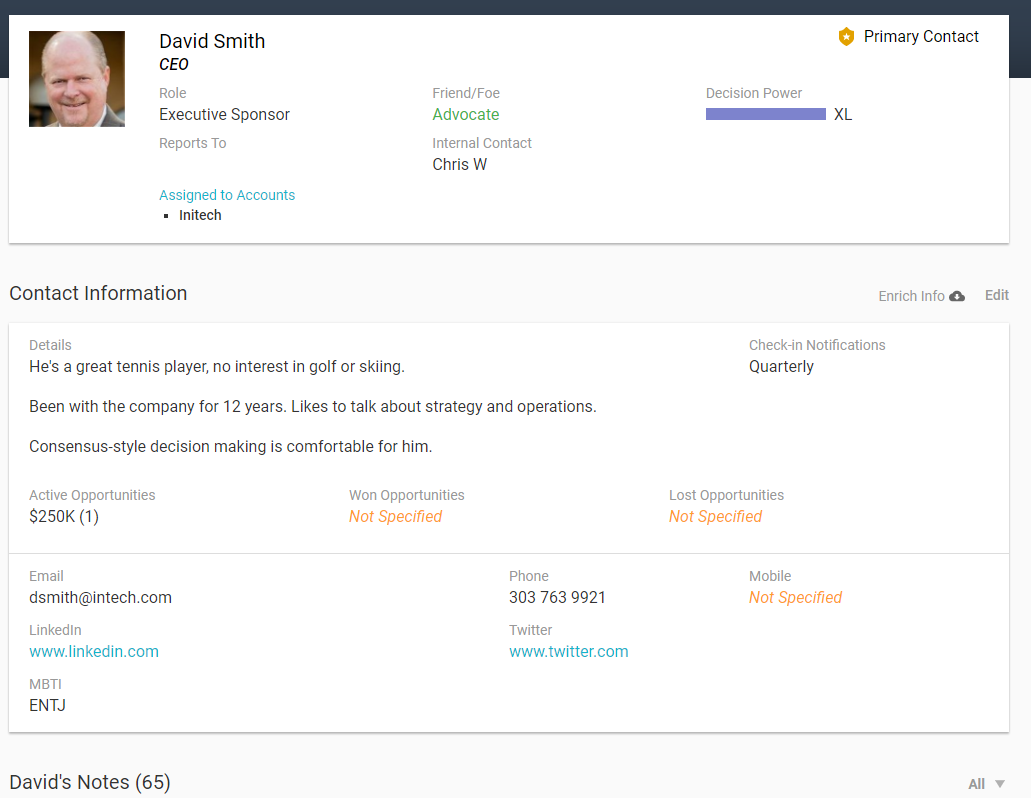
The View Details option opens the contact's profile page, where you can make edits, or use the Enrich Info icon to implement an AI search for any missing info such as a headshot or social profile. A profile image can also be uploaded manually. Farther down on this page, you can view or add notes related to this contact, and view or add Voice of Customer answers.
Comments
0 comments
Article is closed for comments.