
Tasks are small, ownable actions relating to an account that can be completed quickly, such as a customer check-in email, or preparing a report. Tasks can also be created within actions of an action plan.
Note: You can also create team tasks, which are not linked to accounts.
There are several ways to create account tasks.
All account-related tasks appear in the account’s TASKS tab, which serves as your to-do list for account activity. The default display is Current tasks, which lists all incomplete tasks for everyone working on the account. Past due tasks appear first, followed by immediate tasks, then upcoming tasks.
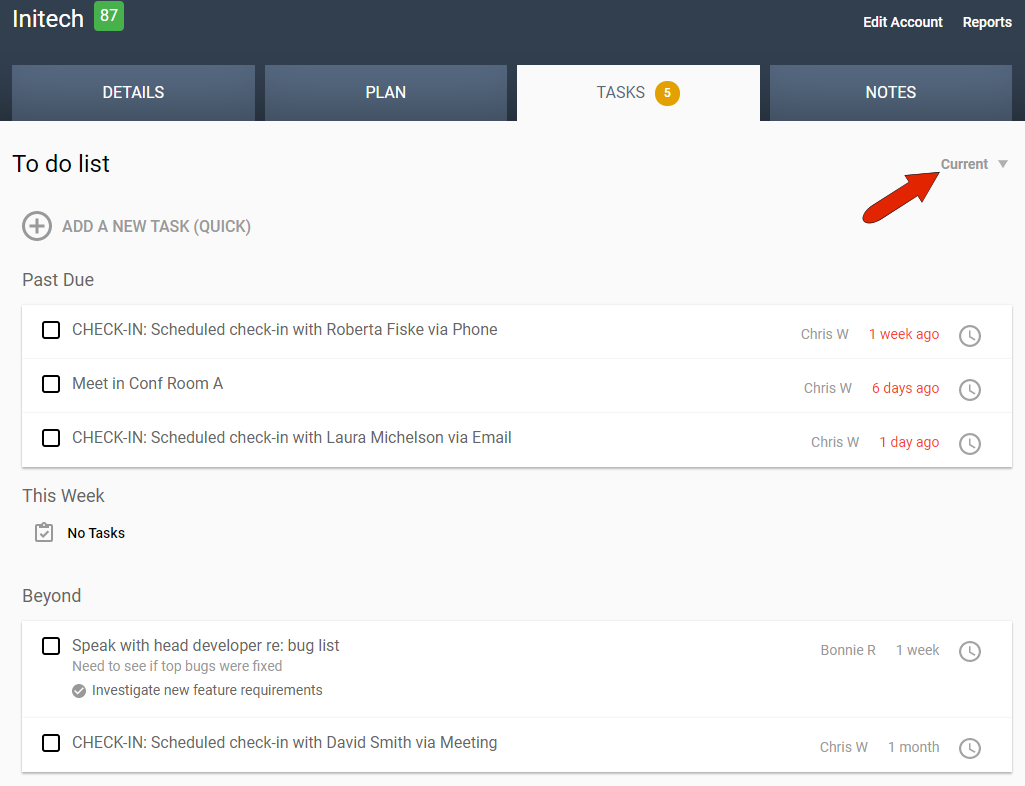
Each task is listed with its owner, due date, and a clock icon which can be used to snooze (postpone) the task. If a task is linked to an action, the action will appear below the task description.

Clicking the action will open the action's details page.
If the task is an automatically generated check-in, based on the check-in frequency set in the contact profile, you can click the task to enter a note describing the call or email.
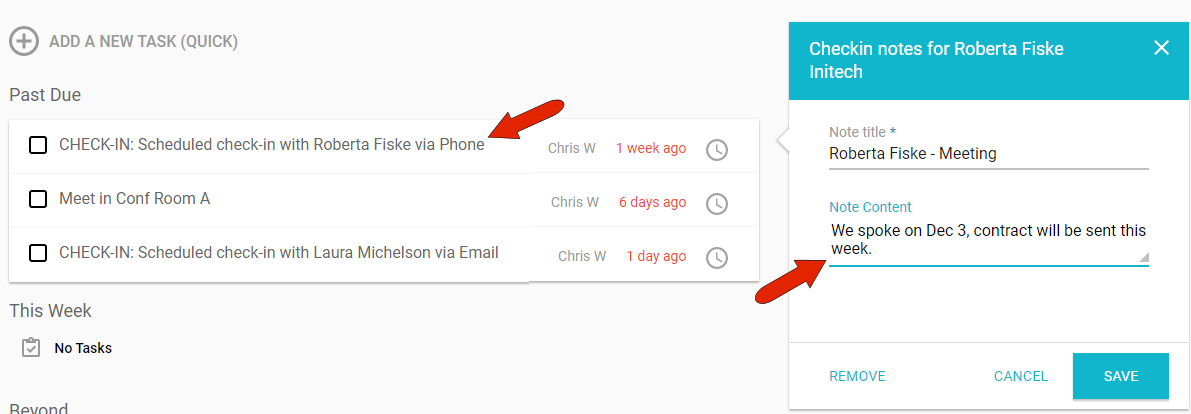
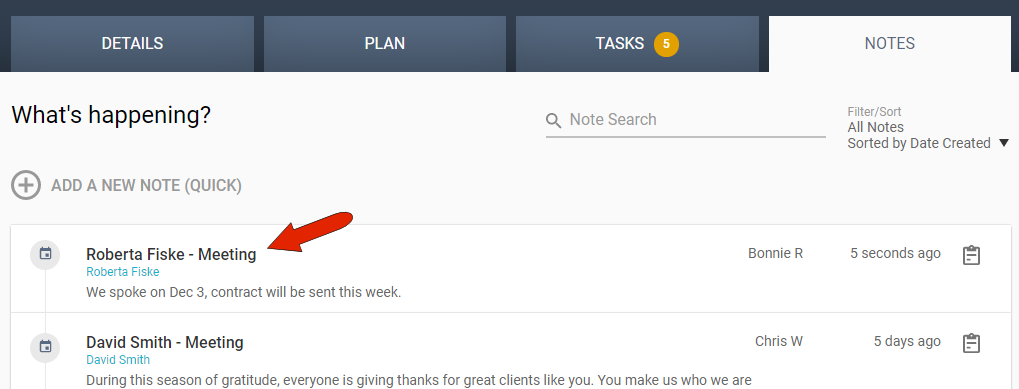
This marks the task as complete, and the note will be listed in the NOTES tab.
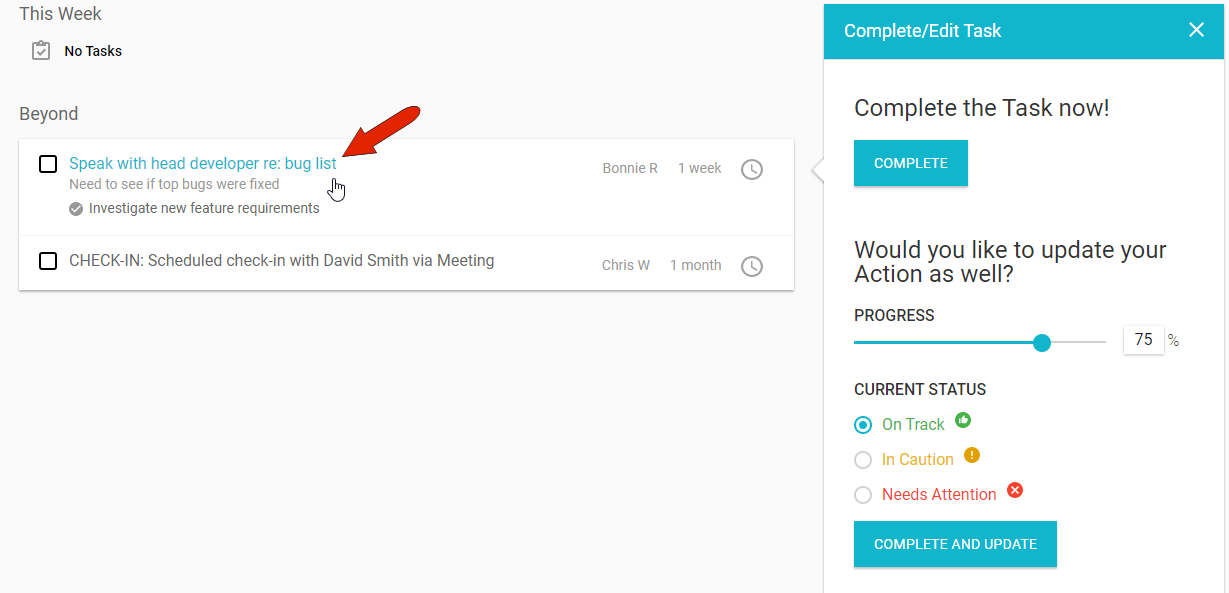
For tasks within an action, clicking on the task brings up a window in which you can mark the task as complete, and update the action as well.
For other types of tasks, hovering over the task displays icons at the left that can be used to mark the task as complete, edit the task details, or mark as complete and add a note. An added note will be listed in the NOTES tab.

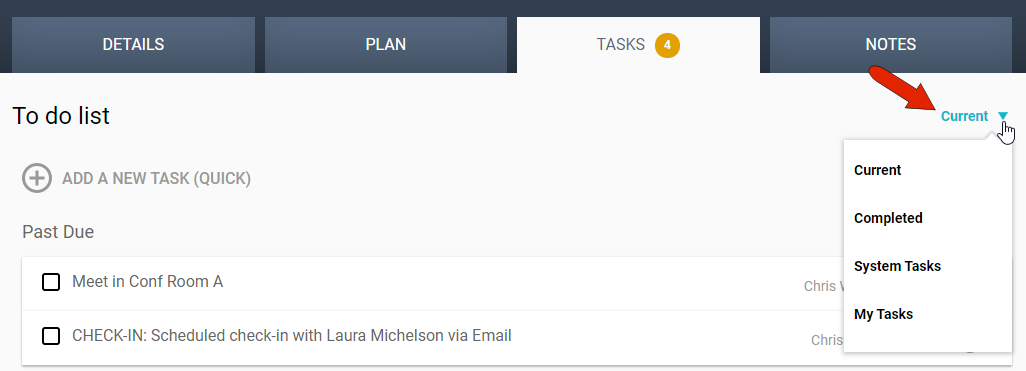
You can click the task filter at the top right, to display only completed tasks, system tasks, or your own tasks.
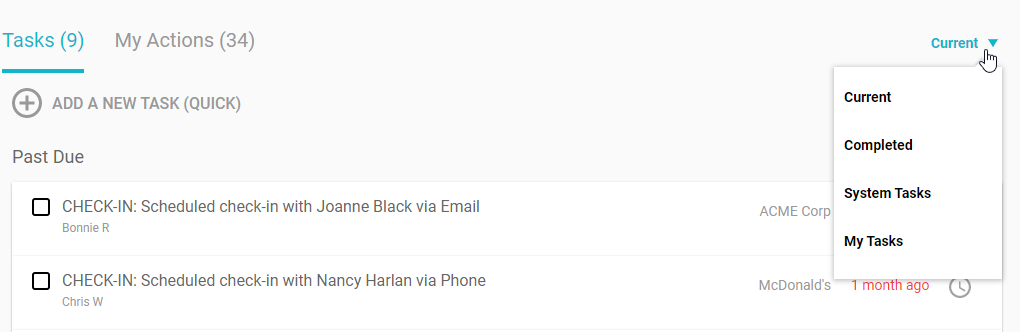
Tasks also appear on your Dashboard in the Tasks section of the HOME tab, with the same filter options.
Comments
0 comments
Article is closed for comments.