
On the Reports page, the first tab lists all available Portfolio-level reports. The available reports are set by the administrator.
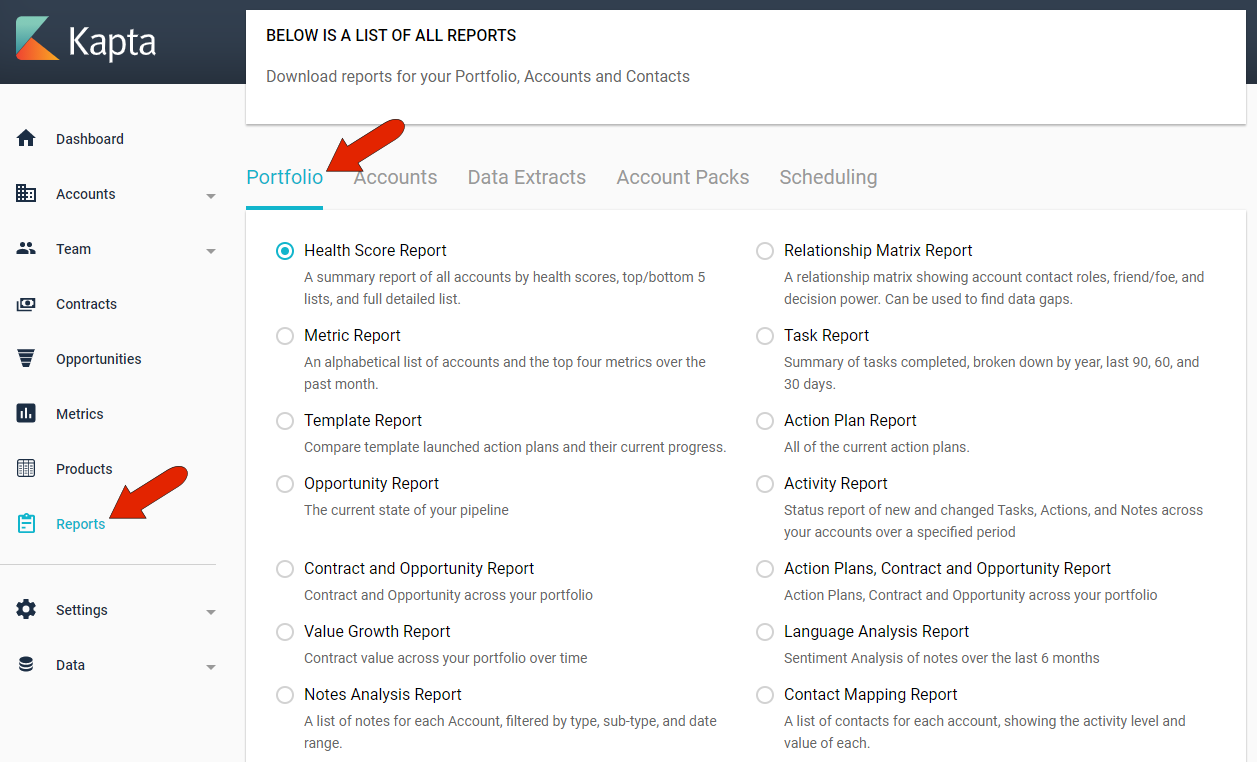
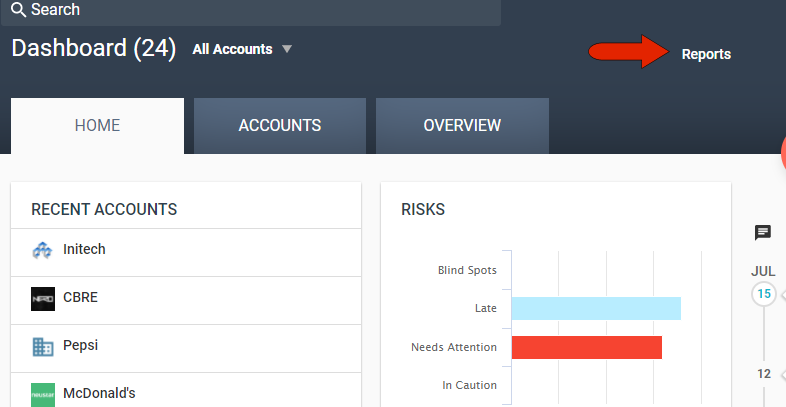
This is the same list of reports you would see after clicking the Reports link while in your Dashboard.
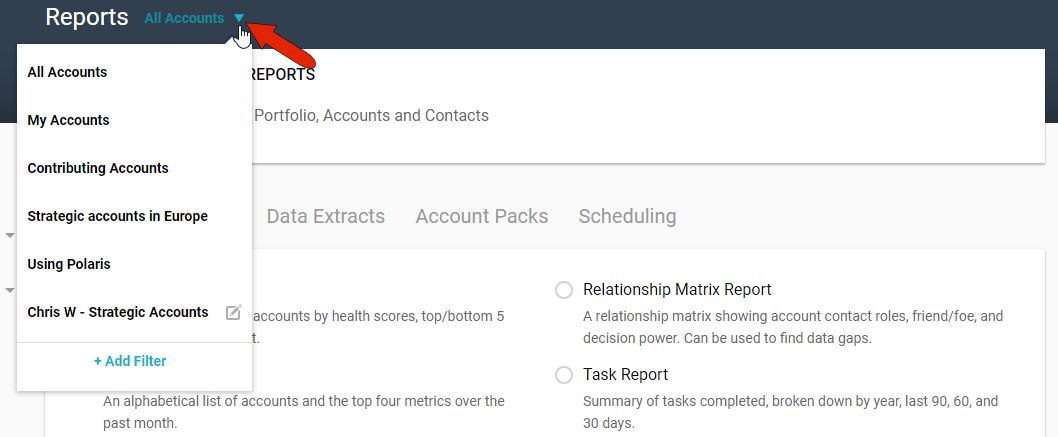
By default, portfolio reports include data from all of your company's accounts. You can narrow the list of accounts by clicking the Account Filter drop-down and choosing just My Accounts, which are accounts for which you’re the owner, or accounts for which you’re a contributor. The administrator can set up additional system-wide filters, and you can click Add Filter to create your own filter which will be available only to you. For example, you can create reports only for accounts in certain regions, or accounts that use specific products.
To generate a report, select the report you want and click Launch Report.
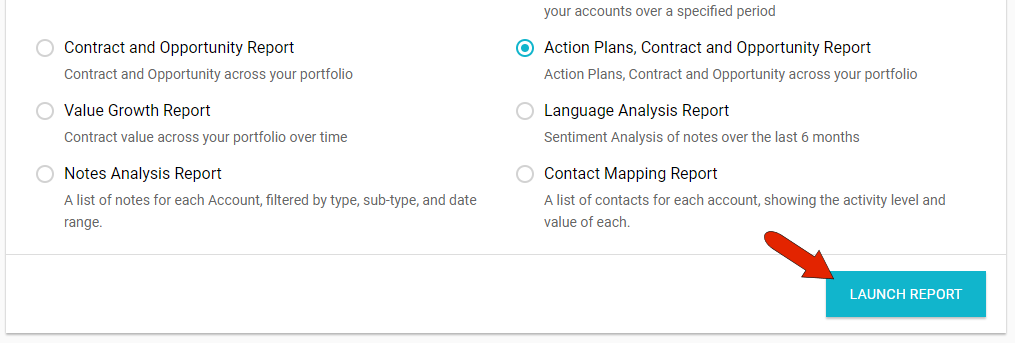
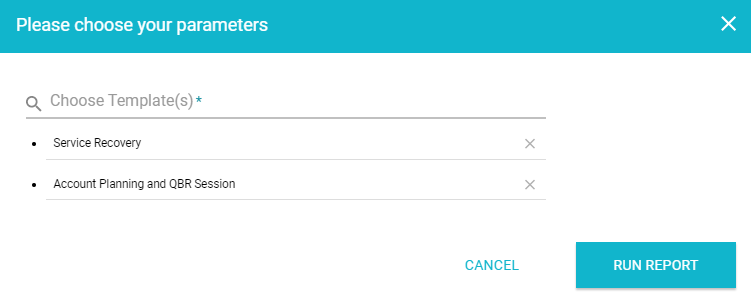
Most reports, such as the Action Plan report, require no further input from you upon launch. Other reports do require additional parameters. For example, when you launch the Template Report, you need to choose one or more templates.
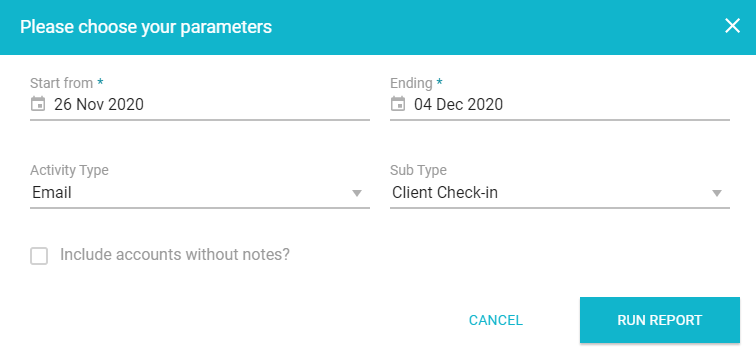
Or, when you launch the Notes Analysis Report, you can filter by date or activity type.
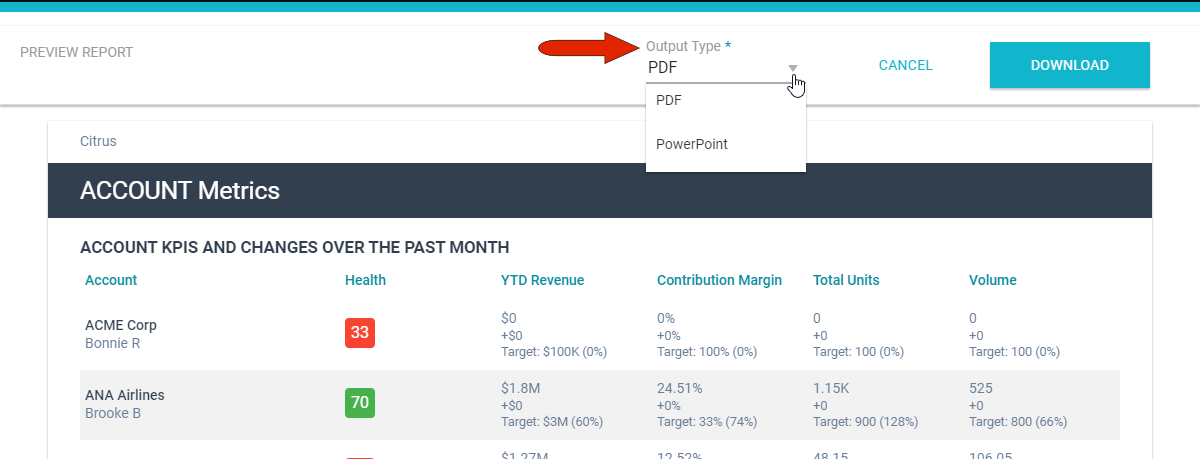
Running a report creates a preview on-screen, and for most reports you can choose whether to download in PDF or PowerPoint format.
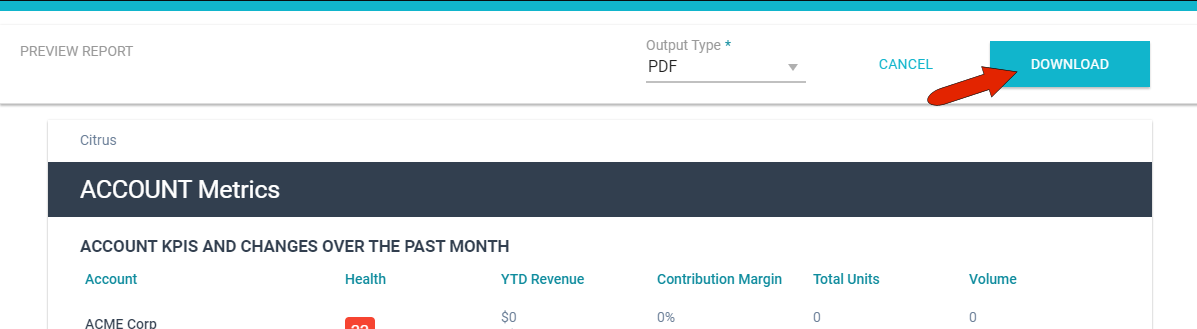
To save a report, click the Download button at the top right.
Comments
0 comments
Article is closed for comments.