
Clicking Contracts in the left menu opens a list of all contracts for your entire portfolio - all of your company’s accounts.
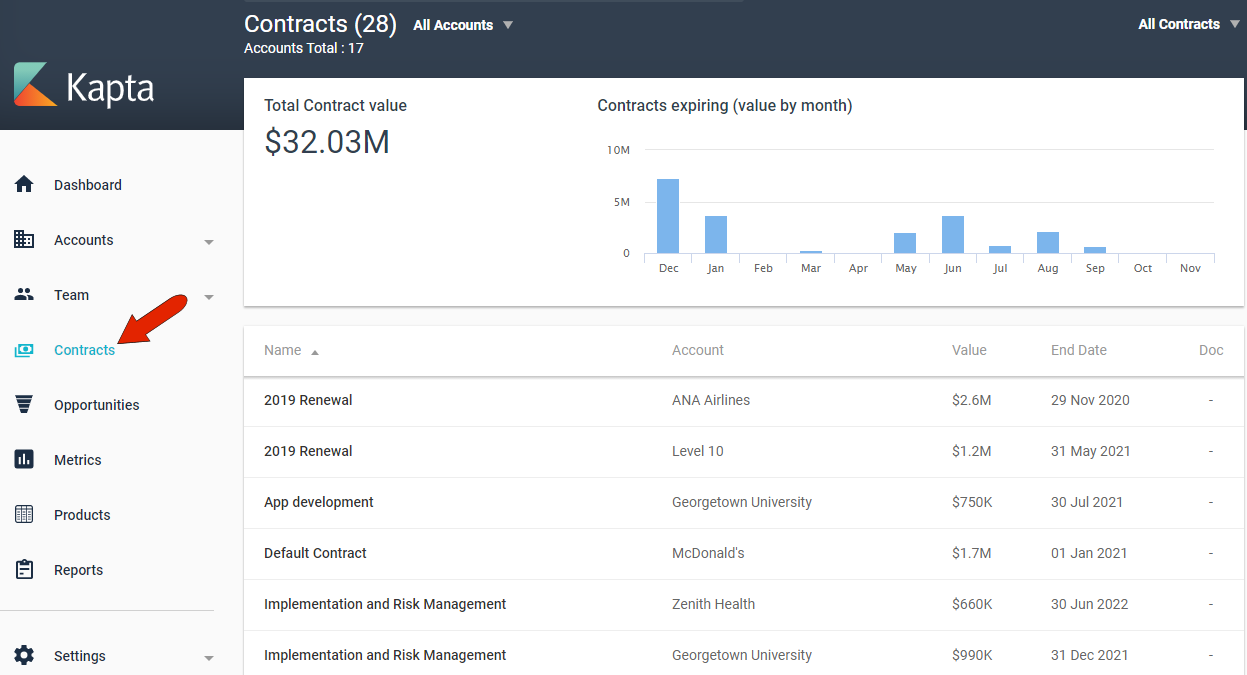
These include contracts added to accounts manually from within Kapta, as well as contracts imported by the administrator.
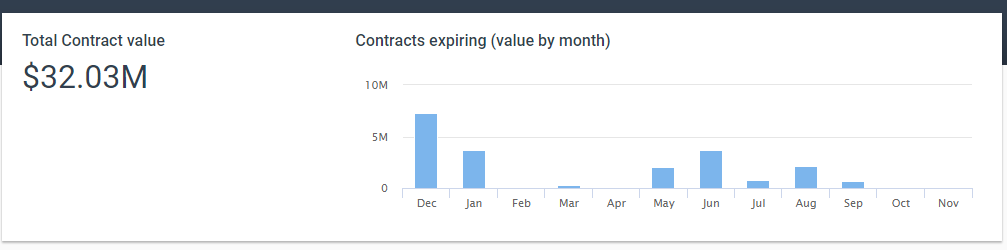
The total contract value appears at the top of the page, as well as a timeline view of upcoming contract expirations.
Clicking a contract name opens its edit window, and clicking an account name will take you to that account’s DETAILS tab. Contracts that have documents attached will also have a Download icon.

The contracts table can be sorted by any column, and below the table is a link to add a new contract. If you add a contract from this page, you’ll need to specify the account the contract is for.
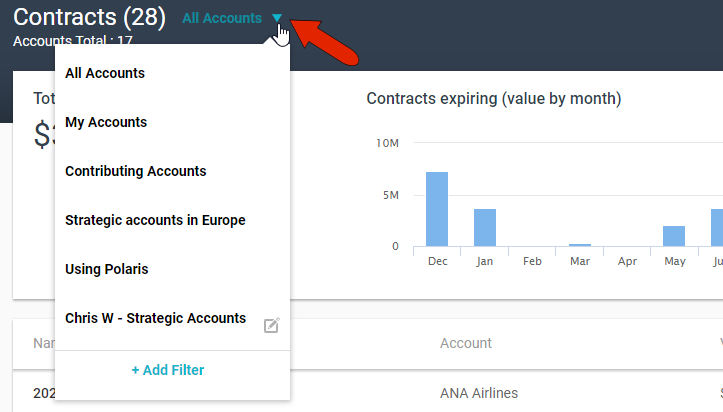
To narrow the list of accounts for which contracts are listed, click the Account Filter drop-down at the top left. You can choose My Accounts, which are accounts for which you’re the owner, or accounts for which you’re a contributor. The administrator can set up additional system-wide account filters, and you can click Add Filter to create your own filter which will be available only to you. For example, you can create a filter to include only accounts with a specific owner, or in a specific region, or that include specific products.
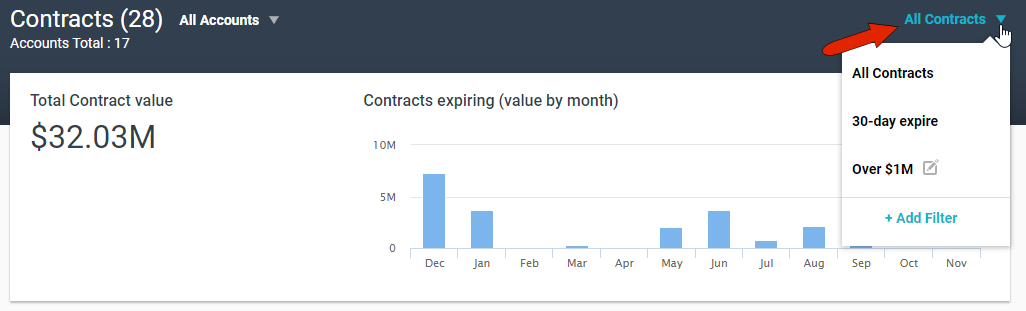
In addition to account filters, you can also filter the contracts themselves. As with account filters, the administrator can set up system-wide contract filters, and you can create your own filters. As an example, you can set up a filter that lists only contracts that expire in 30 days, or have a “greater than” value.
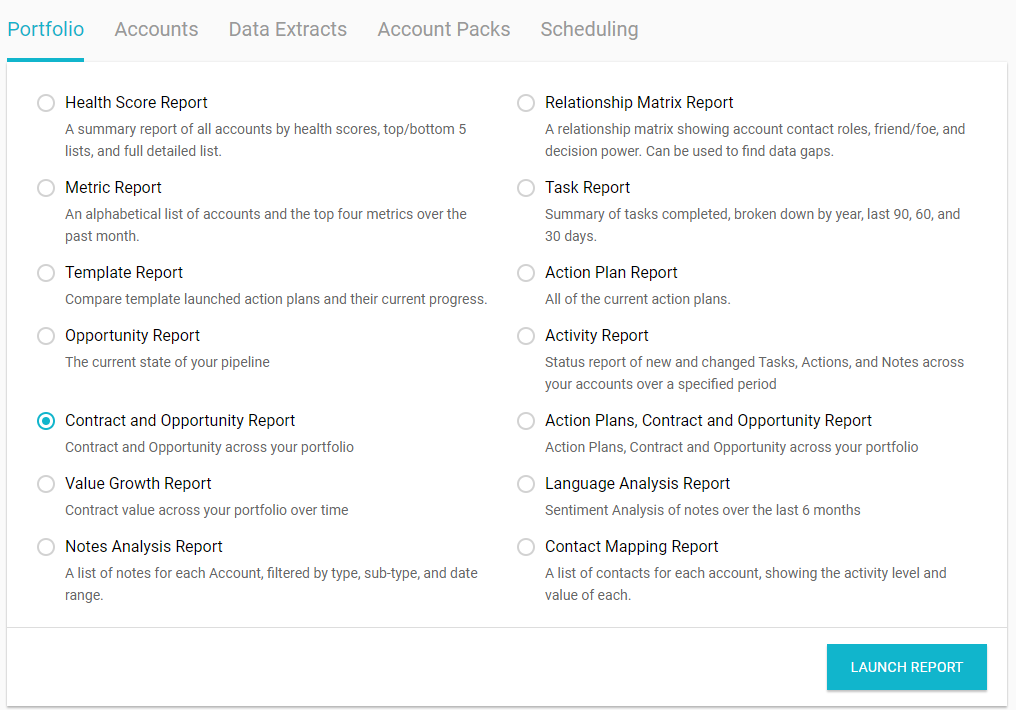
To download a report of account contracts, open Reports from the left menu, available to administrators and account managers. In the Portfolio tab, you’ll find, if enabled, the Contract and Opportunity report, and the Actions Plans, Contracts and Opportunities report. Available reports are set up by the administrator.
Comments
0 comments
Article is closed for comments.