
Your user account is set up by the administrator, and once you receive the welcome email you can set your own password. If you forget your password, or want to change it, go to the Kapta login page and click the Forgot Password link.
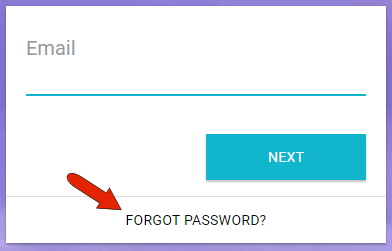
You’ll then receive an email with password instructions.
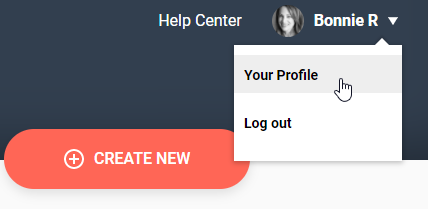
When signed into Kapta, your user name always appears at the top right corner. To view your profile, click your user name and choose Your Profile.
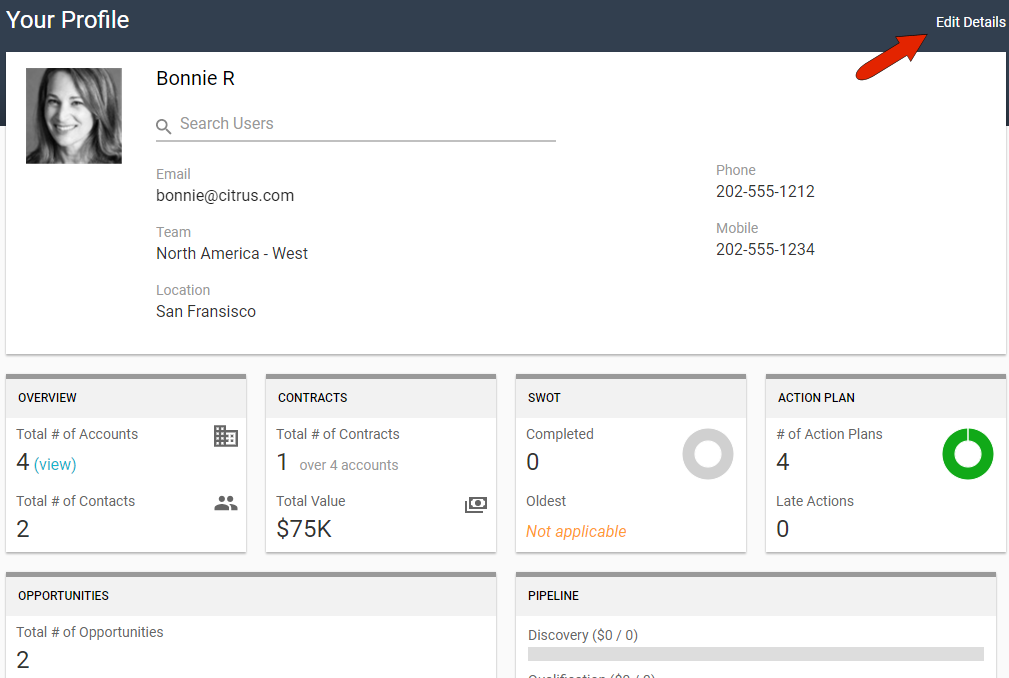
Below your profile details, you’ll see a summary of what you’ve been working on, opportunities, tasks and actions. To change your profile details, click Edit Details at the top right.
The Basic tab contains your contact info and biography, and under Advanced you can add details such as job title, location, or team. Your user type is set by the administrator.
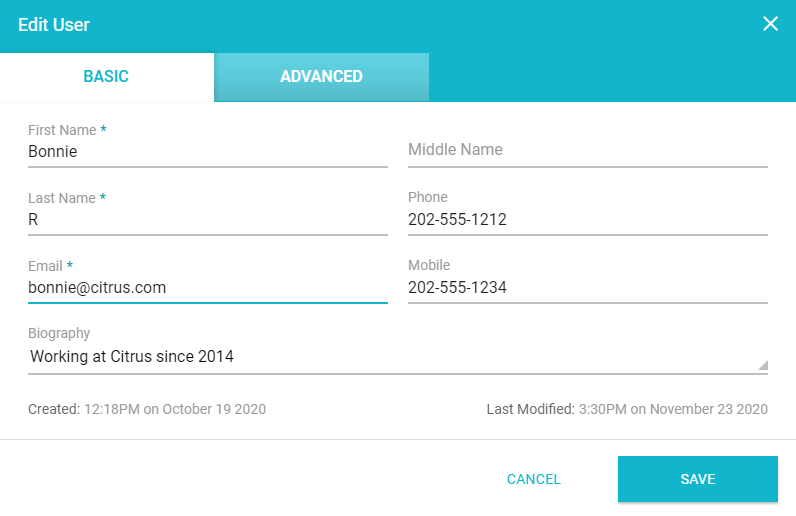
To add or replace a profile picture, click the avatar icon, or click your current profile picture. Then upload the image you want to use.
Comments
0 comments
Article is closed for comments.