
There are several elements of the Kapta interface that are always available, no matter where you are or what you’re working on.
The left menu is where you can access your Dashboard, your list of accounts, see what your team has been doing, view contracts, opportunities, products, and more.
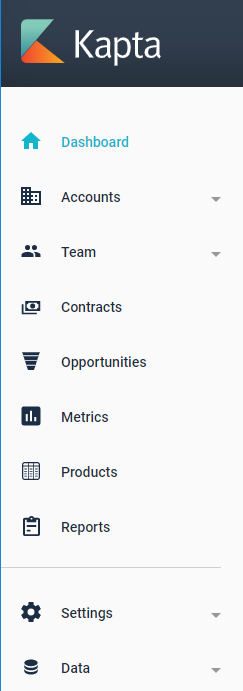
What appears in your menu, and throughout the UI, depends which features of Kapta your company has licensed and your level of permission. For example, only administrators have access to Settings, where you can create custom fields, configure metrics, set up voice of customer survey questions, etc. Administrators also have access to Data, where you can add or edit users, or team members, or define company products.
Account managers have access to Team, Contracts, and Metrics, which are not available to Contributors.
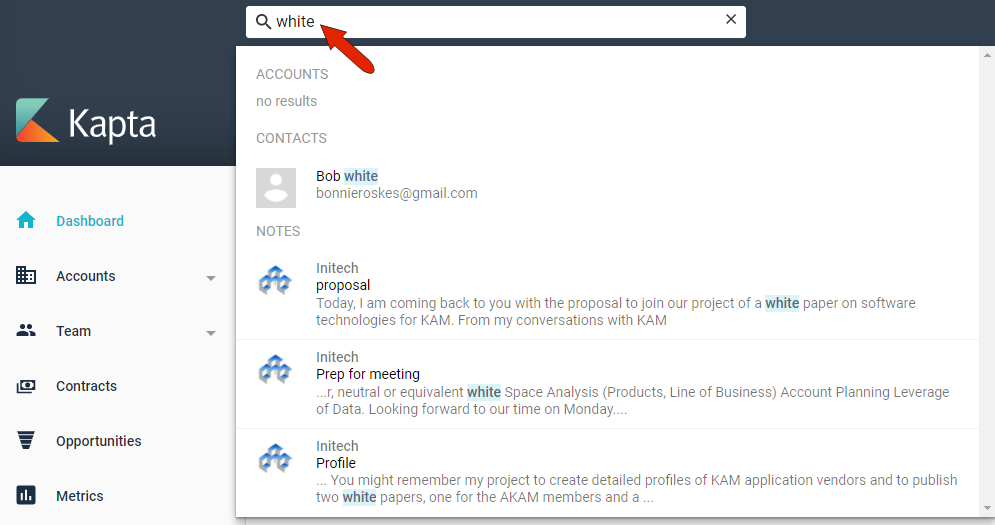
In the search field at the top, you can search for an account name, contact, team member, even a keyword from a note or task.
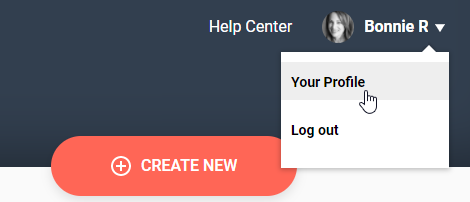
At the top right is the Help Center link and your username, where you can edit your profile or log out.
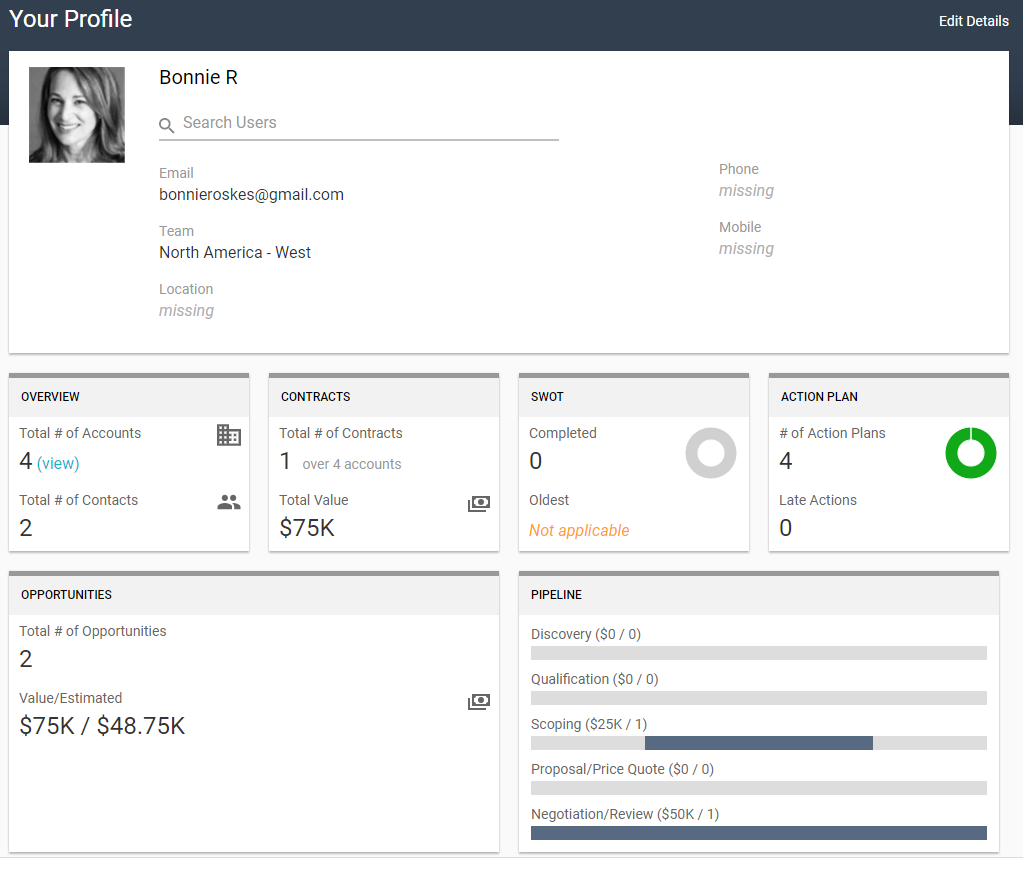
When you display your profile, you can see an overview of what you’re working on and how you’re proceeding, including any tasks and actions.
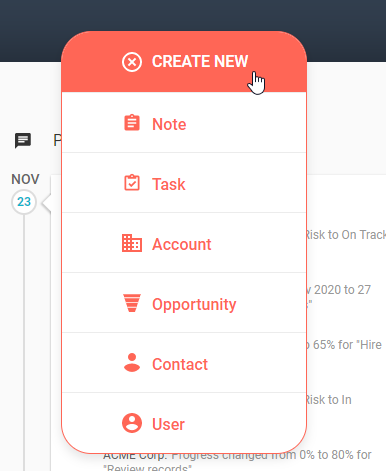
The large red CREATE NEW button is always available as well, which enables you to quickly dash off a note or task, or start the larger job of setting up an account, opportunity, or contact. If you’re an administrator, you can also set up a new user, or team member.
Comments
0 comments
Article is closed for comments.