
Events are are triggered to start or launch at specific times.
Events can be:
For example, an email can be sent when an action is completed, or a template can be launched when an opportunity status is changed.
Events must be created by an admin in the settings, before they can be added by users.
To create an event, choose Email, Template, Action, or Task, and click the Add icon.
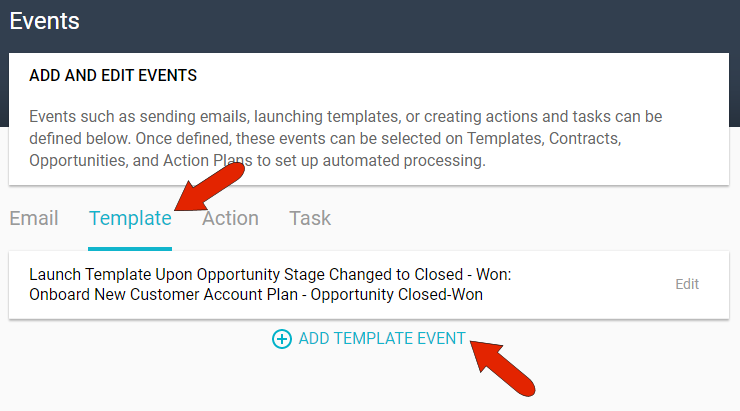
Note: In order for email events to be available, system emails must be enabled. This is done in Settings / Configuration / Notification and Email Settings.
The Time Frame field is common to all event types, and defines when the event will be triggered.
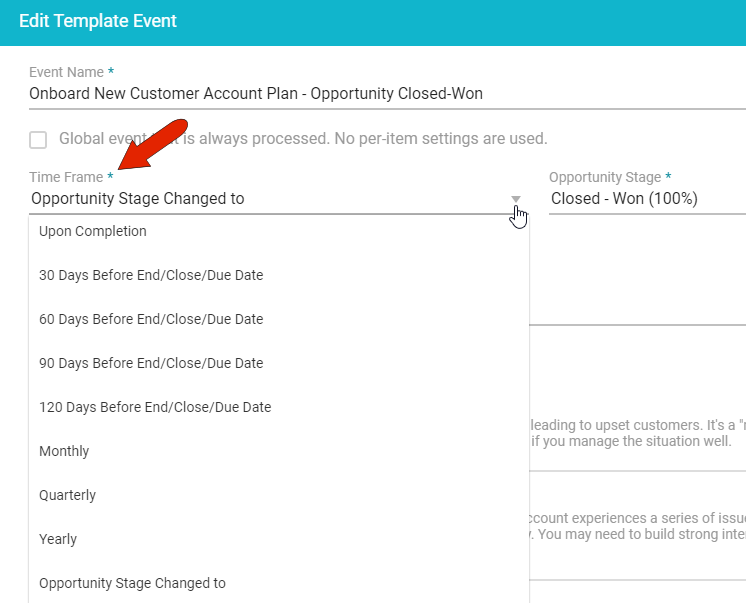
- Upon Completion: Triggers the event when action plan items are completed.
- 30 / 60 / 90 Days Before: Triggers the event at the specified amount of time before an end, close, or due date.
- Monthly / Quarterly / Yearly: Triggers the event based on the calendar, rather than an activity. Monthly events take place on the first of each month, yearly events take place on the first of each year, and quarterly events take place on the first day of each fiscal quarter.
- Opportunity Stage Changed to: Triggers the event when an opportunity reaches a specific stage.
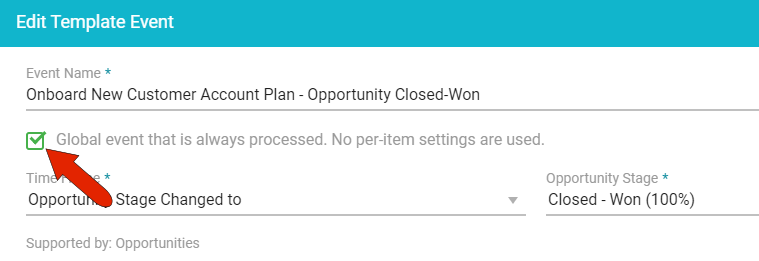
By default, you need to add an event to the contract, opportunity, action, etc., where the triggering event will occur. To override this, check the Global event field, which is available for all event types. Global events need no additional settings and will always run automatically when triggered.
Comments
0 comments
Article is closed for comments.