
Note: All types of events are created by the admin in the Settings.
Email events trigger emails to be sent once a certain threshold or target is reached.
Depending on the time frame, email events can be added to:
- Contracts
- Opportunities
- Account Tasks
- Action Plan Goals
- Action Plan Objectives
- Action Plan Actions
- Action Plan Tasks
For example, an email event with a "days before" time frame can be included in contracts, opportunities, actions, and tasks.
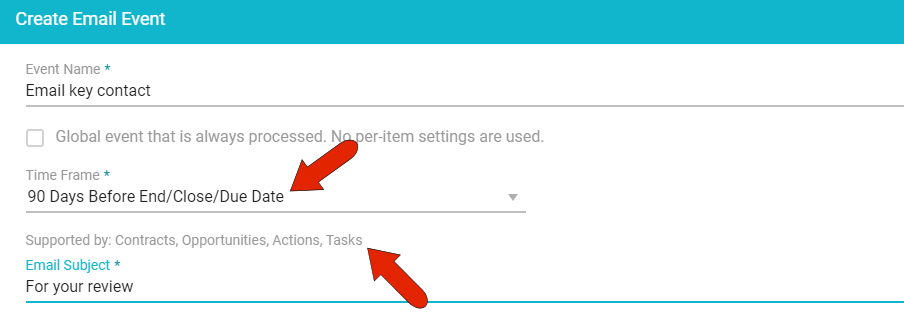
In the Task Name and Task Description fields, you can use field codes to customize the task content to include details about the event that triggers the task. Available field codes depend on the event's time frame.
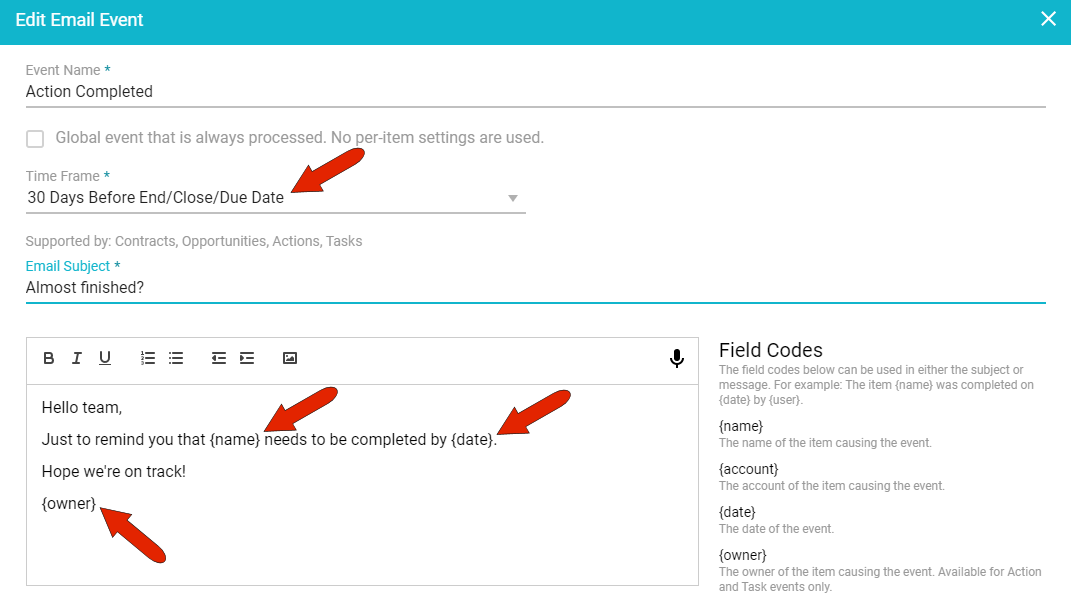
In this example, a time-based threshold triggers a reminder email that will include the name and date of the triggering event, and which is signed by the event owner.
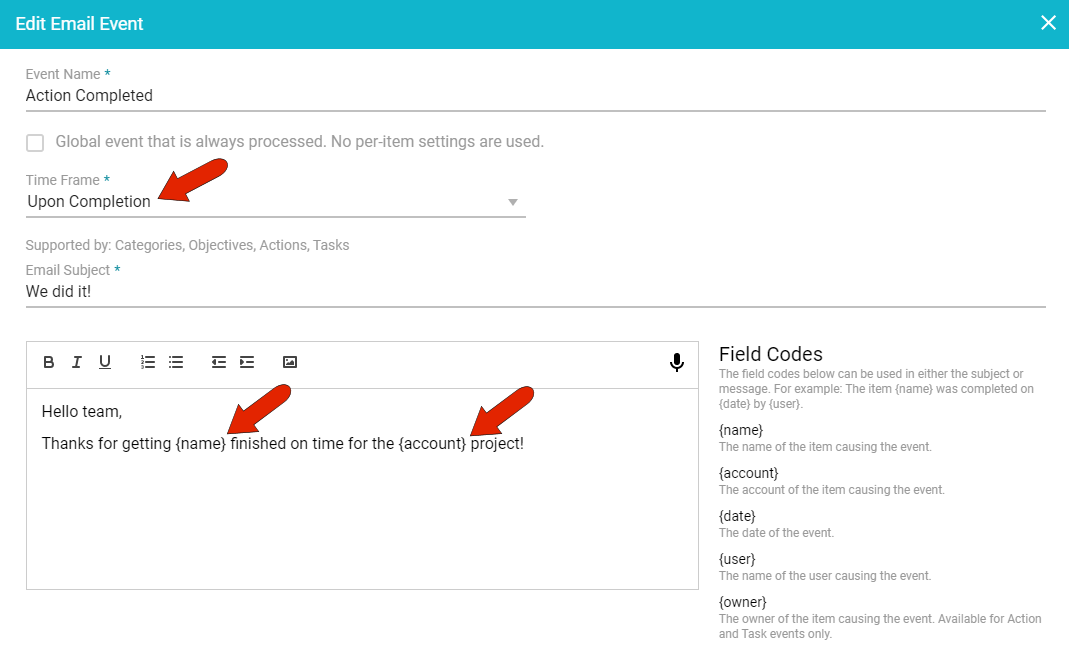
In this example, an email will be sent upon completion of the triggering event, including the event name and account.
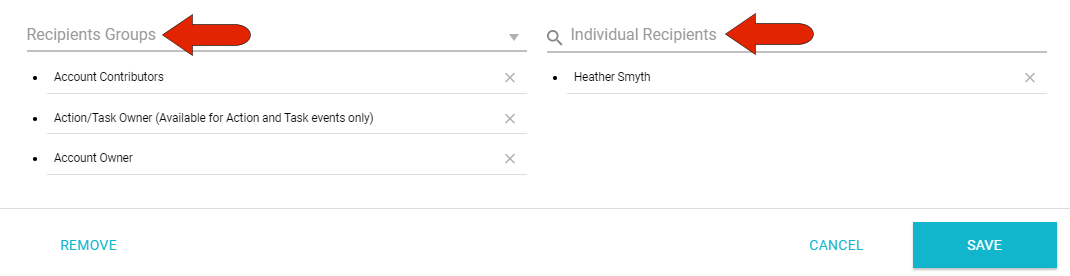
At the bottom of the Email Event window, you can specify who will receive the email. You can choose a group of recipients, such as Account Contributors, and/or individual recipients.
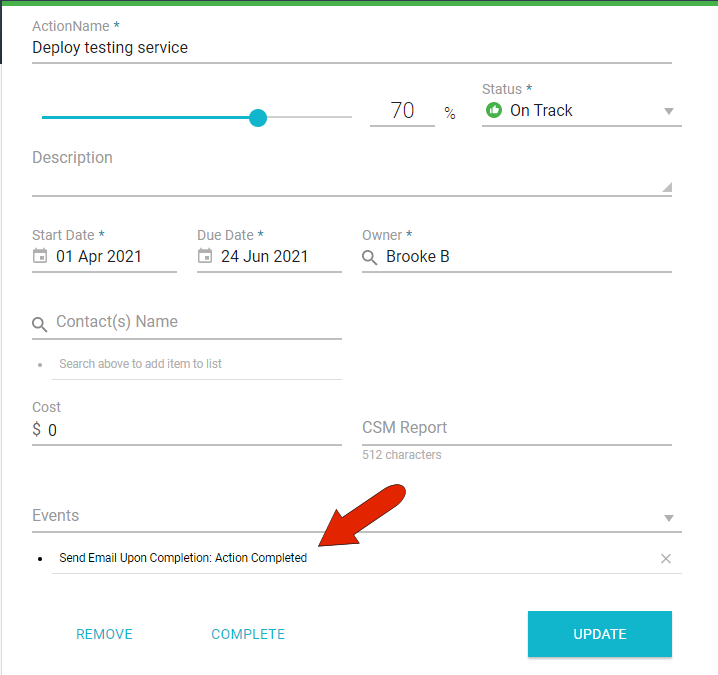
Email events can be set in many places throughout the UI. In this example, the "Send email upon completion" task is included in an action. This email will be sent once the action is marked as complete..
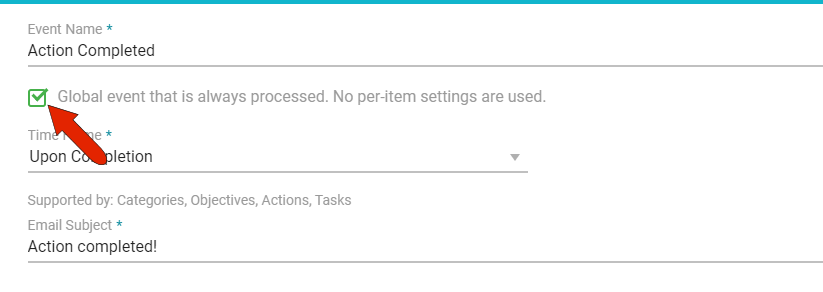
Note: Global events are set to occur automatically and do not have to be set within an action, task, etc.
Comments
0 comments
Article is closed for comments.