
On the Reports page, the Scheduling tab can be used to generate and email one or more reports from multiple accounts, to one or more recipients, on a regular basis.
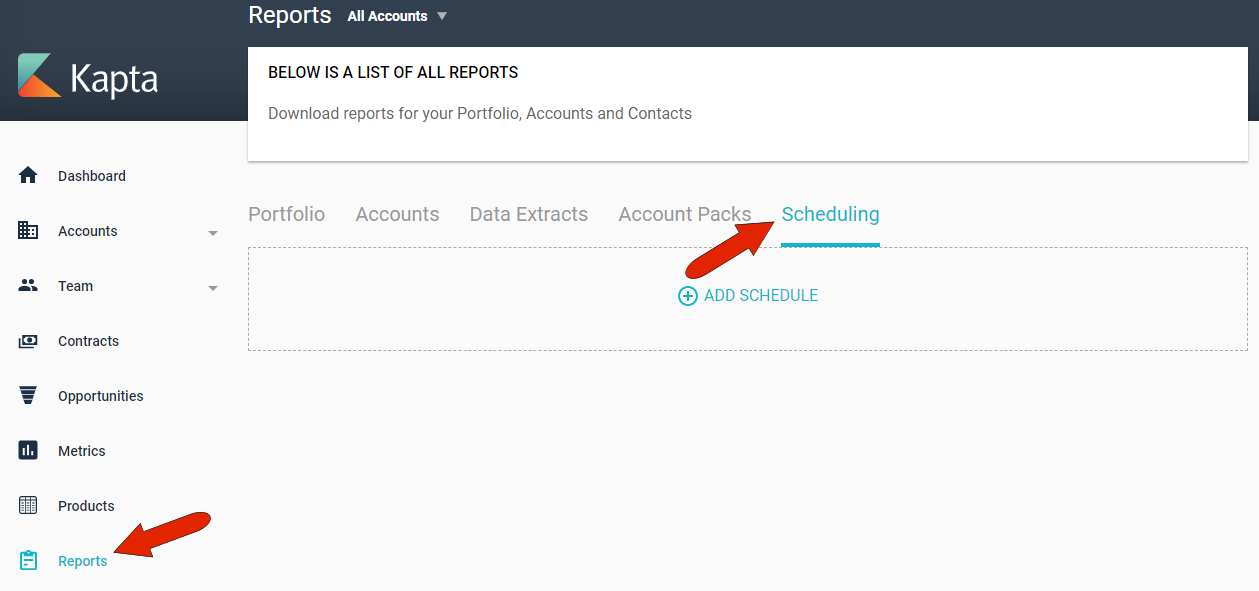
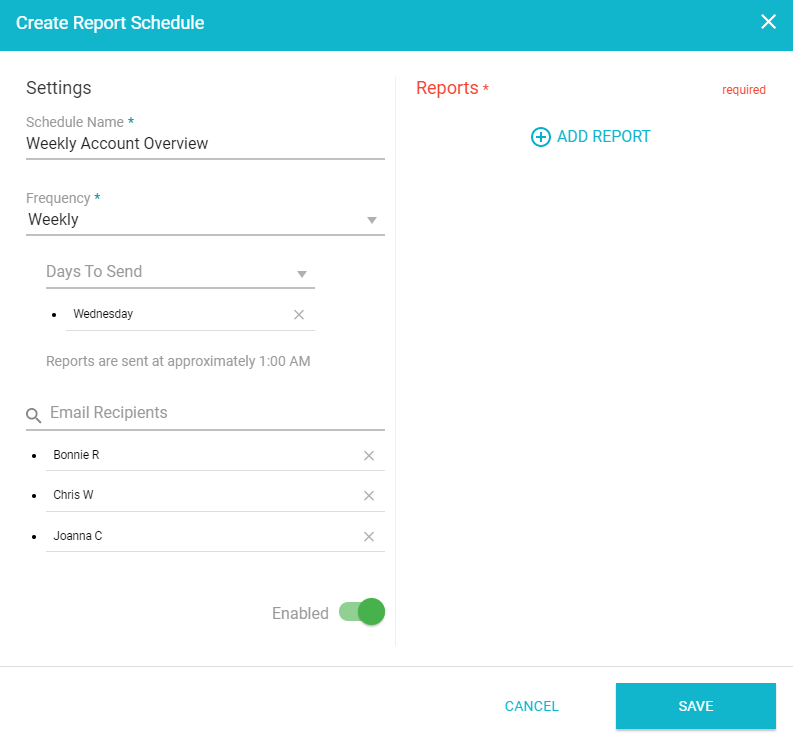
Click Add Schedule, and assign a schedule name. In this example, the Frequency is Weekly, and will be sent each Wednesday, to the selected email recipients. The Enabled slider can be used to temporarily halt the report scheduling, which is a good option if you don't want to delete the schedule altogether.
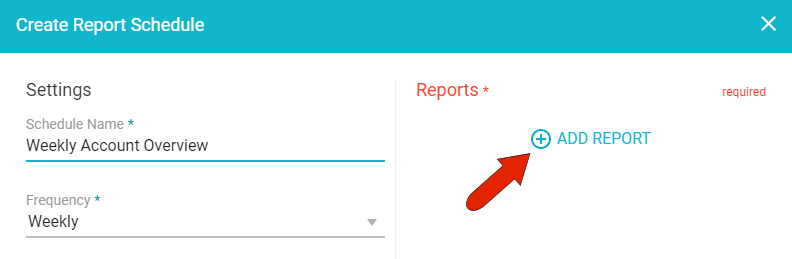
Click Add Report to choose the first report to include.
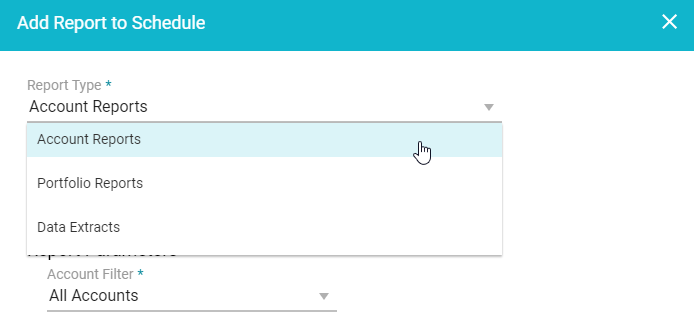
You can choose from account-level or portfolio-level reports, as well as data extracts.
In this example, the Customer Report is selected from the Account Reports. In addition to selecting accounts, some reports require additional parameters, such as whether to include descriptions for action plan components for this customer report.
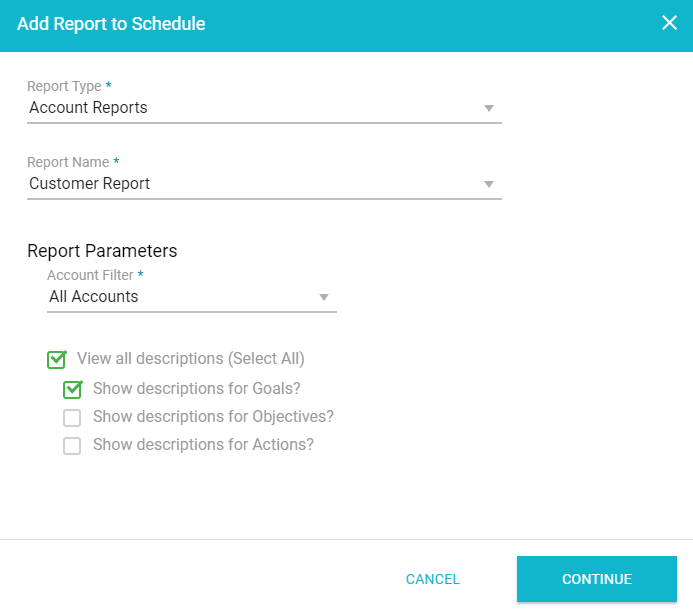
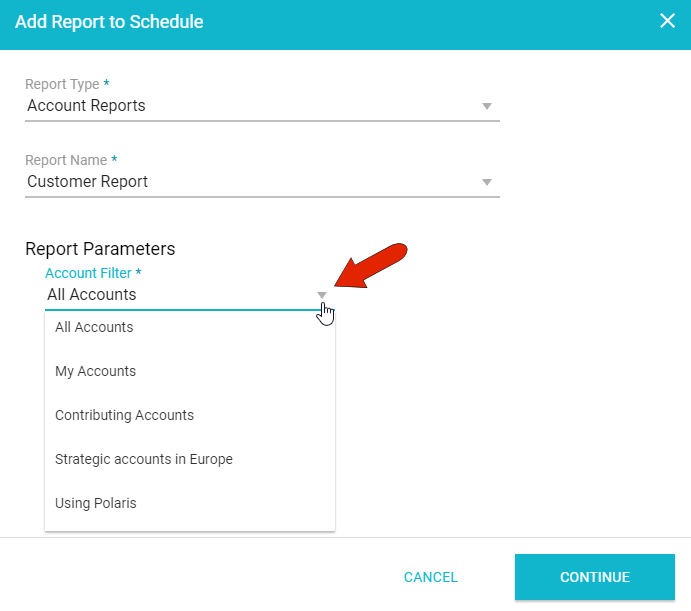
By default, a scheduled report will include data from all accounts, but you can use an account filter to narrow the list. In addition to the standard My Accounts and Contributing Accounts, any system-wide account filters set up by the administrator will also be available, as will be any filters created by you. For example, you can create reports only for accounts in certain regions, or accounts that use specific products.
After clicking Continue, the report will be added to the scheduled. You can use Add Report again to include more reports in the schedule.
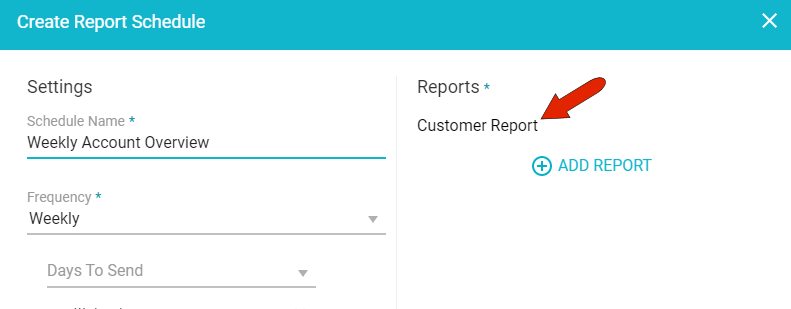
When all reports are included, click Save. The reports will be emailed to the selected recipients, according to the set frequency.
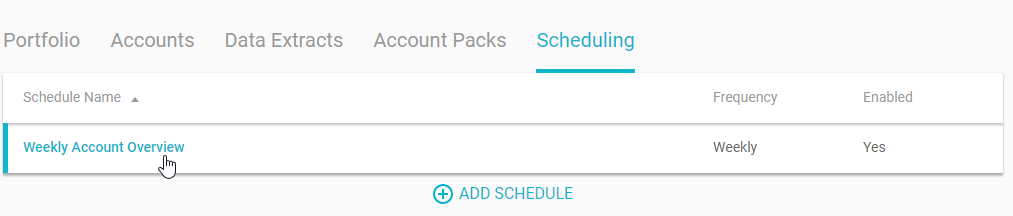
To edit or remove a schedule, click the schedule name.
Comments
0 comments
Article is closed for comments.