
The summary of an account’s basic details is listed in the DETAILS tab, in the Summary section.
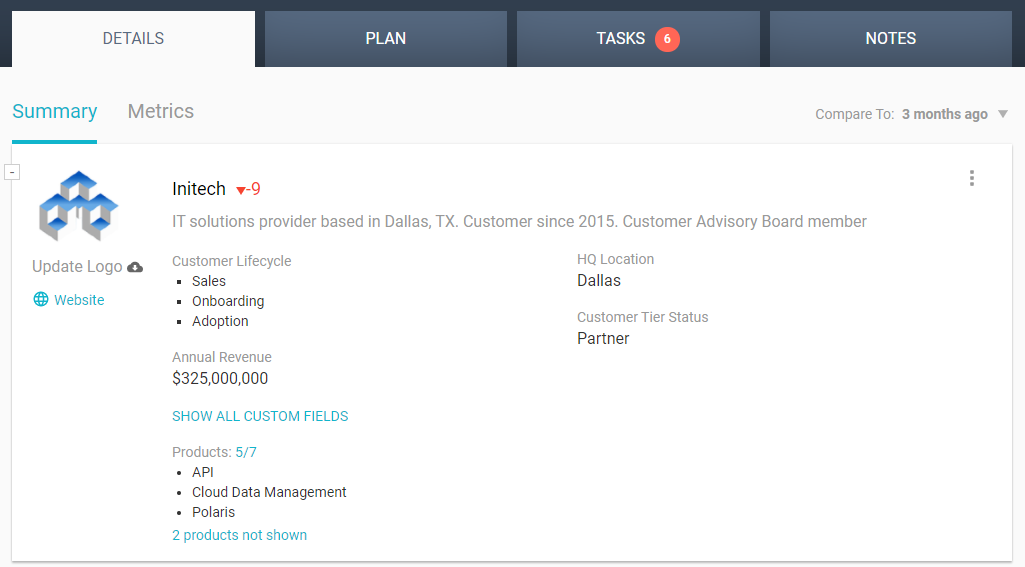
At the top left is a link to the customer website. Kapta’s AI can find the logo image from the site, or you can upload an image manually.
In addition to the customer name and description, any custom fields set up by the administrator for account setup will be displayed here as well. Custom fields are filled out in the MORE INFO tab entered when setting up the account. Products added during setup are listed here as well.
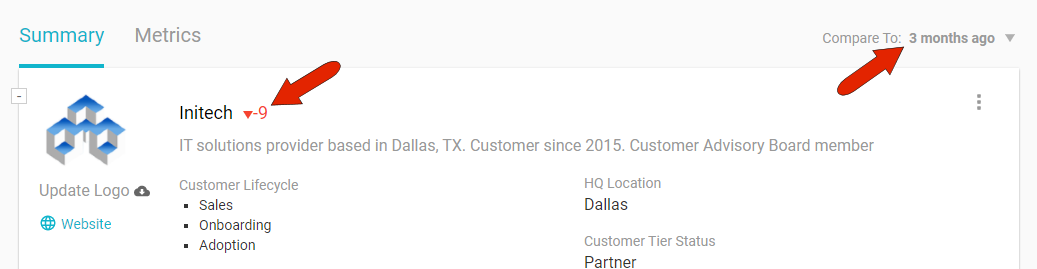
The number next to the customer name represents the gain or loss in the account health score, when compared with the score from the time period set at the top right.
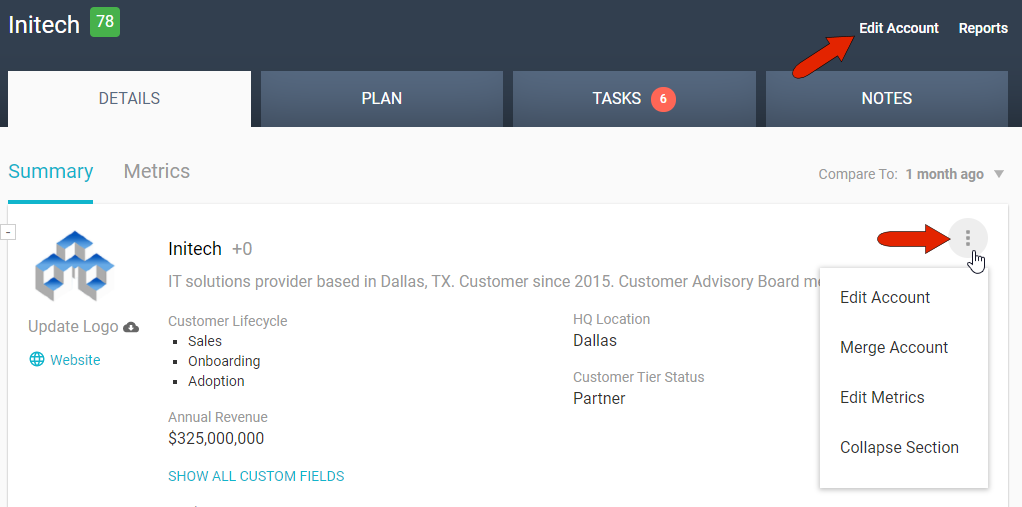
The three-dot icon at the top right opens a menu with options to edit account details, merge the account with another of your accounts, view metrics and edit targets, or collapse or expand the section. There is also an Edit Account link at the top right of the page.
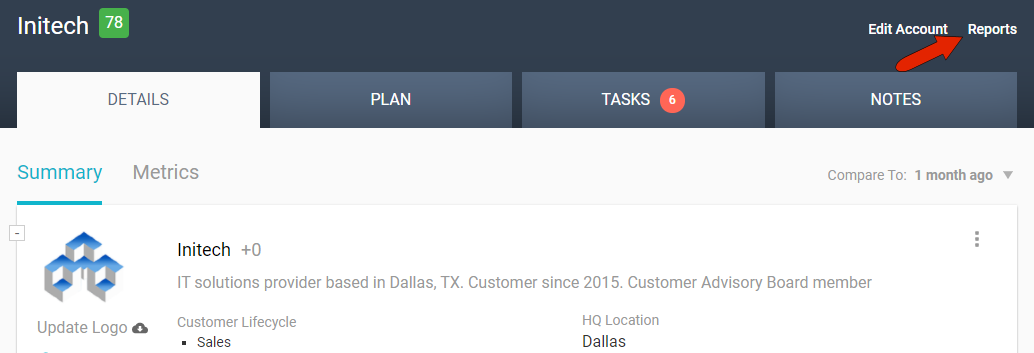
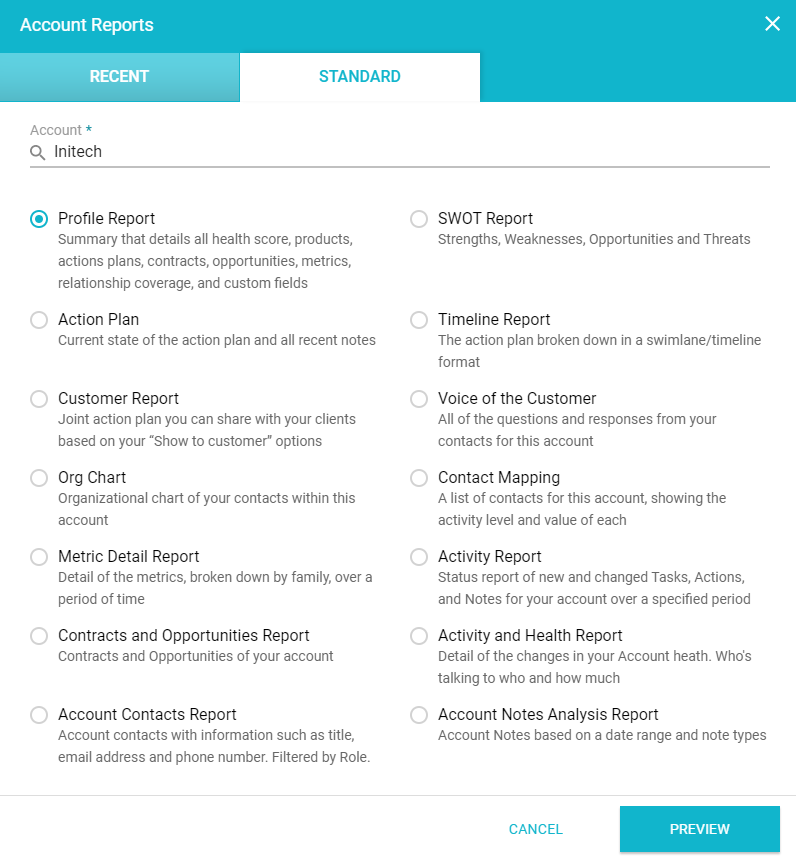
To download a profile report that summarizes the account’s health score, action plans, metrics, and more, click Reports at the top right.
The STANDARD tab lists all available reports, which are set up by the administrator. Here you’ll find, if enabled, the Profile report, as well as several other account-related reports.
Comments
0 comments
Article is closed for comments.