
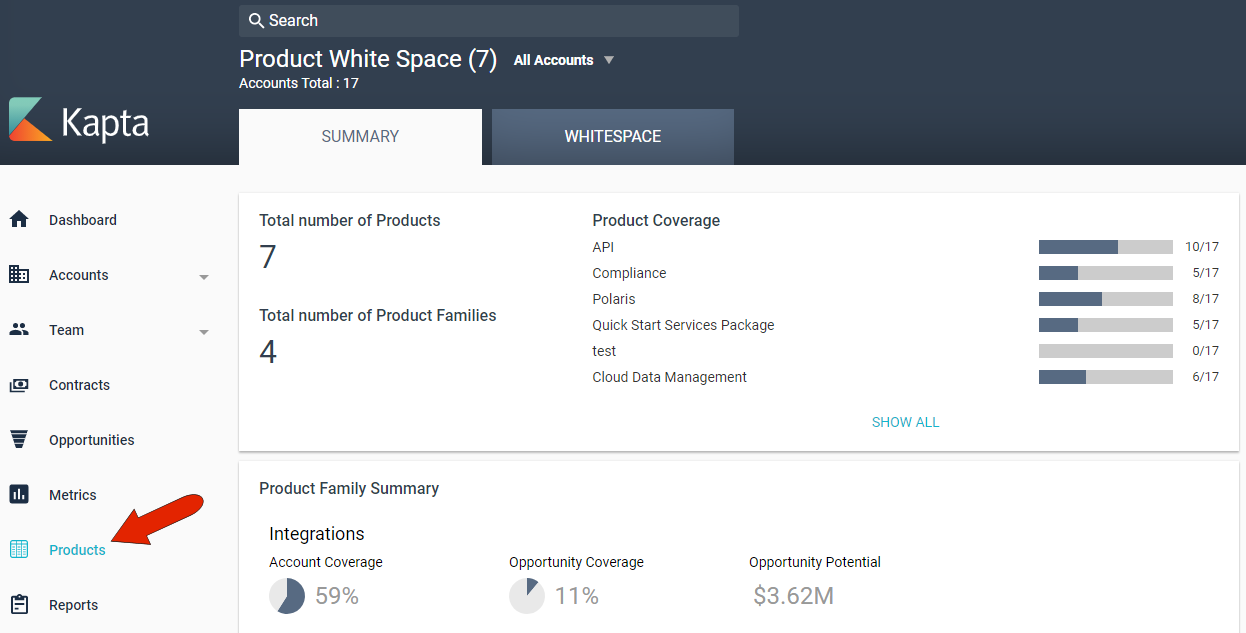
Clicking Products in the left menu opens a list of all products your company offers. Products, and product families, are set up by the administrator.
The SUMMARY tab lists the number of products and product families, as well as how many accounts use each product.
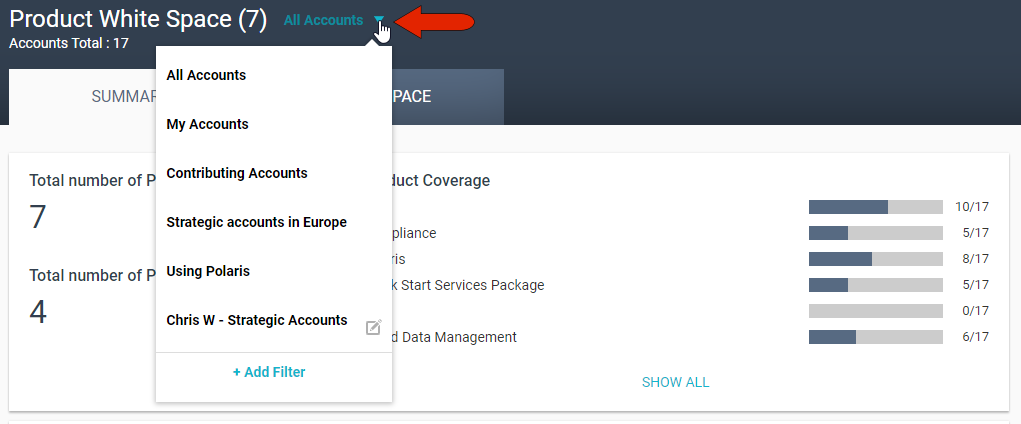
To narrow the list of accounts for which products are listed, click the Account Filter drop-down at the top left. You can choose My Accounts, which are accounts for which you’re the owner, or accounts for which you’re a contributor. The administrator can set up additional system-wide account filters, and you can click Add Filter to create your own filter which will be available only to you. For example, you can create a filter to include only accounts with a specific owner, or in a specific region, or that include specific products.
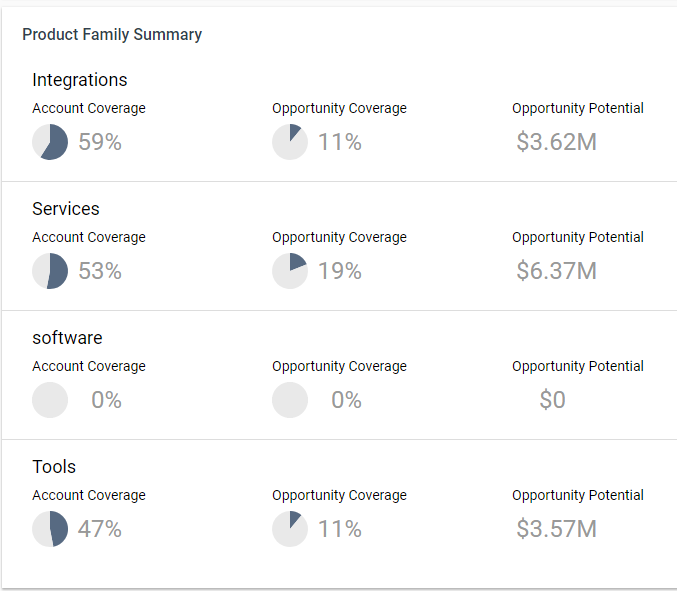
Below the summary is a breakdown of product family by account coverage, and opportunity coverage and potential.
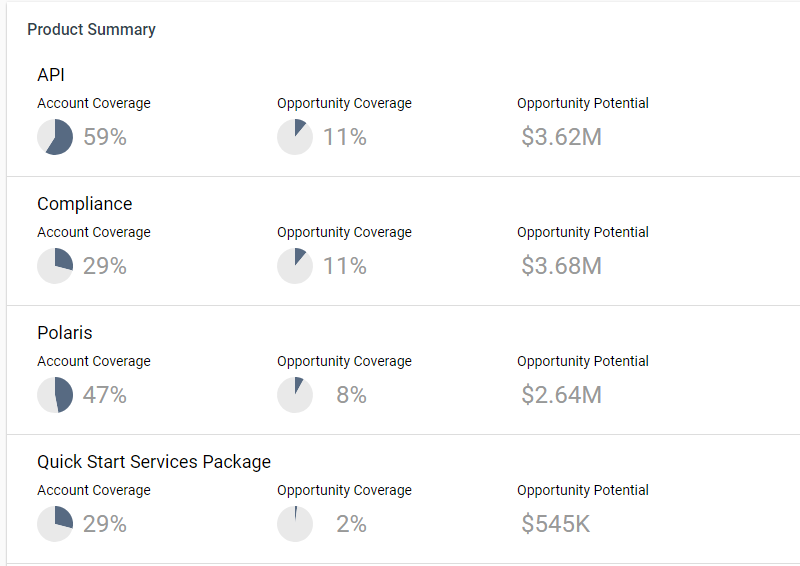
Following the product family table is a breakdown of the same data, by individual product.
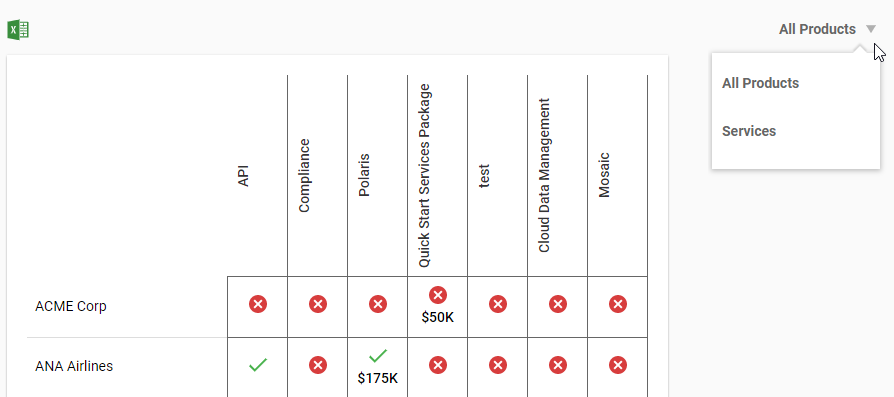
The WHITESPACE tab displays a very useful table of accounts that currently use each product (green checkmark), and accounts that use no products (red x). Dollar amounts represent the value of an opportunity that includes the product. This table can be downloaded as a spreadsheet.

By default, this table includes all products, but you can filter the chart according to any system-wide product filters that are set up by the administrator.
Comments
0 comments
Article is closed for comments.