
Clicking Data along the left menu, or the Data sub option, opens the Data Reports and Extracts page. This page has two functions: exporting data from Kapta and importing data into Kapta. Importing can also be used to update existing data.
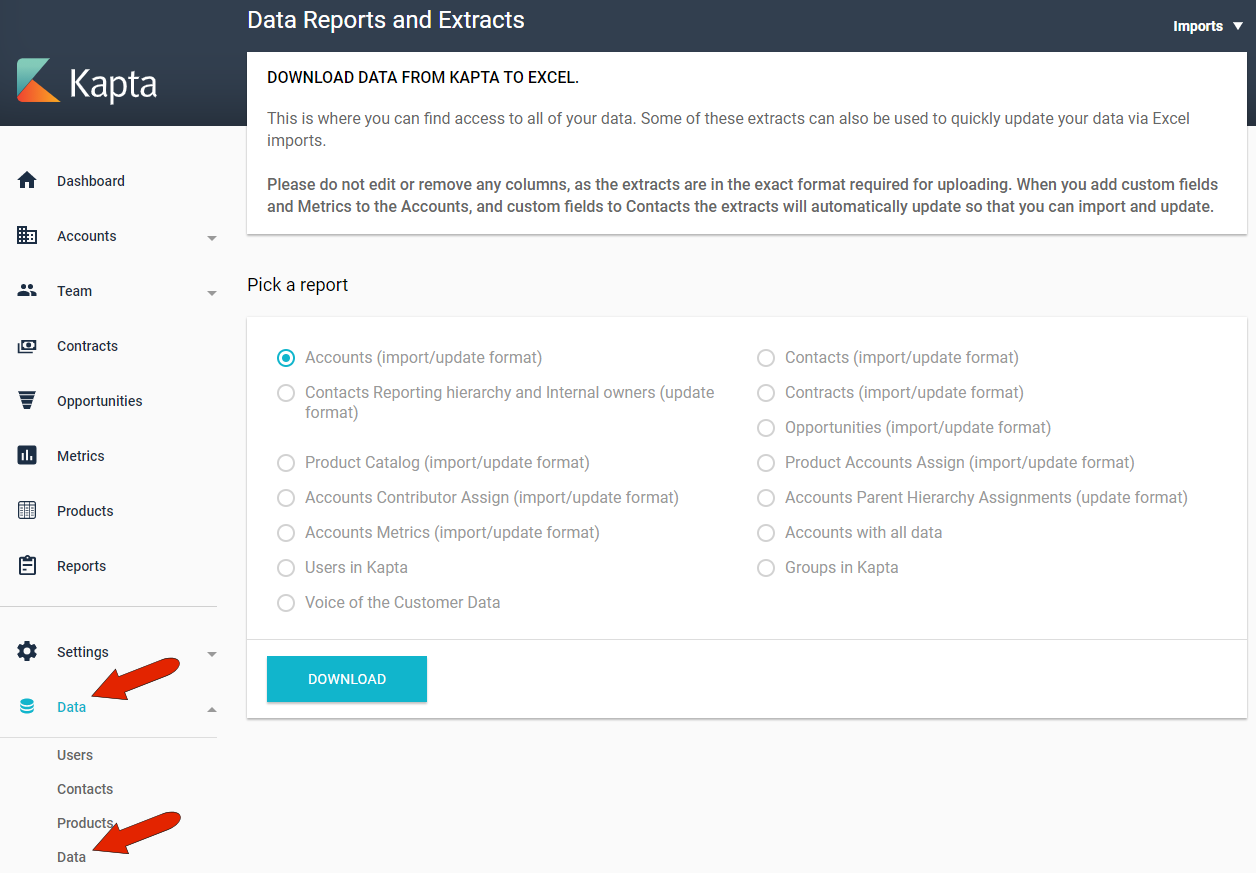
Note that there are also several data extracts available to non-administrators.
When importing data, exact spreadsheet formatting is extremely important. Mislabeling columns or placing them in the wrong order can result in data importing incorrectly, or even worse, replacing existing correct data.
To that end, the Pick a Report section enables you to download several types of data, such as accounts, contacts and their hierarchy, Kapta users, Voice of Customer data, and more.
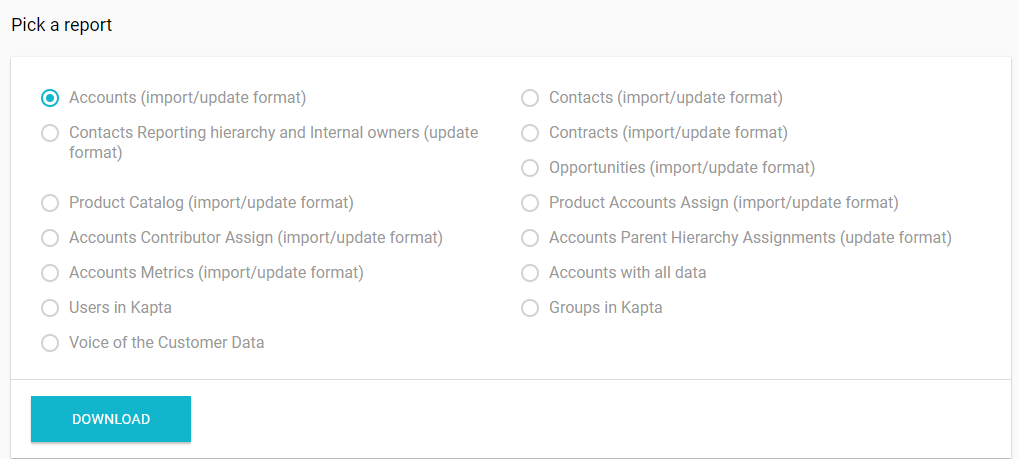
These downloaded spreadsheets can be saved and used on their own as data extracts, but they also serve to provide the necessary formatting for import or updates.
As an example, if you want to import a list of your company's products, start by downloading the Product Catalog report. While maintaining the spreadsheet columns, edit the file to add in your own data or update existing data. Be extremely cautious while doing this, so as not to delete or overwrite any data you want to keep!
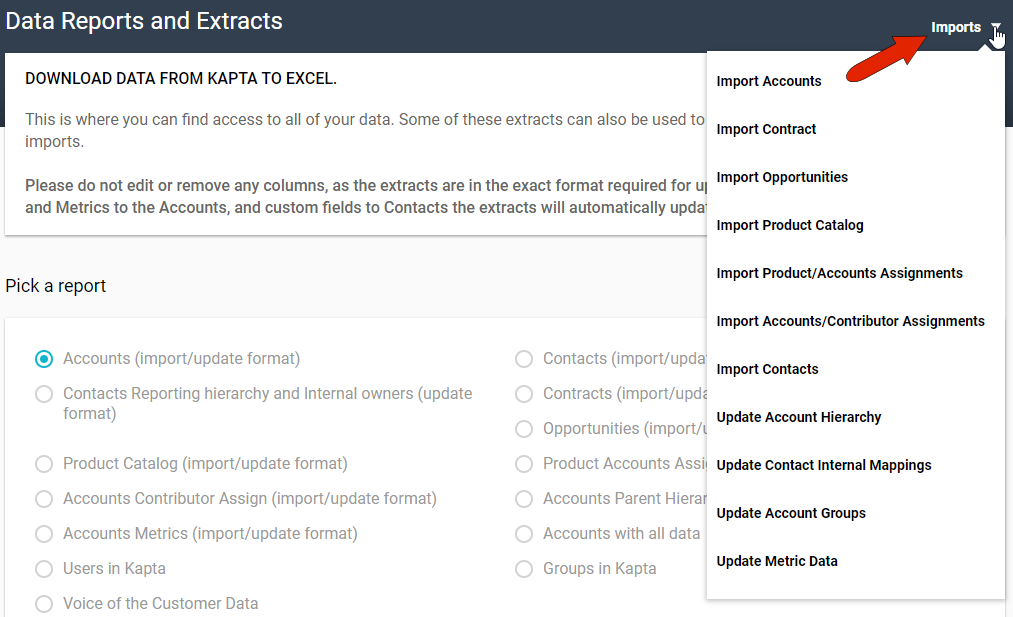
Once your import or update data is formatted correctly, you can use the Imports menu at the top right to bring it in.
Comments
0 comments
Article is closed for comments.