
When an account is open, the sections that appear in the DETAILS tab depend on the features you have enabled. The default order of these sections is set by the administrator, and you can change the order by clicking Re-order your View at the top right.
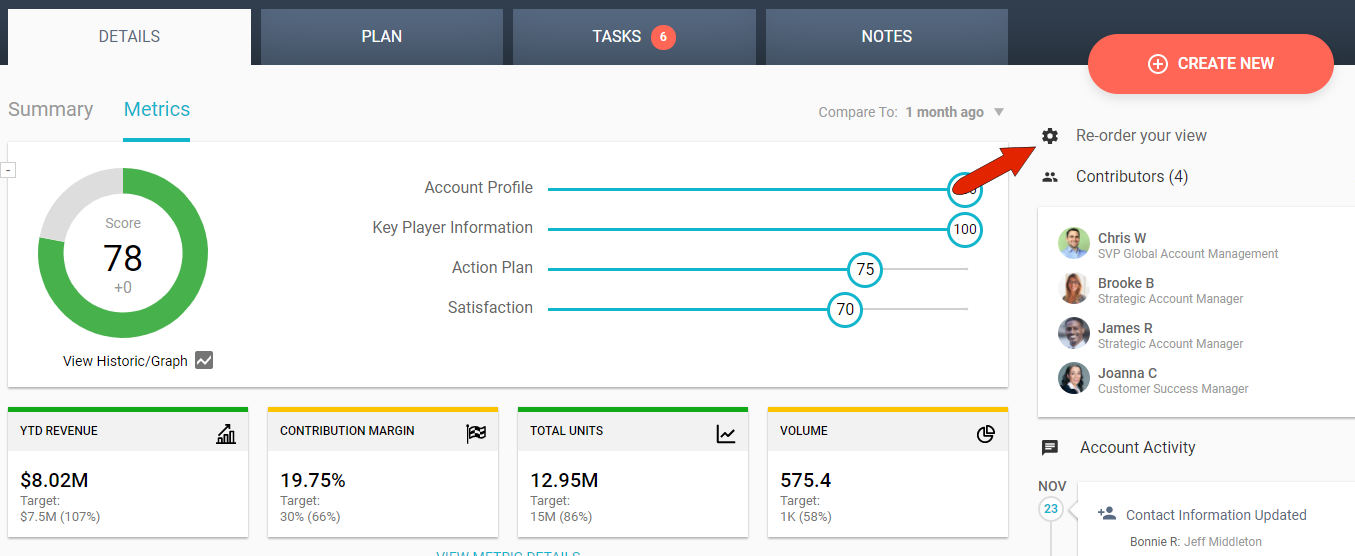
Also at the top right is the list of account contributors, with the account manager, or owner, at the top. You can add contributors, or use the Email link to send an email to some or all of the account contributors.
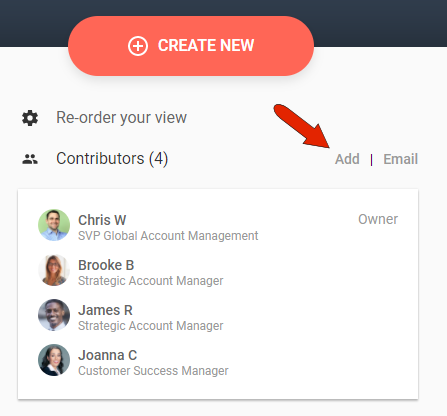
Below the Contributors list is a chronological list of all activity related to this account: all notes, actions, updates, edits, etc. You can click any activity to open its relevant tab on the account page.
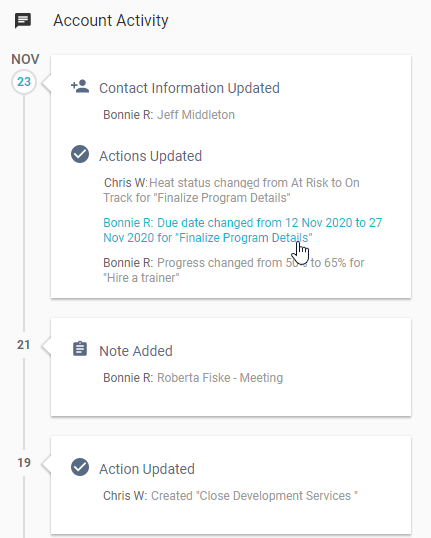
The four tabs across the top - DETAILS, PLAN, TASKS, and NOTES - represent the basic workflow of account management.
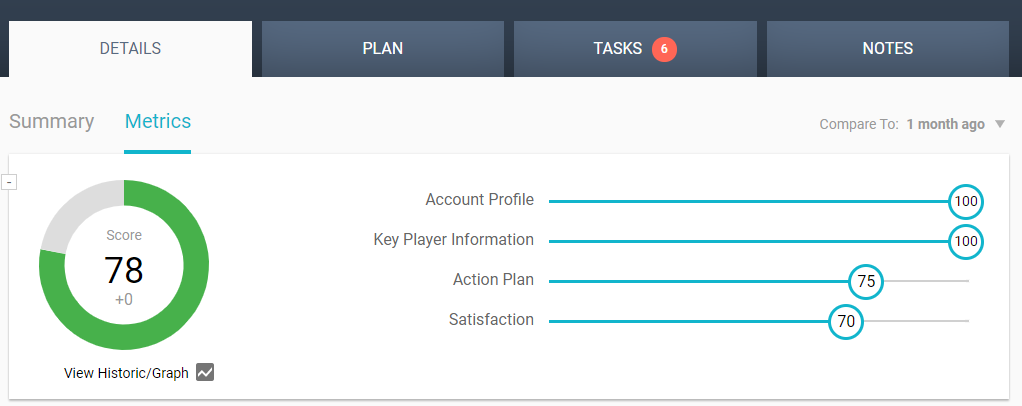
The DETAILS tab, where you’ll enter contracts, key players, products, etc., represents the Know component of our Know - Act - Measure process. Providing the most comprehensive data in this tab will give Kapta the most accurate picture of this customer.
The PLAN, TASKS, and NOTES tabs comprise the Act component. And there are numerous metrics available, to round out the Measure component.
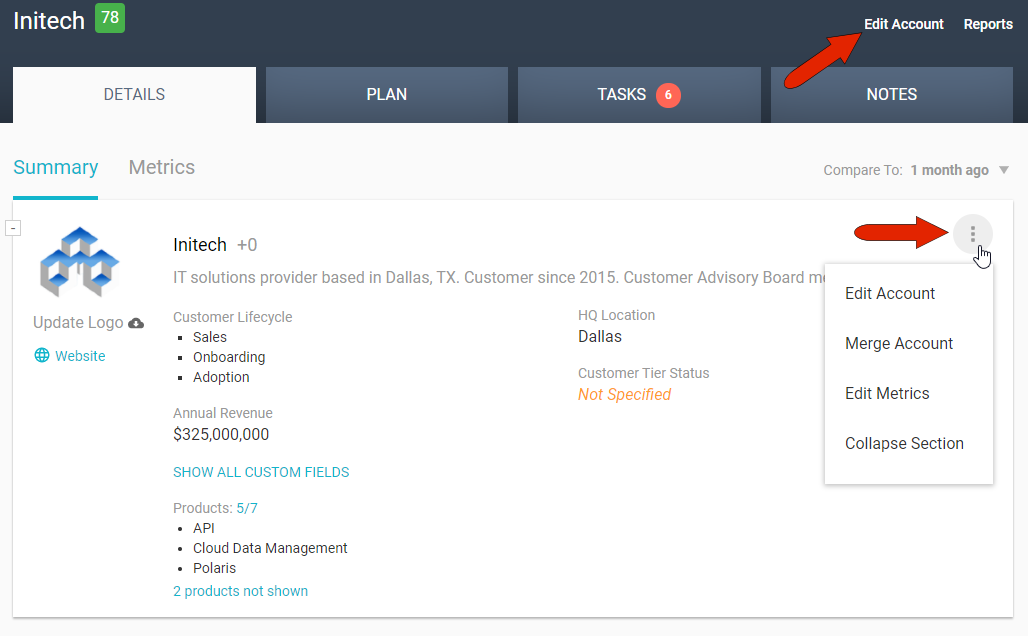
At the top right corner of the Summary section of the DETAILS tab is a three-dot icon. Clicking this icon opens a menu that enables you to edit or merge the account, or view the full set of metrics and edit targets. There is also an Edit Account link at the top right of any account page.
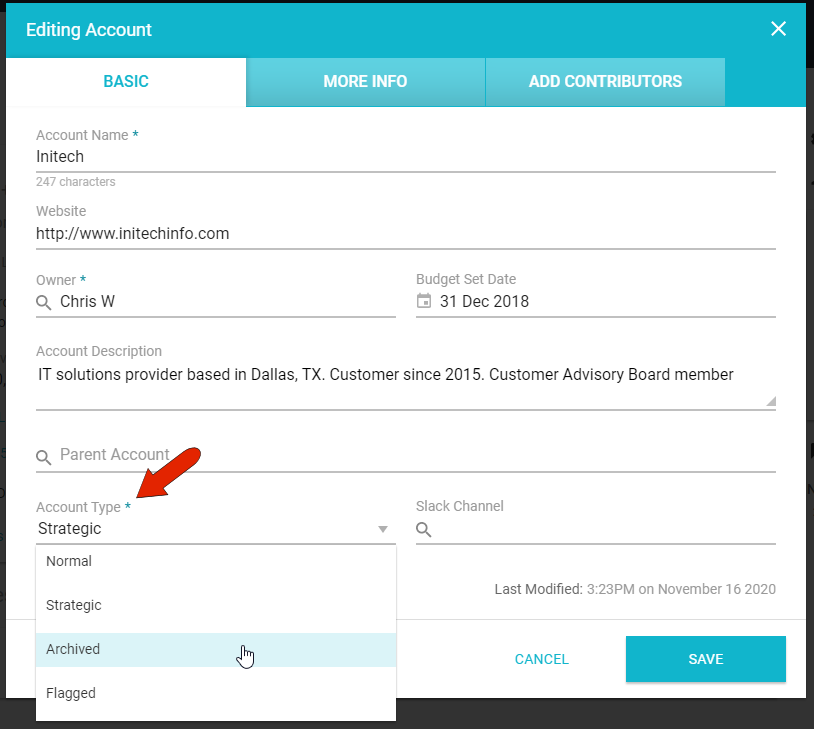
You can use Edit Account to add or edit any details about the customer, or to delete the account. Because deleting an account cannot be undone, an alternative for an inactive account is to change its Account Type to Archived, so that you can access the data later if needed. You can also assign Flagged status to an account that needs immediate attention.
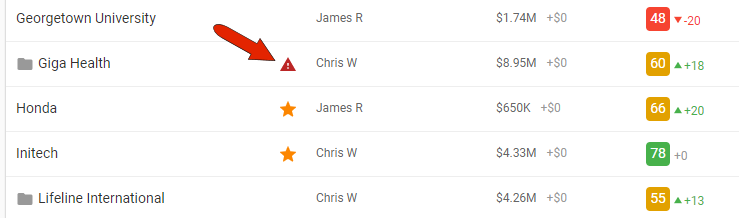
In your overall list of accounts, accessed by clicking Accounts on the left menu, strategic accounts are marked with a star icon, and flagged accounts have a warning icon.
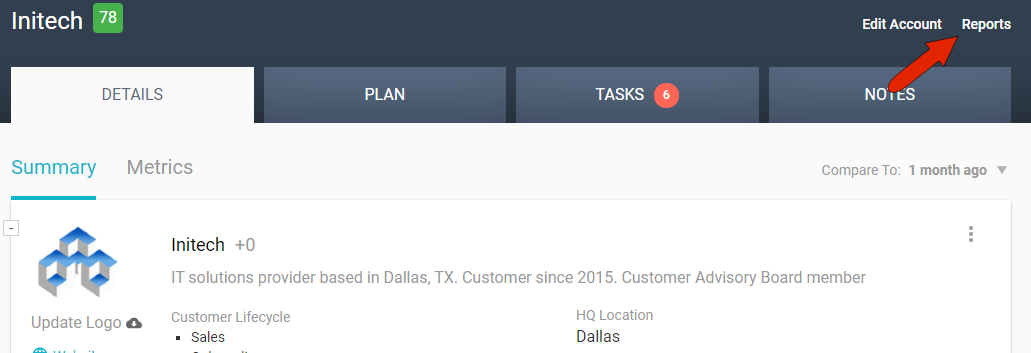
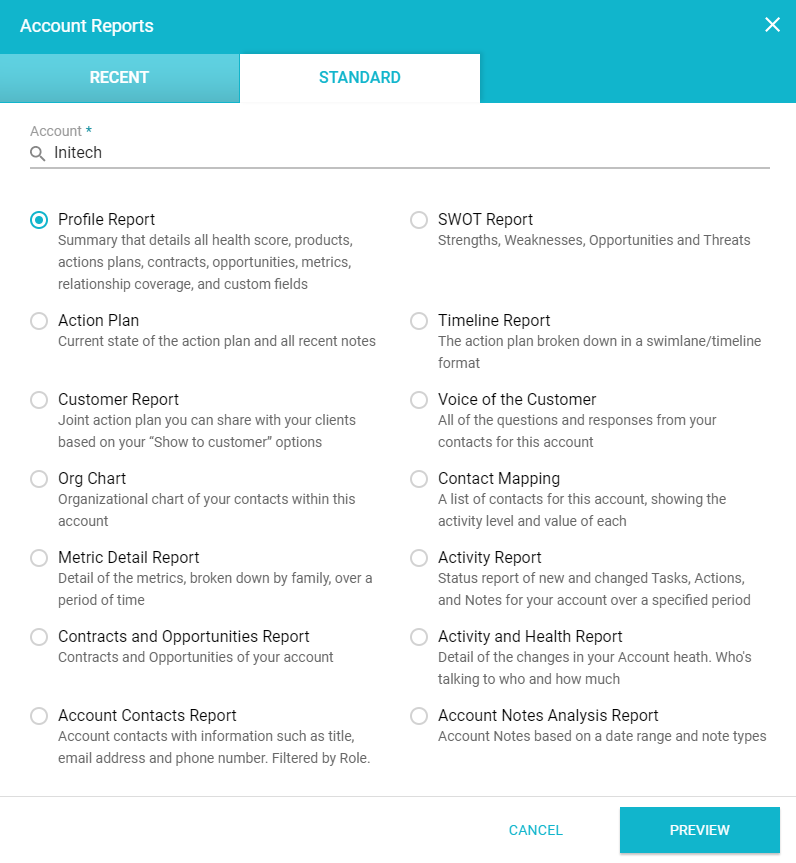
While in an account, there is also a Reports link at the top right, which opens the Account Reports window.
The STANDARD tab displays the list of all available account-level reports, which are set up by the administrator. If you want to generate reports for multiple accounts, generate portfolio-level reports, or access more report options, open Reports on the left menu.
Comments
0 comments
Article is closed for comments.