
Quarterly Business Reviews (QBRs) are a crucial component of the Know-Act-Measure process. The gateway for all QBRs for an account can be found on the account DETAILS tab.
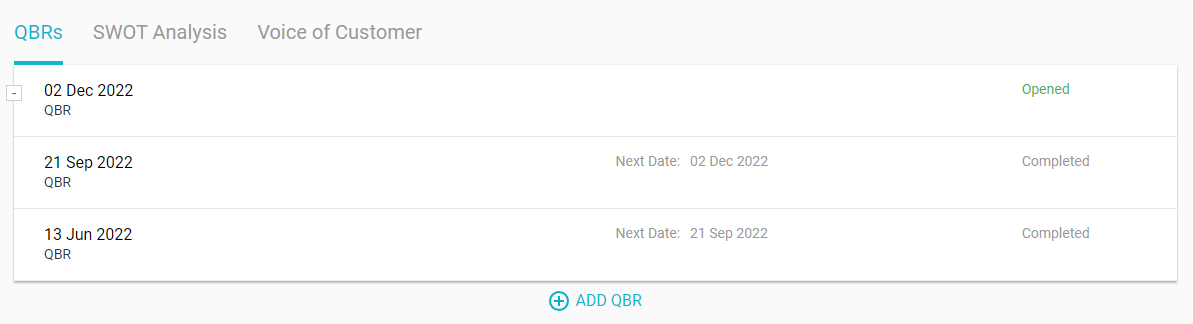
To create a new QBR, click ADD QBR and fill in the necessary details. These include the scheduled date of the QBR, its current stage, and lists of the invited contacts. After saving the settings, you'll be presented with options for pre-populating the agenda and checklist.
Once created, the homepage for the QBR can be viewed.
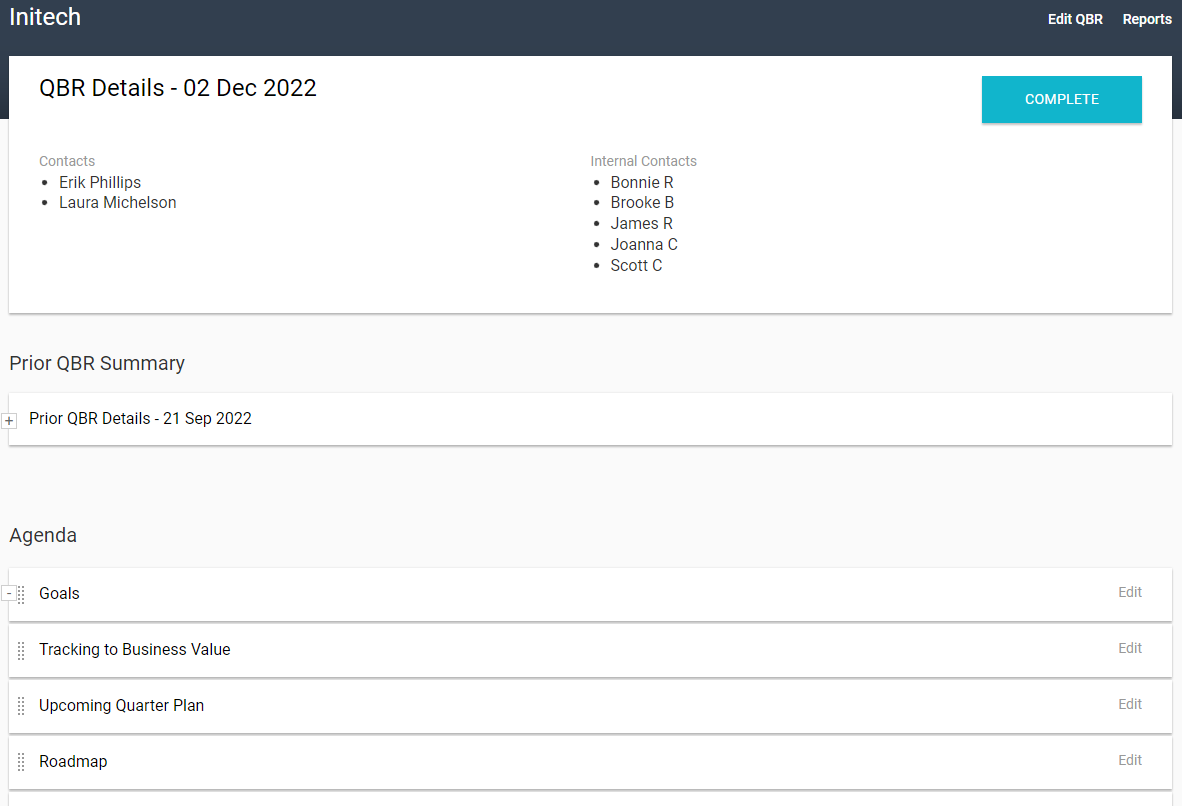
The QBR Details page provides a large number of helpful features.
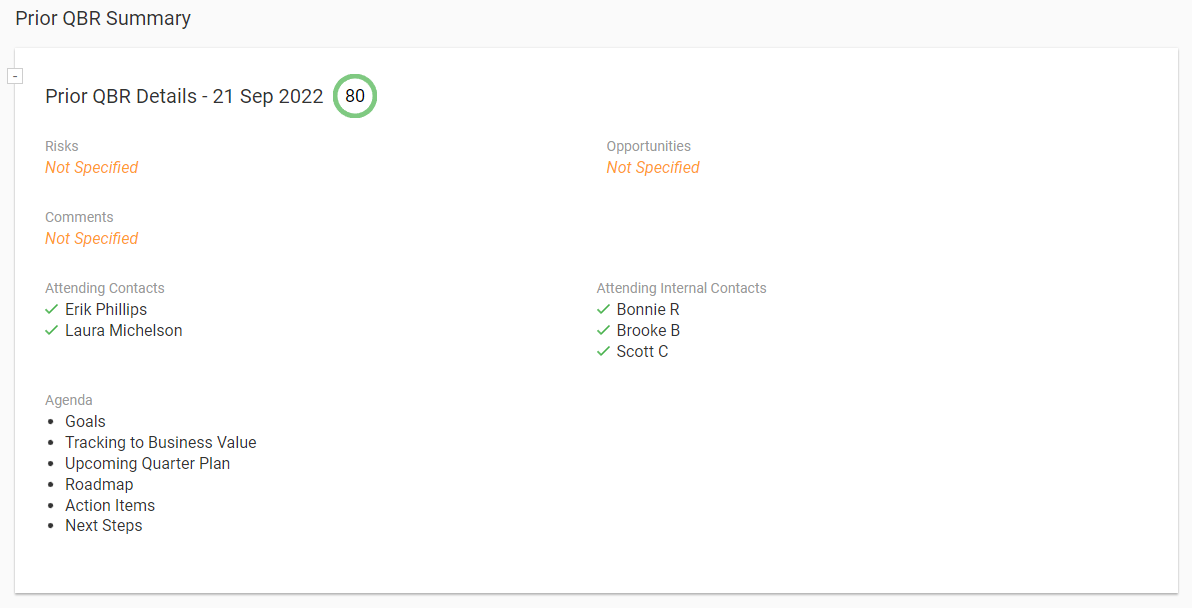
Prior QBR Summary
If not your first QBR for the account, the Prior QBR Summary provides helpful details of the prior QBR, allowing you to see the QBR Rating, any special risks, opportunities or comments, and a list of the attendees.
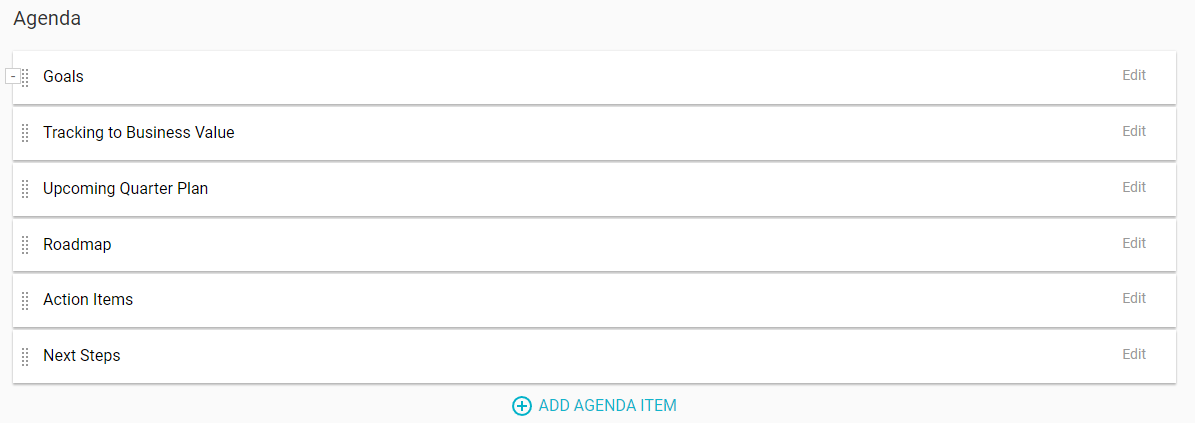
Agenda
In this section, you can customize the agenda for your upcoming QBR. Add, update or delete items from the agenda as desired, or reorder items by drag-and-dropping them to the appropriate order.
Checklist
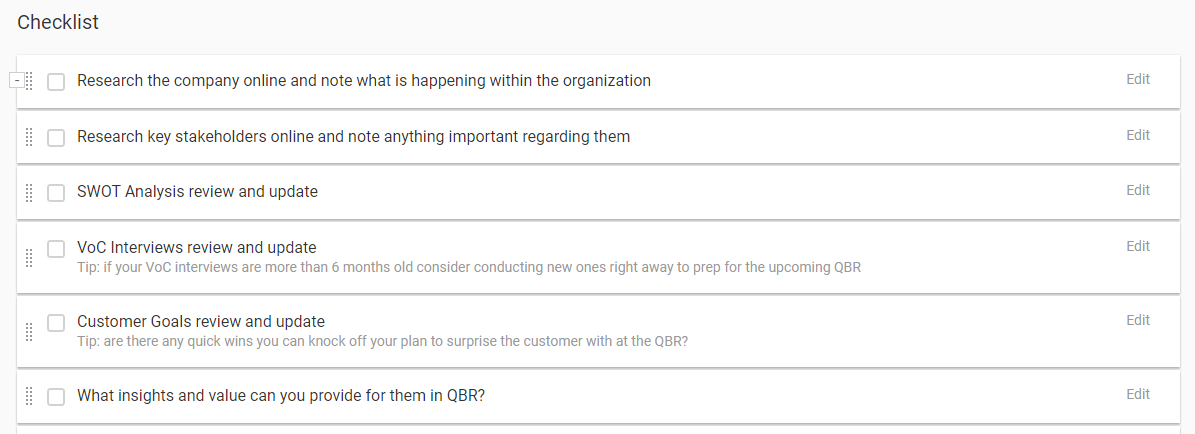
The checklist helps you prepare for your upcoming QBR, making sure have all the necessary information at your disposal before the QBR begins. You may add, update or delete checklist items as desired, or drag-and-drop to reorder them. Check an item to tell yourself that you have the information available.
Tasks
Here you can keep track of the tasks you must complete in preparation for the upcoming QBR. Tasks entered here will additionally display on the account's TASKS tab.

Email Templates
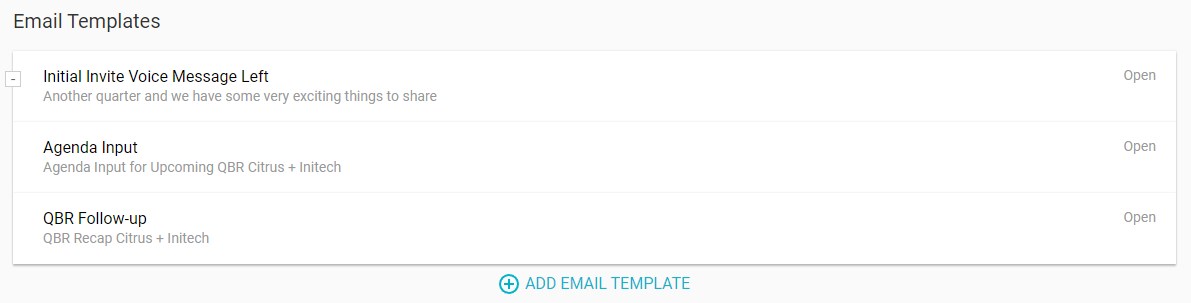
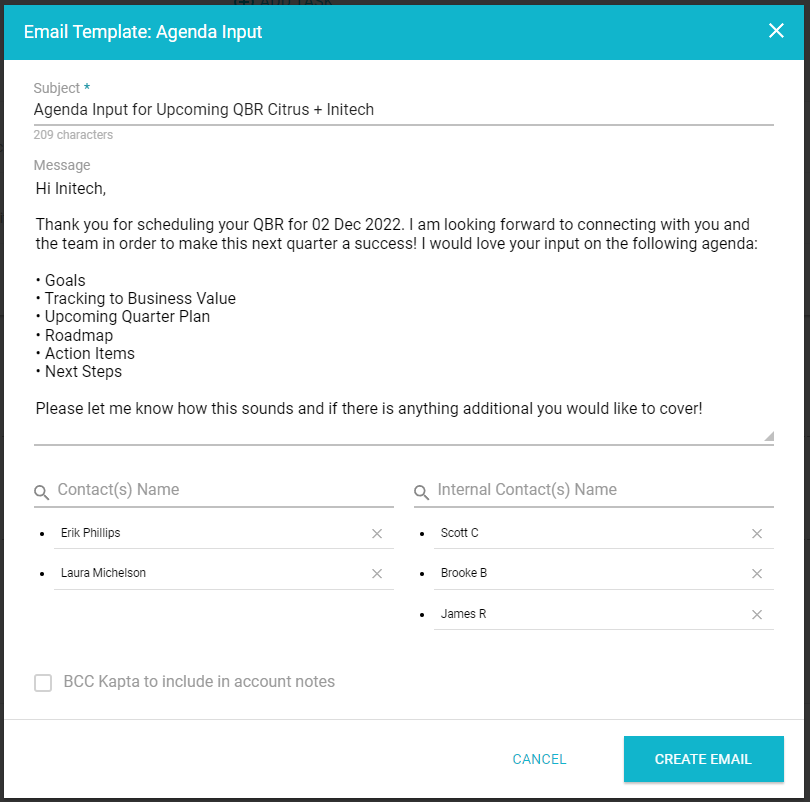
Email templates improve efficiency by not only providing your with reusable text for reaching out to your customers, but also by building the emails for you. Click Open on the desired email template and you'll be presented with the subject and message of the email, along with the configured contacts. Clicking the Create Email button transfers the information to the compose window of your configured email client, where you can complete the submission of the email through your own email account.
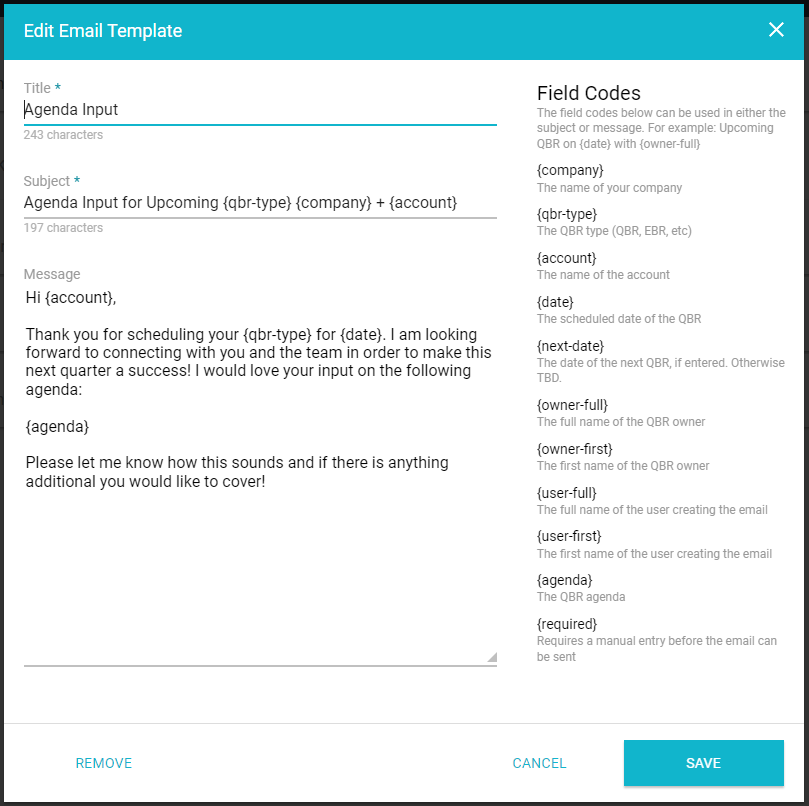
While many email templates are created by the administrator, you can additionally create your own by clicking ADD EMAIL TEMPLATE. Field codes can be used to make the template more generic. When clicking Open from a saved template, the field codes will automatically be replaced with the appropriate information from the QBR.
Documents
The documents section helps keep your QBRs organized by giving you a single location in which to store all of your important documents for a QBR.

Notes
The notes section is helpful for storing important information related to the QBR. It can be particularly helpful for sharing information when there are multiple contributors to an account.

Completing a QBR
Once a QBR has taken place, there are several ways to complete it in the settings.
- From the Account Details, hover over the QBR and click Complete QBR.
- Display the QBR Details page, and then click the blue Complete button.
- Update the QBR Settings, and on the Basic tab change the Stage to Completed.
On the Completion tab of the QBR Settings, you can rate the success of the QBR, specify attendees, and enter make notes for special risks, opportunities, and overall comments.
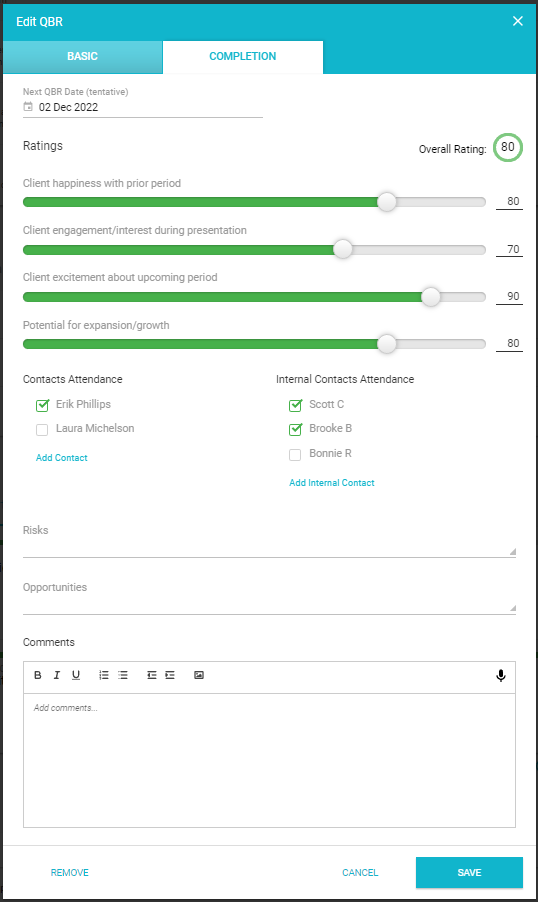
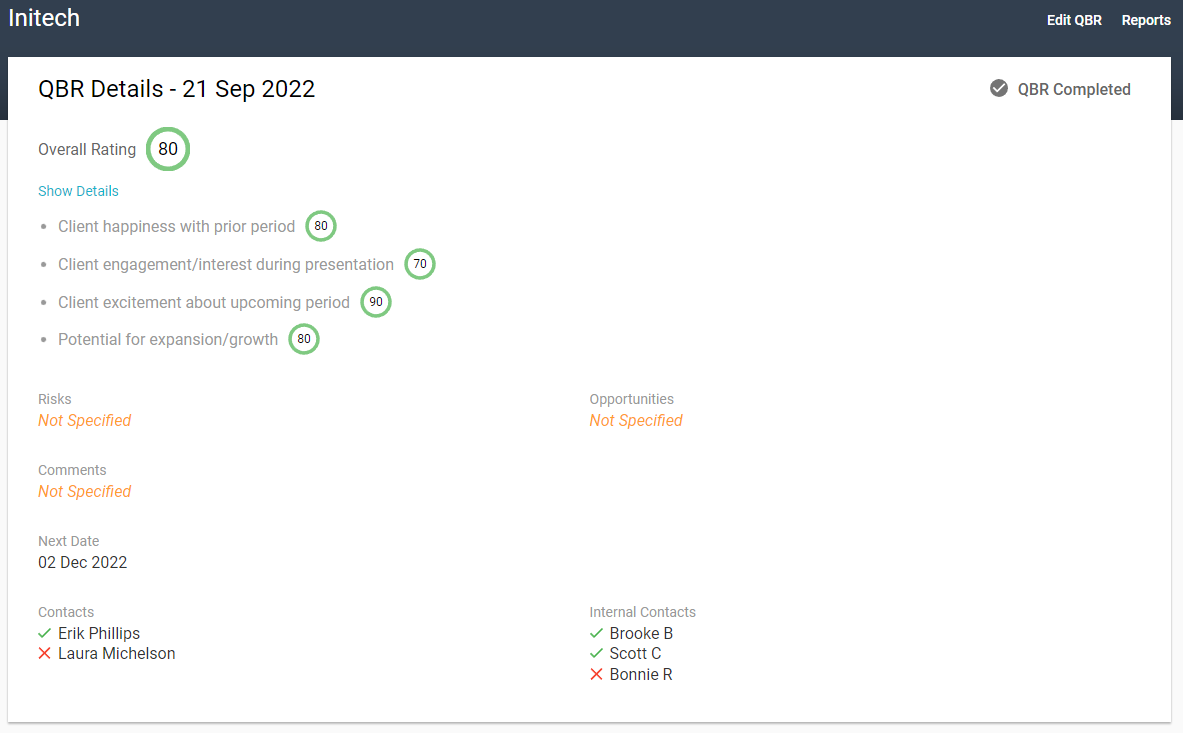
Once completed, those details will become available on the QBR Details page.
QBR Reports
Reports are available for both a detailed view of specific QBRs, as well as a portfolio-based view of the QBR status across all accounts.
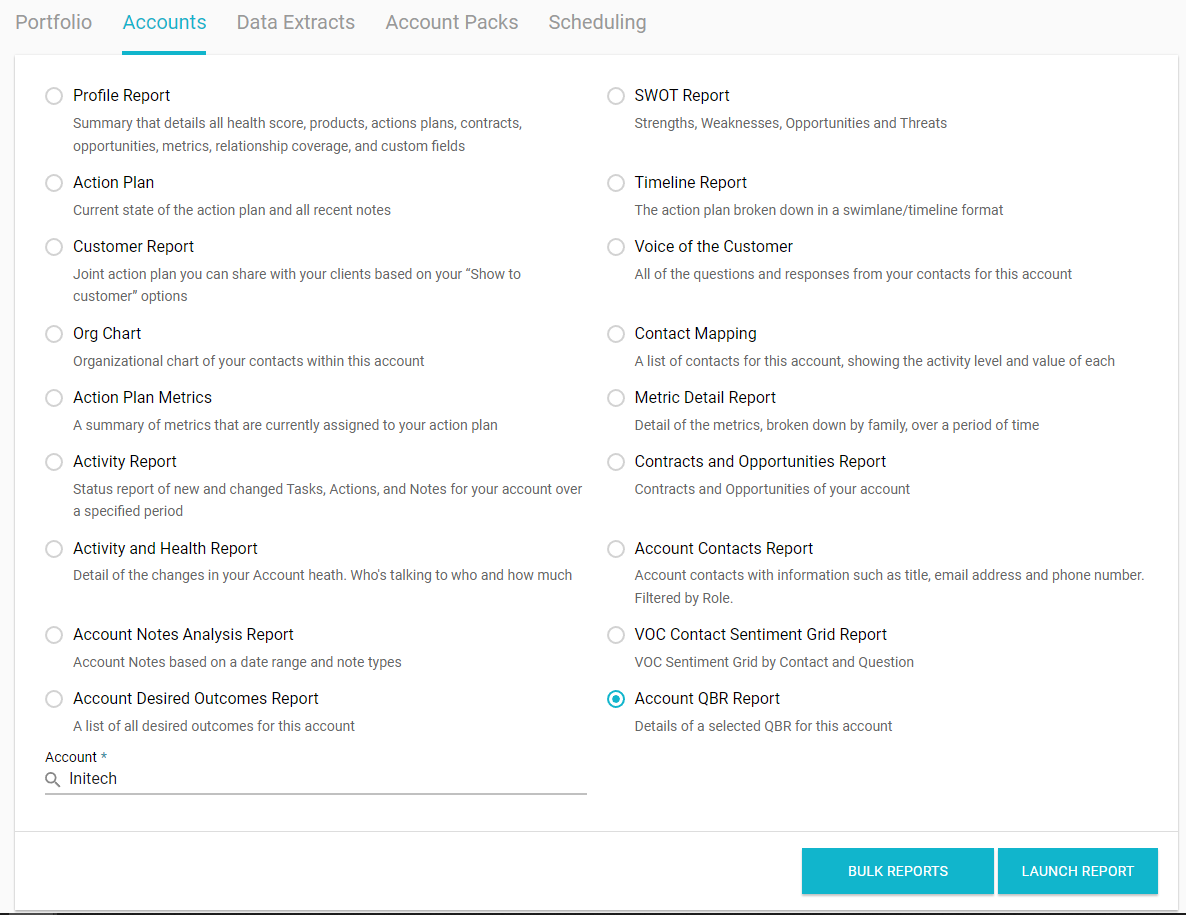
From the Reports menu, the Accounts tab displays detailed information on specific QBRs.
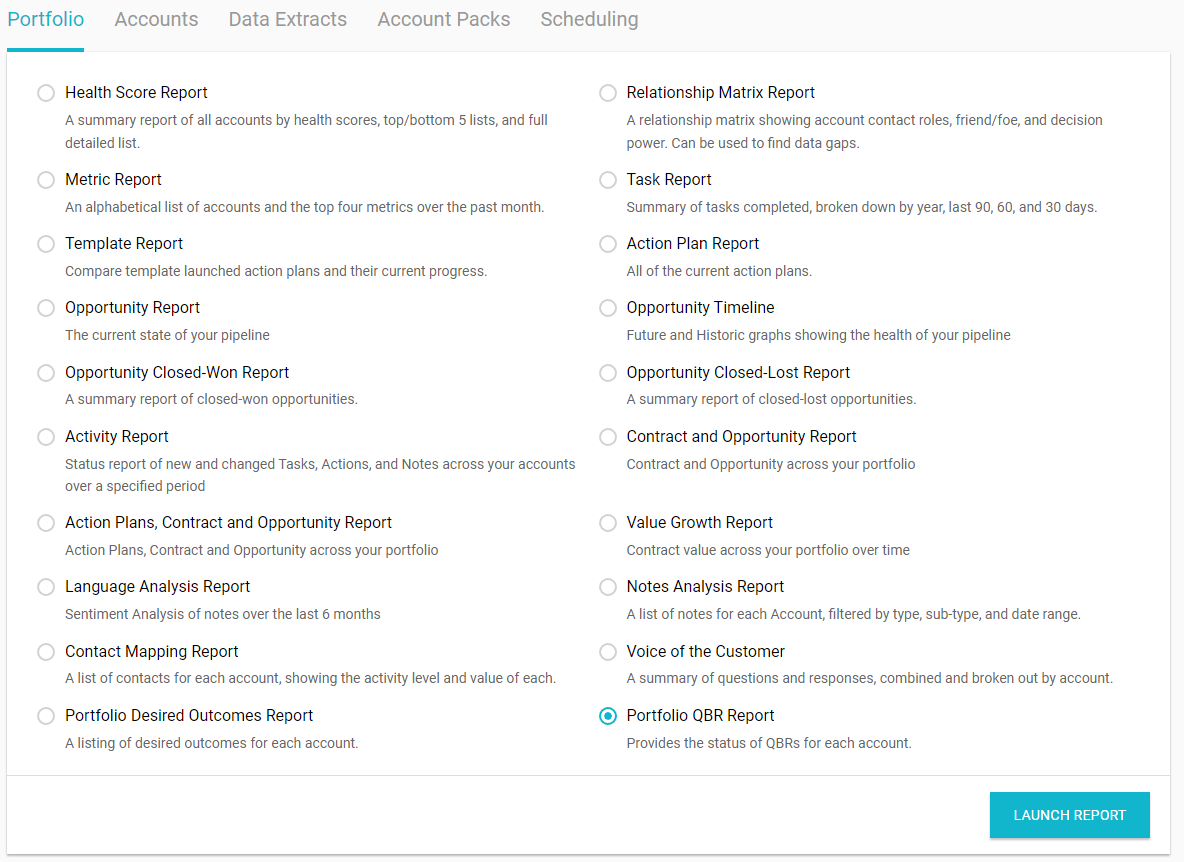
Likewise, the portfolio-based view of the QBR status across all accounts can be found on the Portfolio tab of the Reports menu.
Comments
0 comments
Article is closed for comments.