
As part of your Kapta license, we work with your team to determine which metrics should be set up for your accounts, based on the types of customers you have and what you do for them. We also help you configure how metric data will be populated, typically from external sources.
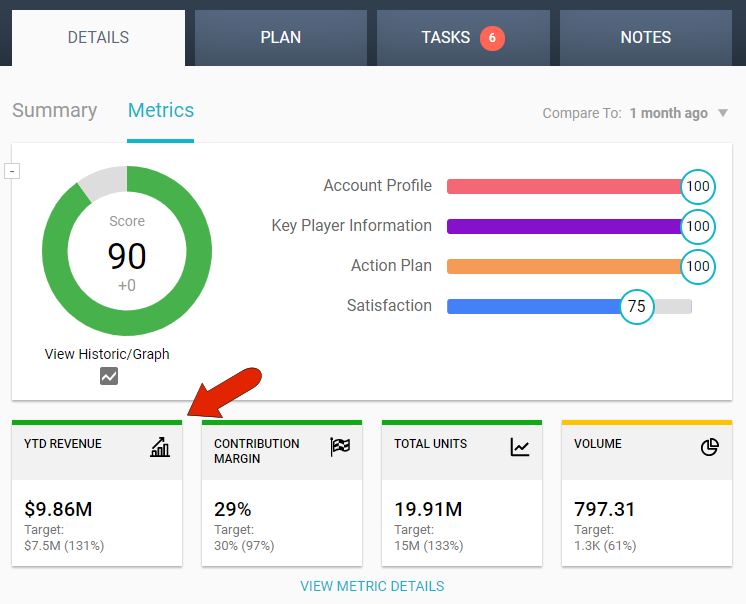
The first four metrics appear in an account's DETAILS tab, in the Metrics section. The remaining metrics can be seen by clicking the View Metric Details link, just below.
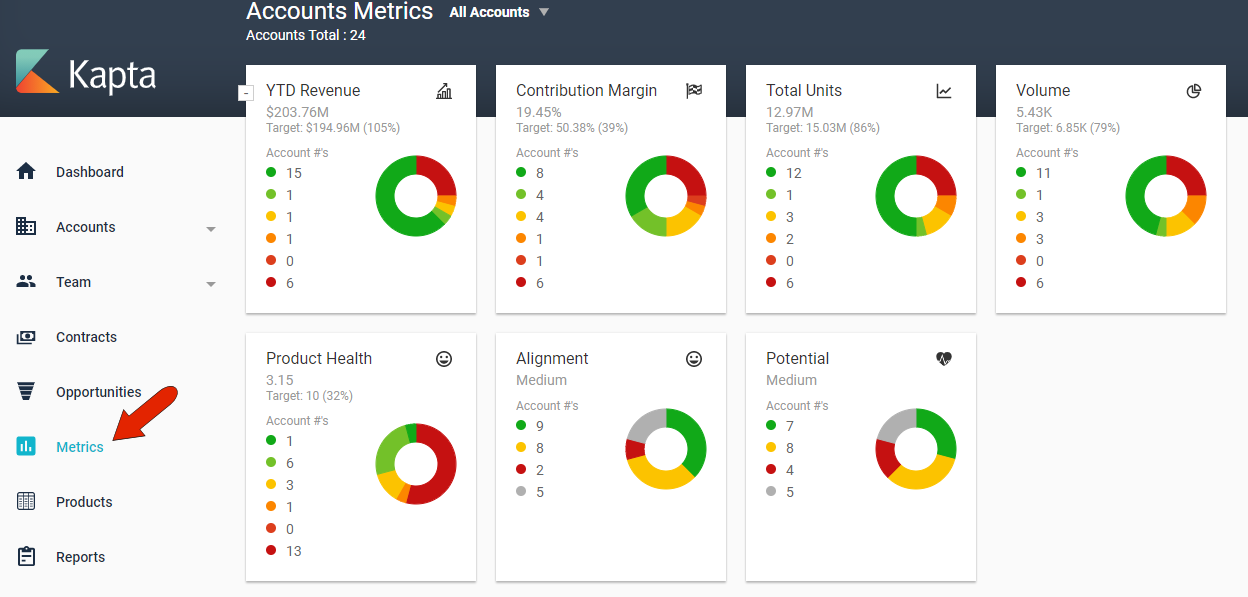
All metrics appear in the portfolio Metrics page.
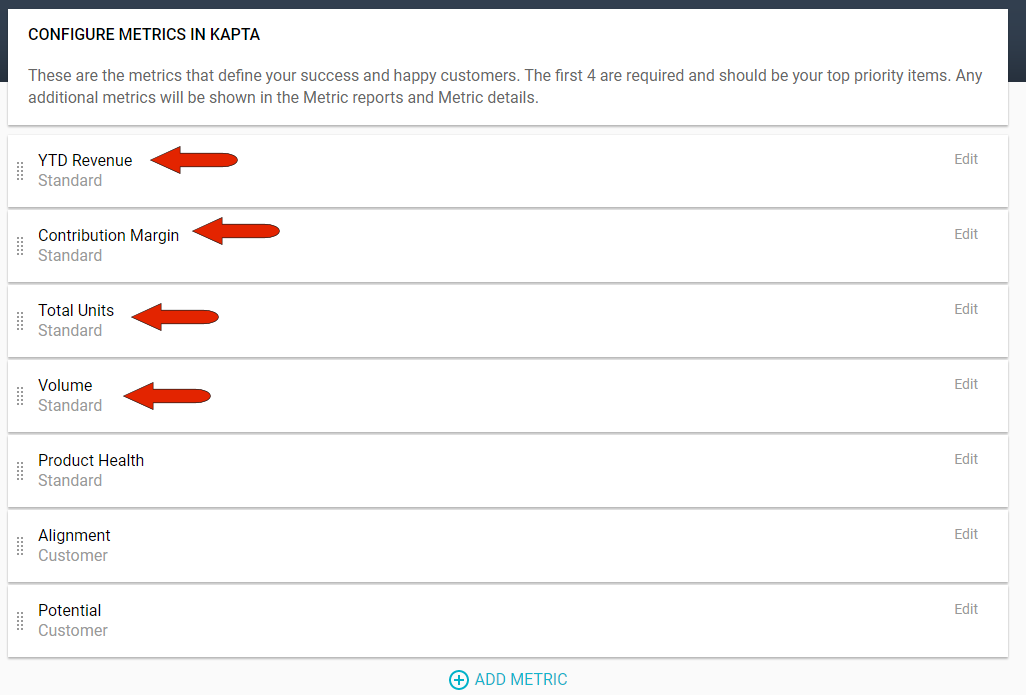
The administrator, in partnership with Kapta, configures these metrics in Metrics Settings.
You need to set up at least four metrics; the first four are what will appear in account summary views.
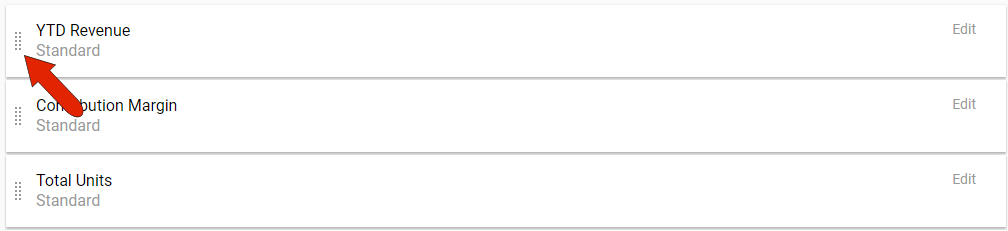
So be sure to set the order of metrics to reflect the order you want. You can drag a metric’s Move icon to move its position.
To add a metric, click the Add Metric link at the bottom of the list of metrics.
Assign the metric name and icon, and set whether the metric will appear as a number, percent, currency, or as a three-color rank For numeric metrics, you’ll need to choose the roll-up as average or sum, and set the number of decimal places. You can also set values for start and target if applicable, which will control the color coding when compared with actual metric values.
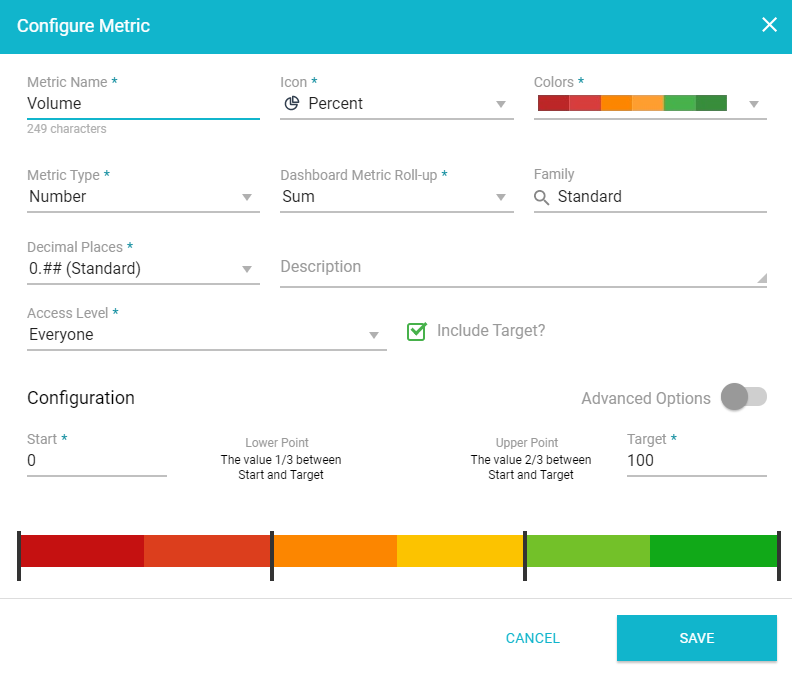
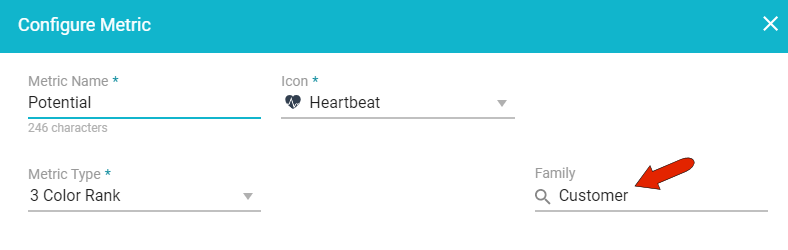
You can also set up metric Families, which will separate metrics into groups in the list of portfolio metrics. For example, you can create a Financial family for revenue and volume metrics, and a Customer family for alignment and potential metrics.
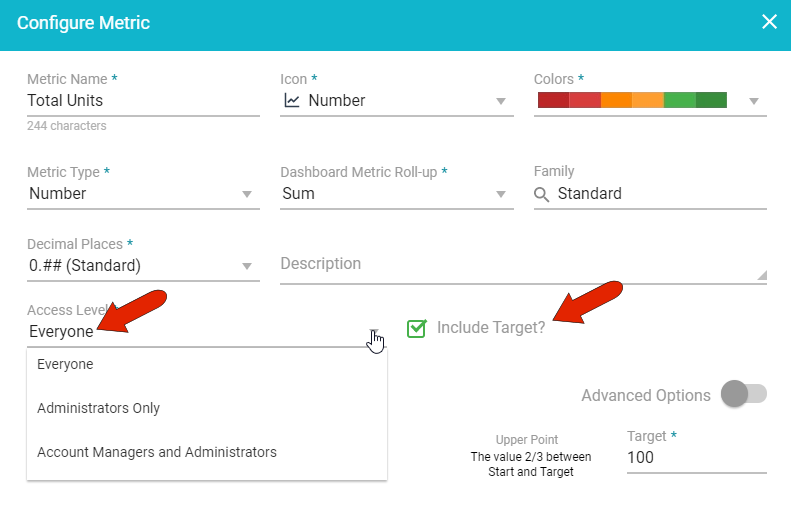
All metrics have access permission levels: available to everyone, only administrators, or admins and account managers. Users with the correct permissions can also edit target values for their accounts.
A metric can be edited or removed by clicking its Edit icon. Note that the first four metrics cannot be removed; you will need to change the order of a metric you want to remove.

Comments
0 comments
Please sign in to leave a comment.